Performance / Composition Synthesizer · Version 3.0
Section 15 — Sampled Sound Parameters
This section offers detailed descriptions of the specific parameters used in editing Sampled Sounds. A Sampled Sound must be selected in Sounds mode (press Sounds) in order for these parameter pages to be displayed. Most parameters are available on a per-WaveSample basis, except for the parameters on the Layer page that apply to all WaveSamples in entire layers. For an overview of the concepts involved, refer to Section 14 — Understanding Sampled Sounds.
Edit KEY-DOWN/KEY-UP LAYERS Page (Copy button)
The parameters on this page control which layer(s) will be triggered when the keyboard is played. To access these parameters press Copy, which is the Sampled Sound Edit KEY-DOWN/KEY-UP button.

KEY-DOWN-LAYERSRange: various combinations of layers
This parameter determines which layer(s) will be triggered when a key is pressed down.
- Select KEY-DOWN-LAYERS=########. Successive presses of the soft button above KEY-DOWN-LAYERS will move the cursor through the numbers representing each layer. When the desired layer number is underlined, use the Data Entry Slider or Up/Down Arrow buttons to select either a number (layer enabled on keydown) or a dash (layer disabled on keydown) for each layer.
KEY-UP-LAYERSRange: various combinations of layers
This parameter determines which layer(s) will be triggered when a key is released. A good example of this would be the “thunk” sound made by a harpsichord when you release a key.
This release sound can be a separate sample placed in a layer designated as a keyup layer. If you want a layer to be triggered only when keys are released, first enable the layer on the KEY-UP-LAYERS parameter, and then disable the same layer on the KEY-DOWN-LAYERS parameter.
- Select KEY-UP-LAYERS=########. Successive presses of the soft button beneath KEY-UP-LAYERS will move the cursor through the numbers representing each layer. When the desired layer number is underlined, use the Data Entry Slider or Up/Down Arrow buttons to select either a number (layer enabled on keyup) or a dash (layer disabled on keyup) for each layer.
PATCHRange: LIVE, -00-, -0*-, -*0-, -**-, HELD
Selects the default patch select mode for the Sampled Sound. When set to LIVE, it uses the current state of the buttons to select a patch. When set to HELD, it uses the patch set by the first key hit while touching the patch select buttons. When set to any of the 4 patches (-00-, -0*-, -*0-, -**-), the Sampled Sound will ignore the patch selects and will always play the layers in the selected patch. For more information about patch selects, refer to Section 4 — Understanding Presets and Section 5 — Preset/Track Parameters. This is the default setting that will be installed into a track when the Sampled Sound is selected.
TRK Defaults Page (Write Program button)
The parameters on this page are the default settings for the Track parameters that are stored with the Sampled Sound when it is saved as a SAMPLE-EDITS file. For more information about how these parameters function, see Section 5 — Preset/Track Parameters. To access these parameters press Write Program, which is the Sampled Sound TRK button.
The SAMPLED SOUNDTRK page contains copies of track parameters that are saved in the Sampled Sound. When a Sampled Sound is selected or put on a track, values of these parameters are installed in the track as the default initial settings. They can be edited on the track pages without affecting the Sampled Sound default settings, but must be edited on this page in order to be saved with the SAMPLE-EDITS feature. Changes made here will be copied to the current primary track.

XPOSRange: -64 to +63
This parameter is the default transposition for the Sampled Sound. It is a transposition offset independent of the Track TRANSPOSE setting, and determines the pitch of the Sampled Sound when Track TRANSPOSE is set to +0 +00 (i.e.: nominal pitch). Editing this parameter will not edit the Track TRANSPOSE value.
BRIGHTRange: -64 to +63
Editing the BRIGHT parameter default values will simultaneously edit the Track BRIGHTNESS parameter values on the track that the Sampled Sound is occupying. This is the default setting that will be installed into a track when the Sampled Sound is selected.
RATERange: -64 to +63
Editing the RATE parameter default values will simultaneously edit the Track RATE parameter values on the track that the Sampled Sound is occupying. This is the default setting that will be installed into a track when the Sampled Sound is selected.
RELSRange: -64 to +63
Editing the RELS parameter default values will simultaneously edit the Track RELEASE parameter values on the track that the Sampled Sound is occupying. This parameter will affect the Time 5 value for Envelopes 1, 2 and 3. This is the default setting that will be installed into a track when the Sampled Sound is selected.
PRESSRange: OFF, KEY, or CHAN
Allows you to select Poly-Key, Channel, or OFF (for no pressure response) for the Sampled Sound. Generally, if a Sampled Sound doesn’t need to respond to pressure, set this to OFF to conserve sequencer memory. This is the default setting that will be installed into a track when the Sampled Sound is selected.
XCTRLRange: 000 to 127
Editing the XCTRL parameter default values will simultaneously edit the Track XCTRL parameter values on the track that the Sampled Sound is occupying. This parameter will only function if XCTRL has been assigned as a modulator within the selected Sampled Sound. This is the default setting that will be installed into a track when the Sampled Sound is selected.
LFO Page
The LFO page contains the parameters related to the Low Frequency Oscillator. Each WaveSample has its own LFO, which can be assigned as a modulator wherever a modulation source is selected. LFO’s are commonly used to create vibrato, tremolo, and other effects.
Press the LFO button. This takes you to the first sub-page of the LFO page:

RATERange: 0 to 99
Determines the speed of the LFO. The table below shows the frequency (in hertz) for each value:
| Value | Time (in Hz) | Value | Time (in Hz) | Value | Time (in Hz) | Value | Time (in Hz) | Value | Time (in Hz) |
|---|---|---|---|---|---|---|---|---|---|
| 0 | .05 | 20 | 1.25 | 40 | 6.25 | 60 | 11.25 | 80 | 16.25 |
| 1 | .05 | 21 | 1.50 | 41 | 6.50 | 61 | 11.50 | 81 | 16.50 |
| 2 | .06 | 22 | 1.75 | 42 | 6.75 | 62 | 11.75 | 82 | 16.75 |
| 3 | .06 | 23 | 2.00 | 43 | 7.00 | 63 | 12.00 | 83 | 17.00 |
| 4 | .06 | 24 | 2.25 | 44 | 7.25 | 64 | 12.25 | 84 | 17.25 |
| 5 | .07 | 25 | 2.50 | 45 | 7.50 | 65 | 12.50 | 85 | 17.50 |
| 6 | .07 | 26 | 2.75 | 46 | 7.75 | 66 | 12.75 | 86 | 17.75 |
| 7 | .08 | 27 | 3.00 | 47 | 8.00 | 67 | 13.00 | 87 | 18.00 |
| 8 | .08 | 28 | 3.25 | 48 | 8.25 | 68 | 13.25 | 88 | 18.25 |
| 9 | .09 | 29 | 3.50 | 49 | 8.50 | 69 | 13.50 | 89 | 18.50 |
| 10 | .10 | 30 | 3.75 | 50 | 8.75 | 70 | 13.75 | 90 | 18.75 |
| 11 | .11 | 31 | 4.00 | 51 | 9.00 | 71 | 14.00 | 91 | 19.00 |
| 12 | .13 | 32 | 4.25 | 52 | 9.25 | 72 | 14.25 | 92 | 19.25 |
| 13 | .14 | 33 | 4.50 | 53 | 9.50 | 73 | 14.50 | 93 | 19.50 |
| 14 | .17 | 34 | 4.75 | 54 | 9.75 | 74 | 14.75 | 94 | 19.75 |
| 15 | .20 | 35 | 5.00 | 55 | 10.00 | 75 | 15.00 | 95 | 20.00 |
| 16 | .25 | 36 | 5.25 | 56 | 10.25 | 76 | 15.25 | 96 | 20.25 |
| 17 | .33 | 37 | 5.50 | 57 | 10.50 | 77 | 15.50 | 97 | 20.50 |
| 18 | .50 | 38 | 5.75 | 58 | 10.75 | 78 | 15.75 | 98 | 20.75 |
| 19 | 1.0 | 39 | 6.00 | 59 | 11.00 | 79 | 16.00 | 99 | 21.00 |
RATE MODSRCRange: various
Selects a modulation source for LFO RATE from among the 15 available modulators.
RATE MODAMTRange: 0 to 99
Determines the amount by which the assigned RATE modulator will affect the LFO RATE. The effect of RATE MODAMT is added to the effect of the LFO RATE parameter.
DEPTHRange: 0 to 99
Sets the “manual” level of the LFO. DEPTH controls the initial amount of LFO.
DEPTH MODSRCRange: various
Selects a modulation source for LFO DEPTH from among the 15 available modulators.
DEPTH MODAMTRange: 0 to 99
Determines the amount by which the assigned DEPTH modulator will affect the LFO DEPTH. The effect of DEPTH MODAMT is added to the effect of the LFO DEPTH parameter.
Press the LFO button again to access the second sub-page of the LFO page. The display reads:

WAVESHAPERange: various (see below)
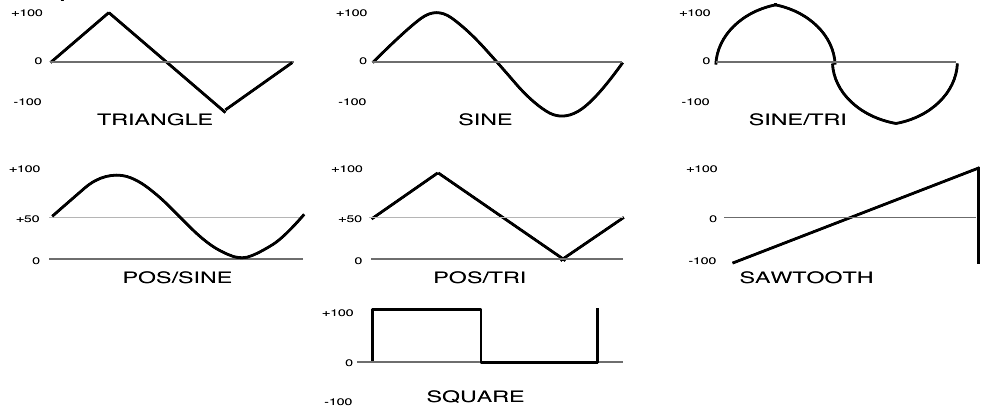
Determines how the LFO signal will rise and fall. There are seven possible values:
- TRIANGLE — the triangle wave is commonly used to modulate pitch to produce vibrato.
- SINE/TRI — a mixture of a sine and triangle wave, a sort of pointy sine wave.
- SINE — the sine wave is a pure fundamental frequency, more rounded in its peaks and valleys than the triangle wave.
- POS/TRI — the POS/TRI is a positive-only triangle wave useful for simulating vibrato on sounds like the guitar, where vibrato techniques are limited to bending the note up.
- POS/SINE — the POS/SINE is a positive-only sine wave, similar in application to the POS/TRI.
- SAWTOOTH — the sawtooth wave is commonly used for special effects.
- SQUARE — this positive-only square wave is useful for producing in-tune trill effects.
RESTART-MODERange: OFF or ON
Determines whether the LFO will restart with each keystrike. When set to OFF, the LFO will cycle continuously without restarting. When set to ON, the LFO waveform will always start at the beginning of its cycle each time a new key is struck.
DELAYRange: 0 to 99
Determines the time it takes for the LFO to go from zero to the amount set with the DEPTH parameter. Values above 0 will cause the LFO to take longer to achieve its full depth. This is useful for creating delayed vibrato, tremolo, etc.
NOISE-RATERange: 0 to 99
One of the TS‑10’s 15 available modulation sources is NOISE. The NOISE modulator produces a randomly changing level. Its main use is to randomize or “humanize” pitch when applied as a pitch modulator. It can also be used to randomize any other modulation destination. Typically, the NOISE signal might look like this:
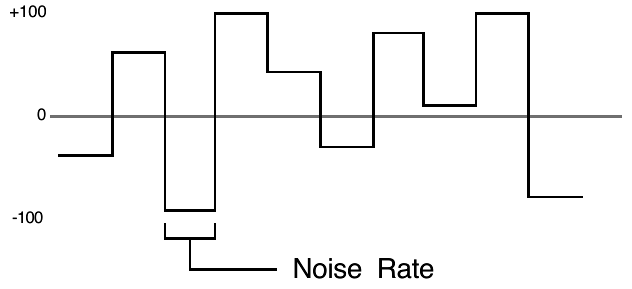
NOISE-RATE determines how frequently the random level will change. Low values will cause it to change very slowly; with high values the level will change quickly.
WaveSample Envelopes
Each WaveSample has three envelopes associated with it. These envelopes are hard-wired to the pitch, filter cutoff frequency, and amplitude of the WaveSample. Env 1 and Env 2 can also be assigned elsewhere, wherever a modulator is selectable. Each of the three envelope buttons are directly above the page buttons for the function that they are hard-wired to:
- Env 1 is hard-wired to WaveSample pitch modulation.
- Env 2 is hard-wired to WaveSample filter cutoff frequency.
- Env 3 is hard-wired to WaveSample output volume.
About ENV 3
The ENV3 LEVEL parameters and the WaveSample VOL parameter on the Output page both use the same (non linear) response curve. As shown below, setting any of these volume controls to 50 will attenuate a sound by 16 dB.
| Hard or Soft Level Response | Level Amplitude |
|---|---|
| 99 | 0 dB |
| 75 | -8 dB |
| 50 | -16 dB |
| 25 | -32 dB |
| 6 | -56 dB |
| 0 | -∞ (infinity) |
Typical WaveSample Envelope
The figure below shows a typical WaveSample envelope shape:
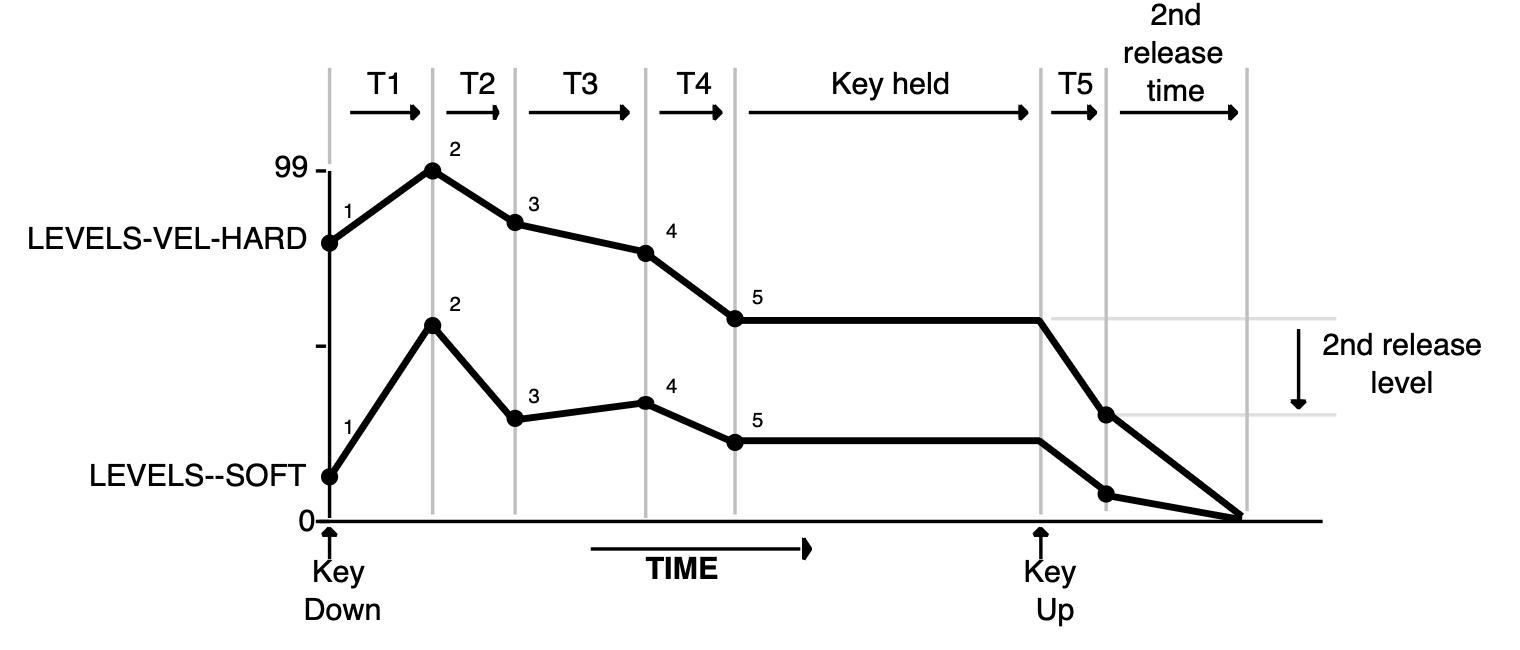
The WaveSample envelopes have six times and six levels. The envelope parameters allow you to describe two entirely different shapes; one for maximum velocity (VEL-HARD) and one for minimum velocity (SOFT). When a key is struck, the envelope generator interpolates between the two, creating a curve that is a combination of the two based on the incoming velocity.
ENV1, ENV2, ENV3 Pages
The ENV1, ENV2, and ENV3 pages, parameters and ranges are all the same except where indicated below. We will use ENV3 as our example, since its effect on the volume of the WaveSample is immediately apparent.
LEVELS - VEL-HARDRange: 0 to 99
Press the Env 3 button. The display shows the first ENV3 sub-page.

VEL-HARD shows the five levels for the envelope that will be used with maximum velocity.
Level-1 is the initial level. In a traditional ADSR shape, Level-1 is always set to zero. Level-5 is the sustain level.
LEVELS - SOFTRange: 0 to 99
SOFT shows the five levels for the envelope that will be used with minimum velocity.
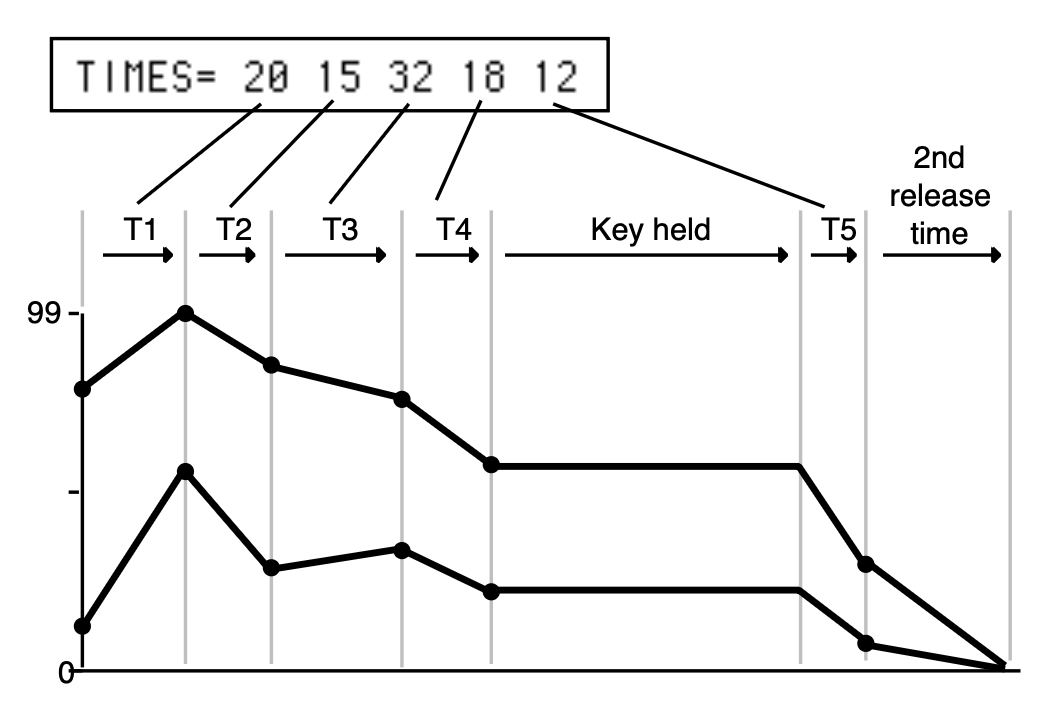
TIMESRange: 0 to 99
TIME shows five time parameters. The first four are the times between the five levels. The fifth time is the (first) release time.
Note that the numbers shown here represent durations, not rates. That is, the envelope will take a fixed amount of time to go from one level to another no matter how close together or far apart those two levels are.
| Value | Time (in sec) | Value | Time (in sec) | Value | Time (in sec) | Value | Time (in sec) | Value | Time (in sec) |
|---|---|---|---|---|---|---|---|---|---|
| 0 | .00 | 20 | .20 | 40 | .82 | 60 | 3.2 | 80 | 13 |
| 1 | .01 | 21 | .22 | 41 | .88 | 61 | 3.5 | 81 | 14 |
| 2 | .02 | 22 | .23 | 42 | .94 | 62 | 3.7 | 82 | 15 |
| 3 | .03 | 23 | .25 | 43 | 1.0 | 63 | 4.0 | 83 | 16 |
| 4 | .04 | 24 | .27 | 44 | 1.0 | 64 | 4.3 | 84 | 17 |
| 5 | .06 | 25 | .29 | 45 | 1.1 | 65 | 4.6 | 85 | 18 |
| 6 | .07 | 26 | .31 | 46 | 1.2 | 66 | 4.9 | 86 | 19 |
| 7 | .08 | 27 | .33 | 47 | 1.3 | 67 | 5.3 | 87 | 21 |
| 8 | .08 | 28 | .35 | 48 | 1.4 | 68 | 5.7 | 88 | 22 |
| 9 | .09 | 29 | .38 | 49 | 1.5 | 69 | 6.1 | 89 | 24 |
| 10 | .10 | 30 | .41 | 50 | 1.6 | 70 | 6.5 | 90 | 26 |
| 11 | .11 | 31 | .44 | 51 | 1.7 | 71 | 7.0 | 91 | 28 |
| 12 | .11 | 32 | .47 | 52 | 1.8 | 72 | 7.5 | 92 | 30 |
| 13 | .12 | 33 | .50 | 53 | 2.0 | 73 | 8.1 | 93 | 32 |
| 14 | .13 | 34 | .54 | 54 | 2.1 | 74 | 8.6 | 94 | 34 |
| 15 | .14 | 35 | .58 | 55 | 2.3 | 75 | 9.3 | 95 | 37 |
| 16 | .15 | 36 | .62 | 56 | 2.4 | 76 | 9.9 | 96 | 39 |
| 17 | .16 | 37 | .66 | 57 | 2.6 | 77 | 10 | 97 | 42 |
| 18 | .17 | 38 | .71 | 58 | 2.8 | 78 | 11 | 98 | 45 |
| 19 | .19 | 39 | .76 | 59 | 3.0 | 79 | 12 | 99 | 49 |
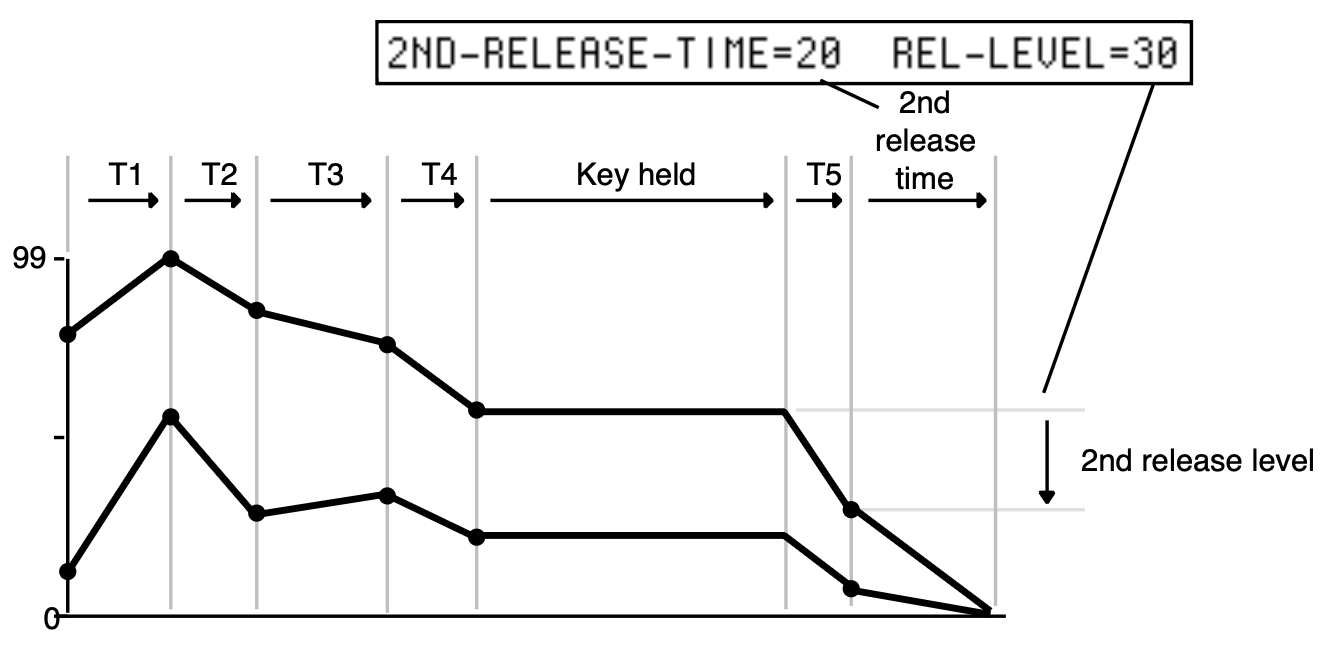
2ND-RELEASE-TIMERange: 0 to 99
REL-LEVELRange: -99 to +99
Press the Env 3 button again. The display shows the second ENV3 sub-page.

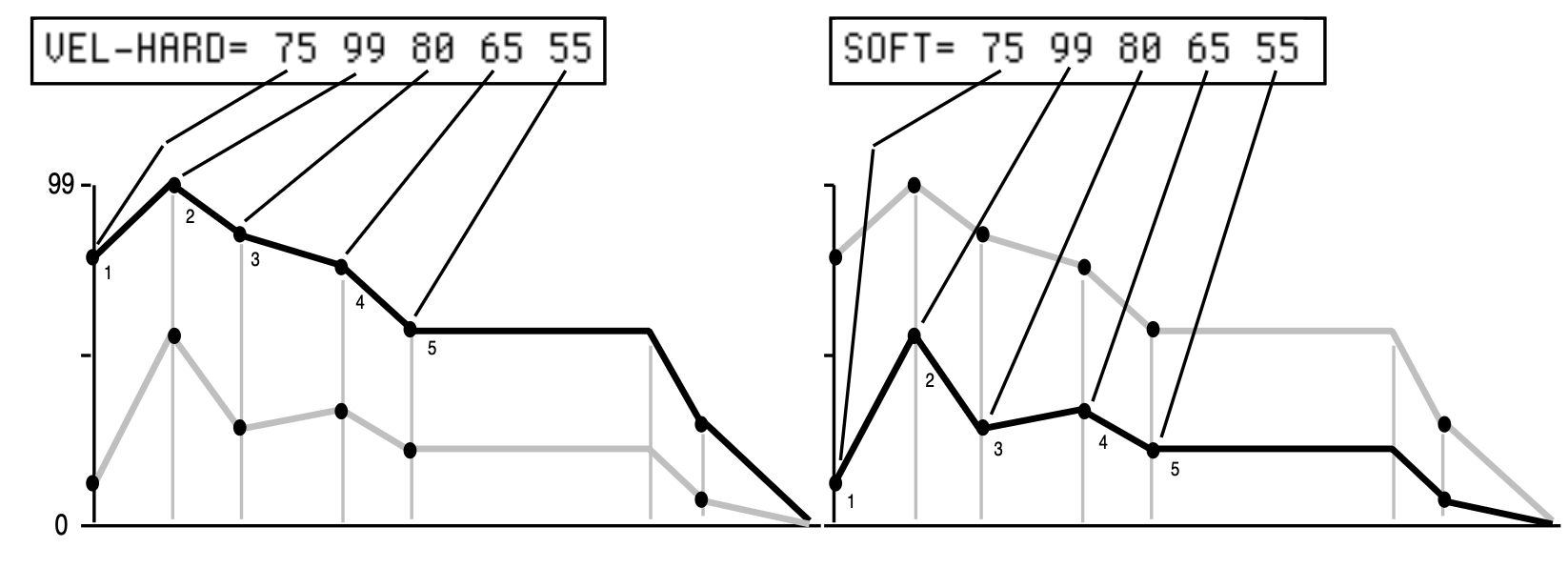
2ND-RELEASE-TIME and REL-LEVEL provide one more breakpoint in the envelope that occurs after the release time (TIME-5). The LEVEL value controls where the breakpoint will be placed relative to the current output level of the envelope at the time the key was released.
This is useful when you want to create a more natural release envelope, such as a release envelope that decays more slowly than the default release envelope.
The following diagram illustrates how the 2ND-RELEASE-TIME and REL-LEVEL interact with the VEL-HARD and SOFT levels of a typical envelope shape.
KBD-TIME-SCALINGRange: -99 to +99
KBD-TIME-SCALING makes the envelope times shorter or longer above and below the WaveSample root key depending on the key played. Positive values will make all envelope times shorter for keys above the root key, and longer for keys below the root key. Negative values will have the opposite effect. Envelope times for the WaveSample root key are not affected by this parameter. 2ND-RELEASE-TIME is also not affected by this parameter.
VEL-ATCK-TIMERange: 0 to 99
This parameter makes envelope attack time (TIME-1) respond to velocity. Raising the VEL-ATCK-TIME value above 0 makes TIME-1 shorter with harder keystrikes. If TIME-1 is set to 0 this parameter will have no effect.
Press the Env 3 button again. The display shows the third ENV3 sub-page.

Envelope MODERange: NORMAL, FINISH, REPEAT
The MODE parameter has three states:
- NORMAL: The envelope will behave as pictured in the previous envelope diagrams.
- FINISH: The envelope will run through its full cycle, ignoring the key-up event. The envelope finishes what you set it up to do.
- REPEAT: The envelope will repeatedly cycle through LEVEL 2 through LEVEL 5, using TIME 1 through TIME 4, for as long as the key is held down. When the envelope gets to LEVEL 5, it goes back to LEVEL 2.
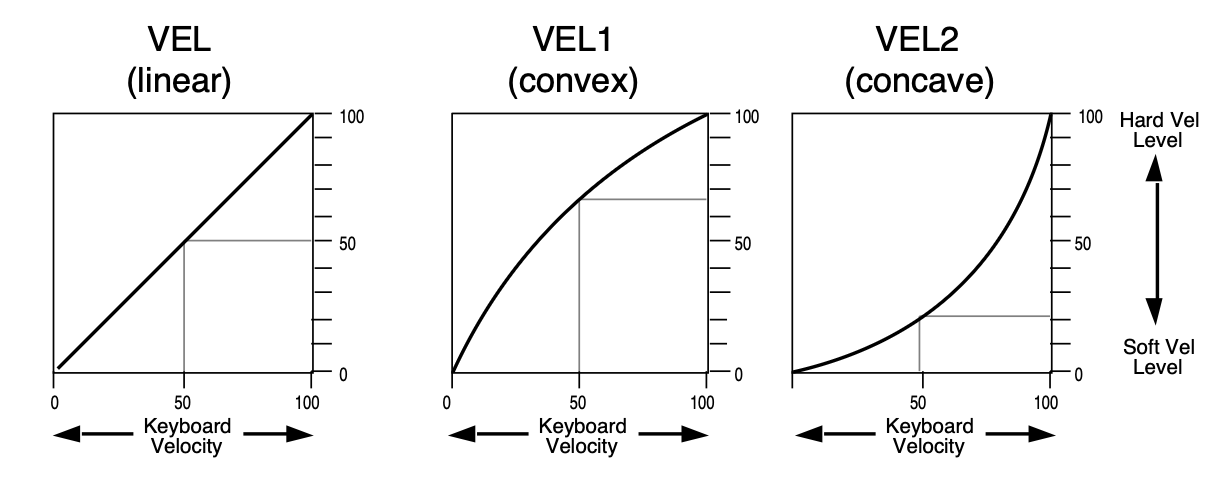
SOFT-VEL-CURVERange: OFF, VEL, VEL1, VEL2
Determines how incoming velocity will affect the envelope’s interpolation between the SOFT and VEL-HARD level settings. There are four settings:
- OFF — The envelope uses only the VEL-HARD levels, regardless of velocity.
- VEL, VEL1, or VEL2 — Incoming velocity will modulate the envelope levels between the SOFT and VEL-HARD level settings, according to one of the following velocity curves:
Pitch Page
The Pitch page parameters determine the playback pitch for each WaveSample.
Press the Pitch button. The display shows the PITCH page.

WS-ROOT-KEYRange: K00 to K20, A0 to C8
This parameter allows you to change the WaveSample root key. The root key is the key at which the WaveSample plays back at the same pitch as it was recorded.
FINE-TUNERange: -99 to +99 cents
This parameter adjusts the WaveSample fine-tuning.
Pitch Mods Page
The Pitch Mods page parameters control WaveSample pitch modulation.
Press the Pitch Mods button. The display shows the Pitch Mods page.

MODSRCRange: various
Selects a modulation source for the pitch of the WaveSample from among the 15 available modulators.
MODAMTRange: -99 to +99
Determines the amount by which the assigned pitch modulator will affect pitch.
BENDRange: 0 to 12 semitones or SYS
Determines whether each WaveSample will have its own independent pitch bend range, or whether it will use the system pitch bend range to determine the maximum pitch change that can be applied by the pitch bend wheel. When BEND=SYS, the WaveSample will use the system pitch bend range setting. See the description of the PITCH-BEND parameter on the System page in Section 2 — System Page Parameters for more information on the system pitch bend range.
NOISERange: -99 to +99
This parameter controls the amount by which the NOISE modulator will affect pitch.
ENV1Range: -15.7 to +15.7 semitones
This parameter controls the amount by which ENV1 will affect pitch.
LFORange: -15.7 to +15.7 semitones
Determines the amount by which the LFO (Low Frequency Oscillator) will affect pitch.
TS‑10 Filters
Each TS‑10 WaveSample has its own pair of digital filters, F1 and F2, that are connected in series. The filter settings determine which frequencies will be allowed to pass through to the output.
Low-Pass and High-Pass
A low-pass filter allows only those frequencies below the filter cutoff frequency to pass—higher frequencies are filtered out. The reverse is true for the high-pass filter. In the TS‑10, the first filter (F1) is always a low-pass filter. The second filter (F2) can be either a high-pass or low-pass filter.
Poles — Rolloff Curves
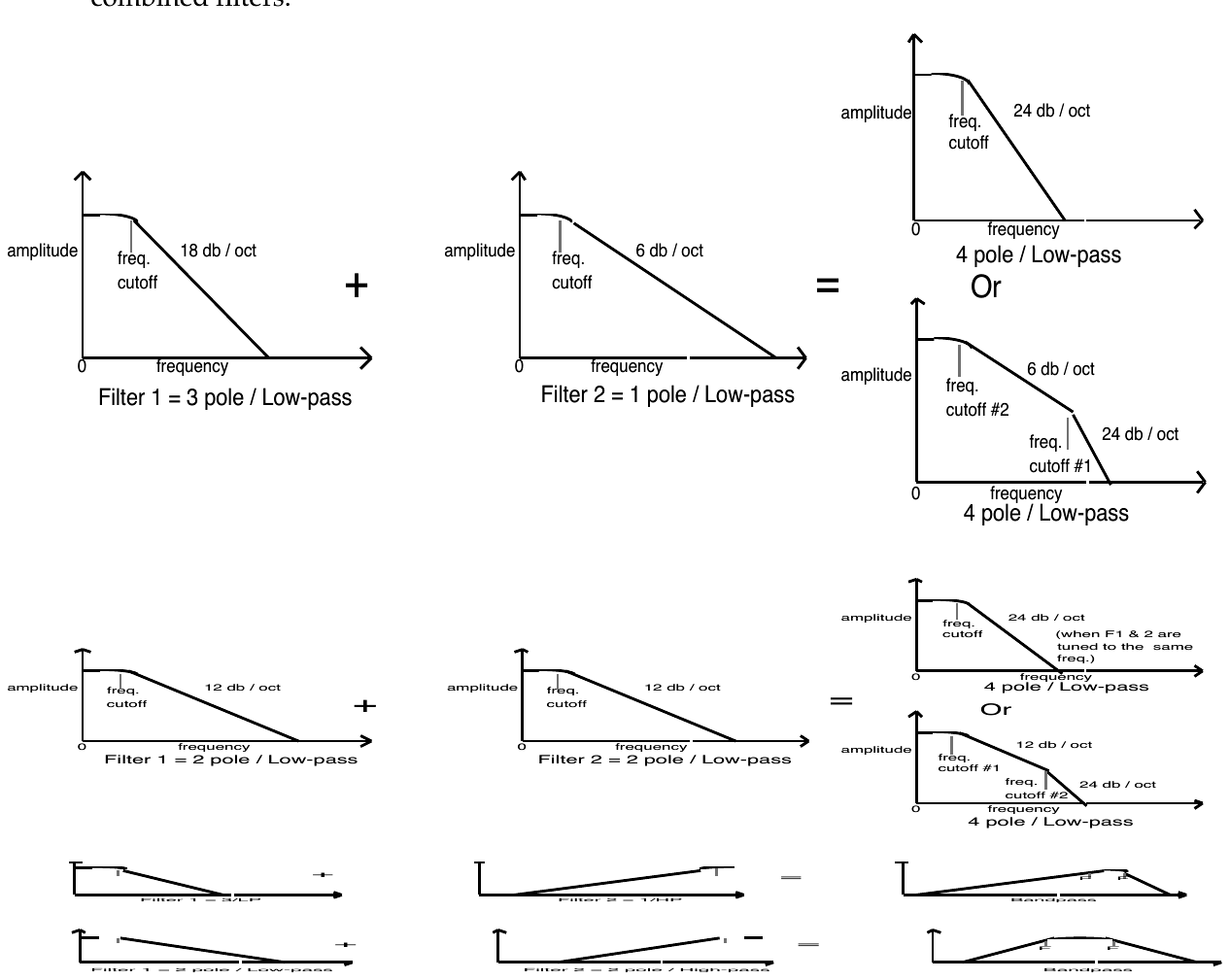
Pole is an engineering term that describes the steepness of a filter. Each additional pole gives a filter a steeper rolloff curve. In the TS‑10, four poles are available, but they are divided between two filters; either as 2 and 2, or as 3 and 1. A single-pole filter will rolloff at 6dB per octave; a 2-pole, 12dB per octave; a 3-pole, 18dB per octave; and 4-pole, 24dB per octave. To reproduce a 4-pole low-pass filter (for that “classic” analog synth sound) you would set both filters to 2-pole low-pass. Each filter would then roll-off at 12dB per octave, resulting in a total 24dB per octave rolloff.
Cutoff Frequency
Every filter has a knee in the response curve, known as the cutoff frequency. This is the frequency at which the filter begins filtering out frequencies. The filter cutoff frequency can remain fixed over time, or it can be varied by modulating the filter with an envelope, LFO, velocity, etc. You can create some very interesting filter configurations by using a different modulator for each filter. For instance, try using pressure to modulate the filter. You can drive one filter up with pressure, while simultaneously driving the other down.
Edit/Filters Page
Use the parameters on this page to adjust the filters.
MODE (Filter Mode)
Use this parameter to choose one of the four filter modes.
The following diagrams show some possible filter configurations. On the left are the response curves of the two filters shown separately. On the right are some possible shapes of the combined filters.
FILTER 1 Page
Press the Filters button. The display shows the FILTER1 page.

FILTER1 ModeRange: LO-PASS/2 or LO-PASS/3
Determines whether Filter 1 will be a 2-pole or a 3-pole low-pass filter.
CUTOFFRange: 0 to 150
Determines the initial filter cutoff frequency for each of the two filters. With a low-pass filter, a setting of 150 lets all the original signal pass through the filter. With a high-pass filter, a setting of 0 lets through all of the original signal. This setting represents the filter floor, or manual level.
The effect of any selected modulators will be added to (or subtracted from) this level.
KBDRange: -99 to +99
Sets the amount by which the location of a note on the keyboard will modulate the filter cutoff frequency (filter keyboard tracking). To have the filter track the keyboard exactly set KBD=+50.
MODSRCRange: various
Selects a modulation source for the filter cutoff frequency from among the 15 available modulators.
MODAMTRange: -99 to +99
Determines the amount by which the assigned filter modulator will affect the filter cutoff frequency.
ENV2Range: -99 to +99
Determines the amount by which Envelope 2 will affect the filter cutoff frequency.
FILTER 2 Page
Press the Filters button again. The display shows the FILTER2 page:

FILTER2 ModeRange: HI-PASS/2, 1 or LO-PASS/2, 1
FILTER 2 can be configured as a 2-pole or 1-pole high-pass filter, or a 2-pole or 1-pole low-pass filter.
The remaining parameters and ranges are the same as for FILTER1.
Output Page
The parameters on this page control the amplitude (or volume) of the WaveSample.

BOOSTRange: OFF or ON
Setting this parameter to ON gives the selected WaveSample a +12dB boost in volume. This should actually be considered a headroom control; removing that 12dB of headroom by enabling BOOST may leave the sample vulnerable to clipping from other processes like effects. Be careful that adding boost to a sample doesn’t cause it to become so loud that it starts to clip.
LO/HI-KEYRange: K00 to K20, A0 to C8
This parameter determines the key range the selected WaveSample will cover. Select the WS RNG LO parameter, play the key that you want to be the low key, the cursor will then automatically switch to the HI parameter, which can then be set in the same fashion.
VOLRange: 0 to 99
Determines the volume of each WaveSample. Since Envelope 3 is permanently routed to control the volume of the WaveSample, this parameter also determines the amount by which ENV3 will affect volume.
MODSRCRange: various
Selects a modulation source for the output volume of the WaveSample from among the 15 available modulators. This is in addition to ENV3, which is always routed to volume.
MODAMTRange: 00 to 99
Determines the amount by which the assigned volume modulator will affect the output volume of the WaveSample. Raising this value will lower the unmodulated volume of the WaveSample(s), creating the headroom necessary for the volume modulation. Note that the AMOUNT value is positive-going only. To obtain negative volume modulation, you must use the VOL MODSRC SHAPER (see later in this Section).
Press the Output button again. The display shows the second OUTPUT sub-page:

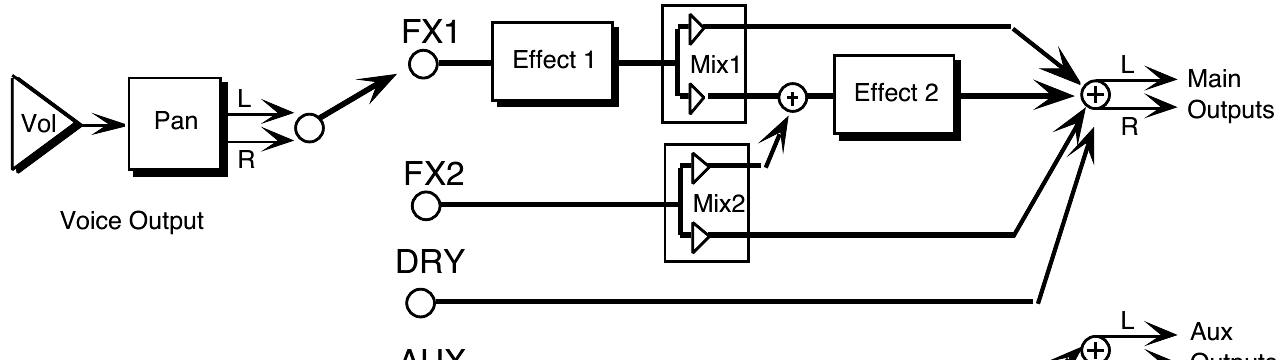
DESTINATION-BUSRange: FX1, FX2, DRY, or AUX
Each WaveSample within a Sampled Sound can be routed to one of four stereo “busses:”
- FX1, FX2, and DRY feed the main stereo outputs of the TS‑10.
- AUX sends the voice directly to the AUX Outputs. Note that voices sent to the AUX Outputs are always dry; that is, they bypass the effects processor.
The diagram below shows a common routing of the signals for each bus. See the sections on “Effects” for more on programming specific effects.
PANRange: -99 to +99
Pans the WaveSample within the stereo field. A setting of -99 is panned hard left, and +99 is panned hard right. A value of +00 pans the voice center. The effect of a pan modulator (below) will be added to this.
MODSRCRange: various
Selects a modulation source for the WaveSample PAN from among the 15 available modulators. This will cause the WaveSample's location in the stereo field to vary with the output level of the modulation source.
MODAMTRange: -99 to +99
Determines the amount by which the assigned modulator will affect the PAN of the WaveSample.
Wave Page
The parameters on this page control all the WaveSample pointers such as sample start, sample end, loop points, etc. Also on this page, you can choose the playback mode and set up modulation of the sample start and/or various loop modulation options.
Press the Wave button. The first WAVE sub-page is displayed.

PLAYBACK-MODERange: various
This parameter allows you to select one of five possible WaveSample playback modes.
- FORWARD-NO LOOP — The TS‑10 plays through the WaveSample once, from sample start to sample end.
- BACKWARD-NO LOOP — The TS‑10 plays through the WaveSample once, only in reverse, from sample end to sample start.
- LOOP FORWARD — The TS‑10 will play forward from sample start to loop end and return to loop start and will continue playing the loop while the key is depressed. Once the key is released the loop continues playing as the WaveSample envelopes away.
- LOOP BIDIRECTION — The TS‑10 will play forward from sample start. At loop end, the TS‑10 will play the WaveSample in reverse to the loop start, playing the loop section back and forth until the key is released.
- LOOP AND RELEASE — The TS‑10 will play forward from sample start and will continue playing the loop while the key is depressed. As soon as the key is released the TS‑10 will go into release mode from wherever it is and will keep playing until the end of the WaveSample, playing data after the loop. LOOP AND RELEASE works in conjunction with Envelope 3, which needs to have its MODE parameter set to FINISH, and its TIME and LEVEL values adjusted appropriately.
SAMPLE-START
This parameter allows you to set the sample start point.
When the SAMPLE-START or SAMPLE-END parameters are displayed there are two ways to adjust them — you can move in large steps by adjusting the percent setting, or move one sample at a time by choosing the fine adjust.

The Coarse Adjust reading is the one in parentheses. Changing this value will move the Sample Start in steps of one percent of the entire WaveSample. Use the Data Entry Slider or the Up/Down Arrow buttons to move the Sample Start ahead until the dead space is gone when you play.
Once you have gotten close using the percent setting, press the Left Arrow button to underline the Fine Adjust setting. Now the Data Entry Slider or the Up/Down Arrow buttons will move the SAMPLE-START in small steps (less than 1%), letting you fine-tune its exact position while playing the WaveSample.
Sample END
Allows you to set the sample end point. Again you see the sample number (Fine Adjust) and the percent (Coarse Adjust). Use the data entry controls to edit this parameter in the same fashion as the SAMPLE-START parameter.
Press the Wave button again. The second WAVE sub-page is displayed.

LOOP-POSITION
This parameter displays the LOOP-START but moves both LOOP-START and LOOP-END, keeping the size of the loop the same. It lets you search for the perfect loop location after you’ve set up an optimal loop length.
LOOPSTART
This parameter allows you to set the loop start point. After making a sample it is often necessary to “loop” (play over and over) a portion of the sound, so that it can sustain indefinitely when the key is held down.
LOOP END
This parameter allows you to set or change the loop end point.
Press the Wave button a third time. The final WAVE sub-page is displayed.

WAVE-MODULATION-TYPERange: various (see below)
This parameter allows you to modulate certain WAVE page parameters with any of the 15 modulation sources. The WAVE-MODULATION-TYPE parameter specifies which of the WAVE page parameters the modulation will affect. There are seven possible modulation types:
- OFF — Wave modulation is disabled.
- LOOP POS — Selecting this setting will modulate the LOOP-POSITION of the WaveSample, moving it forward (towards the end of the WaveSample) with positive MODAMT values, and backward (toward the beginning of the WaveSample) with negative MODAMT values.
- START — The SAMPLE-START will be modulated.
- START+LP — Both the SAMPLE-START and the LOOP-POSITION will be modulated. When START+LP is selected, sample playback will always begin at the LOOPSTART value, rather than at the SAMPLE-START value.
- LOOPSTRT — Modulates the LOOPSTART parameter. This will have the effect of either making the loop shorter (with positive MODAMT values moving the LOOPSTART point closer to the LOOP-END) or longer (with negative MODAMT values moving the LOOPSTART away from the Loop END).
- LOOP END — Works the same as LOOPSTRT, but from the back end of the WaveSample.
- LPSTRT–X — This setting works the same as LOOPSTRT, but a pitch correction scheme is now employed to keep the pitch constant as the loop gets longer and shorter.
- TRANSWAV — Similar to LOOP POS, but the loop will move in increments of exactly one loop length. For example, with LOOPSTART=0 and LOOP-END=100, a positive MODAMT will cause the loop to jump to LOOPSTART=100, LOOP-END=200, and then to LOOPSTART=200, LOOP-END=300, etc. When TRANSWAV is selected, the MODRANGE parameter (see below) has no effect, but the MODAMT (also below) sets the number of “jumps” that will happen over the full range of the modulator’s output.
MODSRCRange: various
Selects a modulation source for the wave modulation from among the 15 available modulators. See the section on Modulators for more information.
MODAMTRange: -99 to +99
MODRANGERange: 1 Sample to 2 MegaSamples
The MODAMT and MODRANGE parameters determine the amount by which the assigned wave modulator will affect the WAVE page parameters:
- MOD AMT — This parameter determines the amount of modulation that will be applied to the wave parameter specified in the WAVE-MODULATION-TYPE parameter. This parameter has a value range of -99 to +99.
- MODRANGE — This parameter determines the range that will be covered by the MODAMT. The range is displayed in sample size. The reason for this parameter is due to the nature of Sampled Sounds. Whereas ROM-based synthesizers contain waveforms that have a defined length that will always be the same, the size of each individual WaveSample will vary from Sampled Sound to Sampled Sound. The MODAMT parameter has no way of knowing this sample size, so the TS‑10 uses the MODRANGE parameter to define it.
To determine what value to set the MODRANGE parameter to, go to the SAMPLE-END parameter and examine at the value. This value tells you how large the selected WaveSample is. You can then select the MODRANGE value that comes closest to the actual size of the WaveSample.
If you were working with a very small WaveSample, you would adjust the wave modulation amount to something like this MOD AMT=+99 RANGE=128. If you were working with a much larger WaveSample, you would adjust the wave modulation to MOD AMT=+99 RANGE=1 MG (MegaSample). Think of RANGE as a multiplier, and MOD AMT=-99 to +99 as fine tuning.
Volume Mod Source Shaper Page
Press the Mod Mixer button. The VOL MODSRC SHAPER page is displayed.

A - B FADE-IN - TORange: 0 to 127
C - D FADE-OUT - TORange: 0 to 127
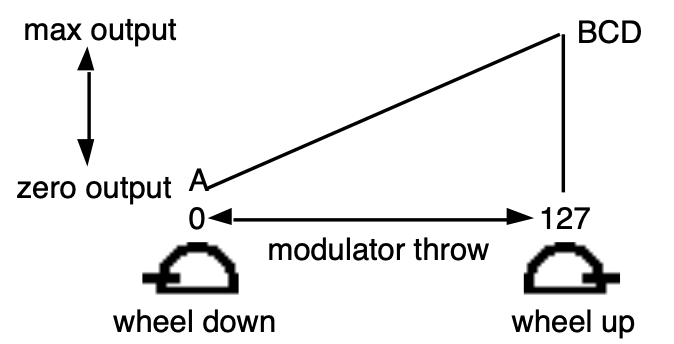
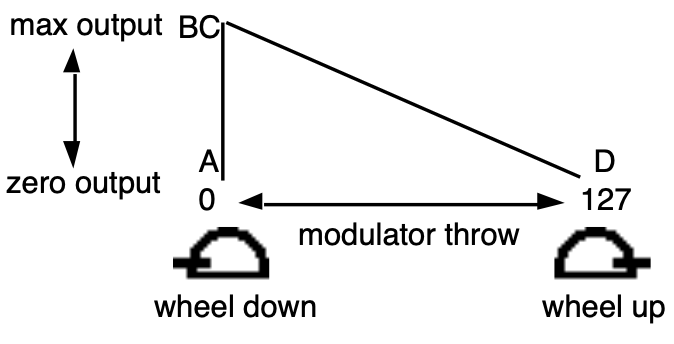
The volume modulator crossfade breakpoints (A and B, C and D) allow you to scale the effect of the volume modulator (selected on the Output page MODSRC parameter) to create keyboard, velocity, or other types of cross fades. Using the cross fade breakpoints, you can customize how the volume modulator will affect the volume of the WaveSample across the range (or throw) of its output. This lets you use velocity, keyboard position, pressure or any other modulator to cross fade between WaveSamples.
Think of the A-B FADE-IN/C-D FADE-OUT parameters as a trapezoid, whose shape will affect the output of the modulator assigned to the Output page MODSRC parameter. The A-B FADE-IN value sets the point along the throw of the volume modulator that the modulator’s output value will begin to rise above zero (i.e. fade in). The A-B FADE-TO value sets the point along the throw of the volume modulator that the modulator’s output value will have risen to its maximum output. The C-D FADE-OUT value sets the point along the throw of the volume modulator that the modulator’s output value will begin to fall from maximum (i.e. fade out). The C-D FADE-TO value sets the point along the throw of the volume modulator that the modulator’s output value will have fallen to zero.
The default values are A-B FADE IN=0 TO 127 and C-D FADE OUT=127 TO 127, imposing the following shape on the output of the volume modulator. In this example the Mod Wheel is the volume modulator:
To reverse the polarity of the volume modulator, set the values as follows: A-B FADE IN=0 TO 0 and C-D FADE OUT=0 TO 127. The shape imposed on the output of the volume modulation is as follows; again, the Mod Wheel is the volume modulator:
CURVERange: CROSSFADE or LINEAR
Determines what type of curve will be used when fading samples in and out between breakpoints A-B and C-D. There are two possible fadecurves:
- CROSSFADE — This convex curve features a steep initial rise/drop off. It is best used when a quick change between breakpoints is desired, as in a keyboard or velocity cross fade.
- LINEAR — This linear curve ramps up and down evenly, making it preferable when smoother transitions between breakpoints are appropriate, such as when using pressure to cross fade.
Layer Page
The parameters on this page control the layers within a Sampled Sound.
Press the Layer (Program Control) button. The first LAYER sub-page is displayed.

PITCHTBLRange: SYSTEM, NO PITCH, Pitch Tables 1-8.
This parameter determines whether the layer will use the SYSTEM pitch-table, or play each WaveSample in the layer at the pitch it would play on C4 (NO PITCH), or use any pitch-table that was stored with the Sampled Sound.
STEREORange: OFF or ON
Stereo samples from the ASR-10 are stored in pairs of adjacent layers (1&2, 3&4, 5&6, or 7&8), with the LEFT channel always stored in an odd numbered layer (1, 3, 5 or 7), and the RIGHT channel stored across the same key range in the next higher even-numbered layer. These paired adjacent layers are called companion layers.
When the STEREO parameter is turned ON in the selected LAYER, it is simultaneously turned ON in the companion layer. When STEREO=ON, simultaneous editing of both channels of a Stereo Sample is enabled (see below).
When STEREO=ON, editing layer or WaveSample parameters in one layer will edit the same parameter in the companion layer. Editing with the Data Entry Slider will set the current parameter in both layers to the same absolute param. Editing with the Up/Down Arrow buttons will edit parameter params in both layers relative to one another.
When STEREO=ON, all pitch modulation in the right layer will be slaved to the settings in the WaveSamples assigned to the same or overlapping key zones in the left layer. This includes Pitch BEND Range, NOISE-RATE, and all pitch modulation. Pitch modulation settings for WaveSamples in the right layer will be ignored.
STEREO can be turned OFF to allow independent editing of layers that contain one channel of a stereo sample.
If the companion layer does not exist, STEREO cannot be turned ON in the selected layer. The screen will display NO STEREO COMPANION LAYER.
GLIDEMODERange: various (see below)
Enables Glide (portamento) and several forms of monophonic voice assignment in each layer. There are five GLIDE modes available:
For monophonic voice assignment without glide, set GLIDEMODE to LEGATO, TRIGGER, or MINIMODE, and set TIME=0.
- NONE — Glide is off. This is normal polyphonic operation, with no portamento.
- LEGATO — Enables monophonic voice assignment, allowing only one note of polyphony to be active in the layer. If a key is depressed before another is released (i.e.: if you play legato), the voice will glide from the old note to the new one. If you play a key with no other keys down (i.e.: if you play staccato), the voice will not glide. The envelopes and WaveSamples are retriggered, or restarted, from the beginning each time there is a new key down. This is also the mode to use to enable the legato layer function.
- PEDAL — Enables the sustain pedal to start polyphonic glide. In this mode, the glide and polyphony are controlled by the sustain pedal. When the pedal is up, there is no glide and the layer is fully polyphonic. When the sustain pedal is depressed, the glide is enabled, and the polyphony is limited to the number of notes being sounded at the moment. For example, with the pedal up play a three-note chord. Press the sustain pedal and lift your fingers off the keys (the three notes will sustain). Now press another key: one of these sustaining notes will be stolen and will glide to the new note. The envelopes and WaveSamples are retriggered, or restarted, each time there is a new key down. Holding a key down will prevent the note from being stolen. This allows controlled voice leading.
- TRIGGER — This mode plays monophonically, with the envelopes and WaveSamples retriggering, or restarting, each time there is a new key down. This mode works just like LEGATO mode, except that it has no “note memory”. It is ideal for adding monophonic piano “thuds” to piano sounds.
- MINIMODE — This mode plays with one-voice polyphony, and new notes will glide from the previous note if the previous note is still held. Unlike the LEGATO, PEDAL, or TRIGGER modes, the envelopes and WaveSamples are only restarted from the beginning when you play a key with no other keys down (i.e.: if you play staccato).
| Mode | Staccato Glide | Legato Glide | Legato Envelope | Note Memory Retrigger |
|---|---|---|---|---|
| LEGATO | NO | YES | YES | YES |
| PEDAL (with pedal down) | YES | YES | YES | NO |
| TRIGGER | NO | YES | YES | NO |
| MINIMODE | NO | YES | NO | YES |
TIMERange: 0 to 99
This parameter controls the duration it takes for the pitch to slide smoothly (glide) from one note to another. The higher the value, the longer the glide time. The TS‑10 uses Constant-Time Portamento. This means that it will take the same duration to glide between notes that are close together (i.e. C4 to D4) as it will to glide between notes that are far apart (i.e. C4 to C7).
LEGATO-LYRRange: Layers 1 to 8
The legato layer is an ENSONIQ innovation that enables the TS‑10 to capture the elusive nuances of acoustic Sampled Sounds. The sound of a wind Sampled Sound, the flute for example, is different when it is “tongued” than when notes are played in a connected manner (called legato).
When two notes are “slurred” or “trilled” the characteristic attack of the second note is not present. The TS‑10 allows a simulation of this effect when used with one of the glide modes.
The rules for glide, described above, determine when one note will glide to another. The glide time determines how fast it will glide to the new note. The LEGATO-LYR parameter selects which layer, and therefore which WaveSample(s), will play on the new note.
For example, suppose that layer 1 is a flute sample with a tongued attack, and layer 2 is a flute sustain without any attack. To use this function:
On the Edit page (press the Select Voice button):
- Enable both layer 1 and layer 2 in the current patch.
The display reads: 00 LAYERS-IN-PATCH=12------ .
On the KEY-DOWN/KEY-UP LAYERS page (press the Copy button):
- Enable layer 1, the attack, as a keydown layer. Disable layer two as a keydown layer. The display reads: KEY-DOWN-LAYERS=1 - - - - - - -.
On the Layer page for layer 1 (press the Program Control button):
- Set GLIDEMODE=LEGATO.
- Set LEGATO-LYR=2.
- Adjust Glide TIME as you see fit.
If a key is depressed before another is released, the new note will play the WaveSample in the LEGATO-LYR (layer 2).
Press the Layer (Program Control) button. The second Layer sub-page is displayed.

VELOCITY-WINDOW LO & HIRange: 000 to 127
The LO and HI parameters allow you to define the velocity range for each layer. The full velocity range (default) is LO=000 HI=127. By adjusting these parameters, you can set specific velocity ranges for each layer. This allows velocity switching between different layers within the Sampled Sound. For example, if you set a solo violin voice to LO=000 HI=064, and a string section voice to LO=064 HI=127, a soft velocity will play only the solo violin, whereas a harder velocity will play only the string section. Ranges can over-lap for velocity cross-fade effects.
DELAYRange: 0 to 5000 msec
This parameter determines how long WaveSamples within the selected layer will wait after a key is struck before playing. A delay of up to 5 seconds is possible.
VEL-MODAMTRange: -99 to +99
This parameter determines the amount by which velocity will affect the layer DELAY time. Positive VEL-MODAMT values will cause harder velocities to increase the DELAY time. Setting the DELAY to zero will disable velocity modulation of layer DELAY time.
RESTRIKERange: 0 to 99
This parameter controls the layer Restrike time. When you play a particular note and then restrike it again immediately before the old note has finished sounding, the amount of time it takes for the first note to fadeout is determined by this parameter. By varying the setting of this parameter, you can control how long sounds overlap when a note is restruck.
For example, if you have a slow string sound, it may sound more natural to use a longer RESTRIKE value, which will cause the old note to decay more slowly, rather than end abruptly when the new note starts. Normal values are around 10. The higher the value, the longer the fadeout time.
Sampled Sound Effects Page (Program Effects button)
Understanding the effect algorithms and their related parameters are described in detail in Section 6 — Understanding Effects and Section 7 — Effect Parameters.