Performance / Composition Synthesizer · Version 3.0
Section 4 — Understanding Presets
This section offers a basic overview of the concepts involved in selecting, creating, editing, and understanding TS‑10 Presets. For more detailed descriptions of the actual parameters, refer to Section 5 — Preset/Track Parameters.
What is a Preset?
A Preset is a combination of three sounds and an effects set-up that can be instantly recalled for use in performance. Presets are handy “performance memories” which allow you to create and save sound combinations, splits, layers, patch select variations, etc.
The three sounds in a preset reside on three Tracks. For each of these three tracks, the TS‑10 remembers:
- which sound is assigned to the track
- whether or not the sound is selected or layered
- the values of all the Track parameters for that track
A preset also has one Effects algorithm which is common to all three tracks.
The most common context for the TS‑10 to be in is Preset mode. Unless the TS‑10 is in Sequencer mode, you may assume that you are in a preset. Aside from the presets that are saved, there is a Preset Buffer that is always active. A preset buffer is a kind of storage location that is used to temporarily store information.
Whenever you select, layer or edit the Track Parameters for a sound, you are working within the preset buffer. The information in the preset buffer is temporary until you save it into one of the internal preset locations, and then it becomes permanent (it can be recalled). The track parameters of the preset, including mix, pan, transpose, etc. are always active and you should make sure that their settings are correct if you think that your programs are behaving strangely. Whenever you select a new sound from the Sound Bank pages, the track parameters are reset to their standard default settings. If you wish to change a program without resetting these parameters, use the Replace Track Sound feature described later in this section.
What is the Difference between Preset Mode and Sequencer Mode?
There are three Tracks in a “normal” preset and twelve tracks in a sequence or song. A sequence or song, in addition to its ability to record data on its tracks, can be thought of as a giant twelve-track “preset.” However, this giant “preset” is not available simultaneously with normal threetrack presets. The twelve tracks of a sequence or song are available from the keyboard only while in Sequencer mode — indicated by the LED above either Seq/Song Tracks 1-6 or 7–12 button being on. The twelve sequence or song tracks are always playable via incoming MIDI when the MIDI mode is set to MULTI (on the MIDI Control page).
Selecting Presets
Press Presets. The LED above the Presets button lights, indicating that you are in Preset mode.
The display shows you the currently selected bank of six presets, and the bottom left-hand corner of the display will show PSET. You can press the BankSet button and the ten Bank buttons (labeled 0-9) to select the various banks within Preset mode. Take a moment to select different presets by pressing the soft button closest to the preset (either above or below the preset name).
Since Preset and Program banks look very similar (both Presets and Programs have six 11- character names per page), the bottom left-hand corner of the display will show PSET when you are in Presets mode. This helps to differentiate between the two modes, as shown below:

Press the Presets button again. Across the top line, the display shows the names of the three sounds that are on the three tracks. On the lower line you see “context” information about the current preset. The illustration below shows the relationship of the preset and its three tracks to what you see on the display:
| The Preset Effect Algorithm and its related parameters | ||
|---|---|---|
| Track 1 | Track 2 | Track 3 |
|
|
|

| Mix |
| Pan & Pan Mode |
| Attack* |
| Release* |
| Brightness* |
| Timbre* |
| External MIDI Control (XCTRL)* |
| Key Zone |
| Velocity Range |
| Velocity Sensitivity |
| Transpose |
| Detune |
| Rate* (LFO and/or Wave-List Duration) |
| Sustain On/Off |
| Sostenuto On/Off |
| Pitch Bend On/Off |
| Mod Wheel On/Off |
| Reset Controllers On/Off |
| All-Notes-Off On/Off |
| Patch Select mode* |
| Pressure mode* |
| Volume Pedal Mode |
| MIDI Status |
| MIDI Channel |
| MIDI Program |
| MIDI BankSelect |
| Effects Bus Routing |
| Effect Mod Control |
(* indicates saved with Programs)
Whenever the Presets LED is lit, it means that the TS‑10 is in Preset mode, and the ten Bank buttons beneath the display will select Preset Banks when you press them (rather than selecting Sound Banks, as they do when the Sounds LED is lit).
How Many Presets are in the TS‑10?
The TS‑10 offers 300 internal Presets:
- 120 presets in User RAM — 60 in BankSet U0 and 60 in BankSet U1.
- 180 presets in ROM — 60 in BankSet R2, 60 in BankSet R3, and 60 in BankSet R4.
Editing a Preset
In addition to the presets stored in memory, there is one more preset that you are using most of the time whether you know it or not. Whenever you are selecting or layering sounds in Sounds mode, you are also creating a preset. The TS‑10 automatically “remembers” the last three sounds you selected and stores them in a special memory buffer called the Preset Edit Buffer. Try this:
- Press Sounds and select a sound by pressing its soft button.
- Layer another sound with the first by double-clicking its soft button.
- Layer a third sound by double-clicking on it.
You have created a preset with three sounds playing simultaneously. Suppose you wanted to adjust their relative volumes, or shorten the release time, or change the pan location of one of the sounds without losing the combination. You can do all of these things and a lot more with presets.
In Preset mode, whenever you are hearing the Preset Edit Buffer, the preset name is shown as *-EDITED--*. You can always toggle between the edited and currently selected preset by pressing the soft button closest to the preset name.
As we have already discussed, a preset consists of three tracks, each of which has a sound and a set of track parameters. The track parameters are found in the Track Parameters section of the front panel. Presets can be saved, so that you can call them up at any time, or you can use the Preset Edit Buffer in real-time as a powerful performance tool.
While you still have three programs layered, press the Mix/Pan button in the Track Parameters section. The display shows:

- Across the top line you see the name of the last three sounds you selected, one with a solid underline and the other two with flashing underlines, just as they appeared on the sound bank pages. A flashing line means that it is a layered sound.
- On the lower line you see the mix levels for each sound. You can select which one you want to adjust by pressing the soft button beneath the value, then adjust the value with the data entry controls.
- Note that you can select a track for editing (using the lower three soft buttons) independent of what is selected or layered on the upper line of the display. This means that you can adjust the volume of any of the three sounds in the layer without having to un-layer them.
On this and all Track Parameter pages, selecting or layering sounds from the upper line determines what sound(s) you hear, and selecting parameters on the lower line determines which track will be modified if you move the Data Entry Slider or the Up/Down Arrow buttons. Try pressing some of the other Track Parameters buttons — Tuning, Brightness, Key Zone, etc. — and adjusting the track parameters on those pages. You will soon see that within a preset, it’s easy to create splits and layers, transpose a sound, change the pan and many other useful things.
You can even assign one or more tracks in a preset to play only over MIDI, making presets a great tool for controlling remote MIDI instruments in combination with TS‑10 sounds.
What are Preset/Track Parameters?
Preset/Track Parameters provide easy access and control for track and sound attributes, and are used in mixing/manipulating sequencer tracks and in creating presets.
A group of Preset/Track Parameters is associated with each preset and sequencer track. These parameters control various aspects of the track, including some important and useful sound controls which may be easily adjusted during performance, or recorded into the sequencer. The settings of these parameters are saved with every preset. These instantly recallable presets include an effect setup and three programs on three tracks with a full set of programmable performance parameters, including key zones, transpositions, release times, timbral variations and others. The settings of all performance parameters on sequencer tracks are saved for each track while the power to the TS‑10 is off, and are always available.
The buttons which control the pages containing these parameters are found in the Track Parameters section of the front panel to the right of the display.
To view or adjust the setting of a particular type of track parameter, press the appropriate button in the Track Parameters section. The selected parameter type is indicated in the top-left corner of the display.
On the Track Parameter pages, the top line of the display will show the names of three programs and their current layering status. The name of the parameter type is abbreviated to four characters in order to make room for the program names, and is shown in the top left corner of the display. The bottom line of the display shows the current values of the selected parameter for the three tracks of the preset.
In Sequencer mode the current values of parameters for the six tracks (Tracks 1-6 or 7-12) will be displayed. You can press the Tracks 1-6 or 7-12 button again to toggle back and forth between the TRAX page which shows the names of the programs on the tracks and the last selected track parameter page which shows parameter values.
The currently selected track parameter will be underlined. This is the active parameter which will be modified. You may select a parameter for a different track by using the soft buttons.
When programming performance presets, the lower row of soft buttons is used to select tracks.
For sequencer or song tracks, both upper and lower soft buttons are used.
Remember that you can edit parameters on tracks that you are not hearing. The tracks that you can hear are indicated with solid or flashing underlines on their names.
Saving a Preset Once you have created a preset you like, you can save it to one of the 120 Preset locations in the User RAM memory (you cannot save presets or sounds to the ROM memory — it is read only).
Saving a preset to a User RAM location will erase the one that is currently there, so be careful.
To save a preset, first decide which User RAM BankSet and Bank location you want to save it to, then:
- Press the Presets button twice to view your edited preset. If the display does not show your edited preset, press the soft button in the lower left corner of the display. The display should show *-EDITED--* in the lower left corner.
- Press the lower right soft button underneath the word *WRITE*.
- The display shows the current name of the preset with a cursor (underline) beneath the first character. If you want to give the preset a new name, do so at this time. Use the Up/Down Arrow buttons and the Data Entry Slider to change the underlined character, and press the Left/Right Cursor (soft buttons) to move the underline.

- After you’ve named your preset, press and hold down the Presets button. The word SAVE flashes in the lower left corner of the display. The display shows the names of the presets in the currently selected BankSet and Bank. If you let go of the Presets button, the display will return to show the Preset Write page.

- Press and hold any of the Bank buttons (0-9) to view the different preset banks. This allows you to select a Bank location within the current BankSetfor your edited preset. While holding down a Bank button, press the BankSet button to toggle between the two User RAM BankSets.
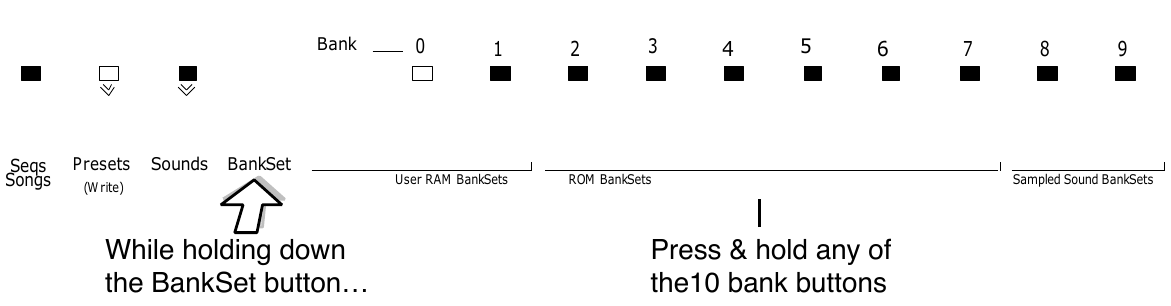
- Once you’ve selected a BankSet and a Bank location for your edited preset, while holding down either the Presets button or the appropriate Bank button, press the soft button for the preset location into which you want to save your preset. Your edited Preset will be saved into that location, erasing the existing preset.
If you need to listen to a few presets in order to decide which one to replace, simply press the soft button beneath *EXIT* and then select presets just as you normally would. The word *EDITED* disappears from the screen, indicating that you are listening to saved presets. Your new preset is safe in the Preset Edit Buffer. But make sure you don’t edit anything in any of the presets you audition, including selecting or layering sounds in Sound mode, or this will create a new Edit Preset, erasing the one you created.
When you are ready to save the new preset, press the Presets button, and then the lower left soft button. You will be returned to the Edit Preset (the word *EDITED* should return on the display). Now you can save the preset as described above.
Avoiding Confusion when using Presets
Whenever you create and save a preset, the TS‑10 only “remembers” the location of the three sounds in memory — not the actual sounds themselves. This is important to remember when you use User RAM programs in presets. If you move a sound, put another in its place, or transfer an entire BankSet of sounds, the preset might still be “pointing to” a location that no longer contains the sound you had in mind.
For example, if you create and save a preset containing a brass sound, a string sound and a piano sound, and you then write over the piano sound with a flute sound, the flute sound will now appear in the location originally occupied by the piano in your preset.
Using the Replace Track Sound Function in Presets Mode
The REPLACE TRACK SOUND function is primarily used for:
- Assigning sounds to tracks without changing the effects or other Track Parameters
- Determining the exact placement of sounds in a preset
Normally, when sounds are selected from the sound bank pages, they are transferred to a track in the Preset Edit Buffer, and many of the track parameters for that track are reset to standard default settings. However, you may wish to change which sound is assigned to a track in a preset without changing any of the other settings for that track. This is done using the Replace Track Sound feature in Presets Mode. The Replace Track Sound button is located next to the Seq/Song Tracks 1-6 and 7-12 buttons on the bottom row in the Track Parameters section.
Replacing a Sound in a Preset
- Press one of the Track Parameters buttons, such as Mix/Pan, to display the current preset, and make sure that the correct track is selected. The track whose sound will be replaced is indicated by the underlined parameter value on the lower line of the display. It does not matter which Track Parameter page is displayed. Use the bottom three soft buttons below the display to select the correct track.
- Press the Replace Track Sound button. The last selected sound bank page will be displayed and the LED above the Sounds button will start to flash, indicating that you are in Replace Track Sound mode.
- Locate the sound that you wish to install into the track and press the soft button nearest to it. This sound is now installed on the track, and will acquire the status of the sound that was replaced if it was selected or layered. You may change BankSets, Banks, and/or continue to select replacement sounds until you are satisfied that you have found the right one. If you replace the sound on a track that is not currently selected or layered in the preset, you will be immediately returned to the preset page that you were on.
- Press Replace Track Sound again to exit Replace Track Sound mode and return to the preset page to verify that your change was correct. Pressing Sounds or any other page button will also exit Replace Track Sound mode.
The method described above is also used to change the sound assigned to a track in the current sequence or song. Unlike using Replace Track Sound in a Preset, using it in Sequencer Mode will update the track Program and Bank Select number to the correct value for the sound selected. See Section 10 — Understanding the Sequencer for more information.
Using SoundFinder in Presets Mode
Here’s how to scroll through Programs that have the same defined Program Type in Presets mode. For this example, load the 120-PROGRAMS file called USERBNKS V2 from the TSD-200 disk:
- Press the Presets button.
- While pressing the BankSet button, press the Bank 3 button. This selects ROM BankSet R3.
- Press the Bank 0 button. This selects the first Bank in ROM BankSet R3. The display shows:

- Press the upper left soft button to select AC-BS/PIANO (an upright bass and piano split).
- Press the Mix•Pan button (pressing any Track Parameter button will allow you to view the three tracks that make up a Preset). The display shows:

In this Preset, FULL-BODY is the primary sound (solid underline) and UPRITE-BASS is layered (flashing underline) with it. In this scenario, we will use SoundFinder to audition other Programs that have the same Program Type as the FULL-BODY Program.
- Press the lower center soft button so that the cursor (underline) is beneath the FULL-BODY MIX value (090). The display should look like this:

- Press the Replace Track Sound button. Its LED should be lit.
- Press the Up Arrow button. The display now shows:

- BRITE-PNO is underlined because it is the next Program that has the same Program Type as FULL-BODY.
- Press the Up Arrow button again. Notice that SoundFinder has moved from BRITE-PNO to the STEREO-PNO Program. STEREO-PNO is also defined with the same Program Type as FULL-BODY.
- Continued presses of the Up Arrow will scroll forward through all of the Programs with the same Program Type. Continued presses of the Down Arrow button will scroll backward through all of the Programs with the same Program Type.
- When you’ve found the sound that you want, press the Replace Track Sound button to exit SoundFinder. The Replace Track Sound LED will no longer be lit, and you will be returned to the MIX page with the last sound selected replacing FULL-BODY.
Replacing a Sound and the Effect in a Preset
You can replace the sound on a track and make its effect become the preset’s effect by double-clicking the Replace Track Sound button:
- Select a preset and select the track whose sound you want to replace.
- Double-click Replace Track Sound. The last selected sound bank page will be displayed and the LEDs above the Replace Track Sound and the Sounds button will both start to flash, indicating that you are in Replace Track Sound mode.
- Use the BankSet, Bank buttons, and soft buttons to pick a sound as before; but now each time you pick a new sound, its effect will become the preset effect.
- Press Replace Track Sound again to exit Replace Track Sound mode and return to the preset page to verify that your change was correct.
Display Location
The following short cut for finding the locations of the sounds assigned to each Preset Track also shows the Display Location for each Program. For any Program or Preset Bank, the Display Locations are numbered as follows:

Finding the BankSet, Bank, and Display Location for Sounds on Preset Tracks
To find the BankSet, Bank and Display location (U0-1.5, U1-3.1, R2-7.4, etc.) for the sounds assigned to Preset tracks:
- Select a Preset to view (it should be underlined). For this example, we’ll use the DIGIWARMTH preset located in R2-0.
- Press Presets.
- While holding down the BankSet button, press the Bank 2 button.
- Press the Bank 0 button.
- Press the upper left soft button in the display. The display now shows the Preset Bank page:

- Press and hold Presets, and then press Sounds. The display will show:

The BankSet, Bank, and Display location for each of the track sounds are shown on the top line of the display.
- Release both buttons and the track names will be redisplayed:

- The Preset name and Preset BankSet, Bank, and Display location are shown on the bottom line of the display. The *WRITE* option allows you to rename and/or write the Preset into a new location.
- Press Presets again to return to the Presets Bank page.
When a Sampled Sound is assigned to a Preset Track, it follows the same rules as explained in "Finding the BankSet, Bank, and Display Location for Sounds on Sequencer Tracks", found in Section 10 — Understanding the Sequencer.
Performance Tip — Creating Keyboard Splits
One of the most common uses of presets is a keyboard split, in which your left hand plays an "accompaniment" sound and your right hand plays a "solo" sound. This is easy to set up on the TS‑10 by layering the two sounds and assigning them different key zones. You can save this arrangement as a preset so that any time you select that preset, you’ll recall the keyboard split.
Since each track in the keyboard split has its own Transpose value, you are not limited to bass notes on the piano just because it’s on the bottom of the keyboard. Just set the key zone to the keys you want to play and then transpose the sound up or down until it’s playing in the range you want.
Once you have a keyboard split, you can change any of the sounds without affecting the split points by using the Replace Track Sound button.
Using Effects With Performance Presets
All three tracks in each preset, and all twelve tracks in each sequence or song, share the same effects algorithm and settings. The effects settings for each preset is inherited from the primary (non-layered) selected sound, and any layered sounds in the preset will use that same effect. The effects settings for each sequence or song are inherited from the current sequencer effect at the time the sequence or song was created. If this effect is incompatible with other programs in the preset, sequence or song, there are several options:
- set the effects bus routing to -DRY- for any of the programs that are incompatible
- set the effects bus routing to -AUX- for programs that you want to process separately by sending them to the AUX Outputs
- change the preset/sequence/song effect to be something more suitable
When you press the Track Effects button from preset or sequencer mode, the first page that appears is the Track Effects Bus Routing page. On this page you can override the normal effects routing of the sound on each track. Subsequent sub-pages let you edit the effect for use in a preset, sequence, or song; these pages are identical to the effects programming pages under the Program Effects button. See Section 6 — Understanding Effects for more information on effect selection and programming.