Performance / Composition Synthesizer · Version 3.0
Section 14 — Understanding Sampled Sounds
This section provides an overview of the concepts behind understanding and editing a Sampled Sound. For detailed descriptions of the actual parameters, refer to the following section.
What is a Sampled Sound?
A Sampled Sound is a sound created for ENSONIQ’s EPS, EPS-16 PLUS, and/or ASR-10 samplers, giving you access to the largest library of sampled sounds anywhere! In addition to having access to this versatile library of sounds (from ENSONIQ and many third-party companies from around the world), this means that you can incorporate vocals, drum loops, and any sound imaginable into your music. Just use an ENSONIQ sampler, or your friend’s ENSONIQ sampler, to make new Sampled Sounds to use in your music.
Sampled Sounds differ from the TS‑10’s on-board sounds in several significant ways.
First, Sampled Sounds are volatile. This means that once loaded, the sounds will remain in the TS‑10 for as long as the TS‑10 is turned on. Once the TS‑10 is turned off, though, any Sampled Sounds will disappear, just as they would from an ASR-10, or any other sampler. Sampled Sounds can require a tremendous amount of memory. Your TS‑10 is shipped with 2 Megabytes of memory, expandable to 8 Megabytes with industry-standard SIMMs — more memory than you’ll find in many personal computers. Backing up this amount of memory when the TS‑10 is turned off requires more power than the internal battery (which supplies power to backup the TS‑10’s sound programs) can supply.
Second, the parameters available for programming in the EPS/EPS-16 PLUS/ASR-10 are somewhat different than those in the TS‑10. When a Sampled Sound is selected, pressing any of the buttons in the Programming section will display edit pages specific to Sampled Sounds.
Finally, loading and selecting Sampled Sounds differs somewhat from loading and selecting TS‑10 sound programs.
What is a SIMM?
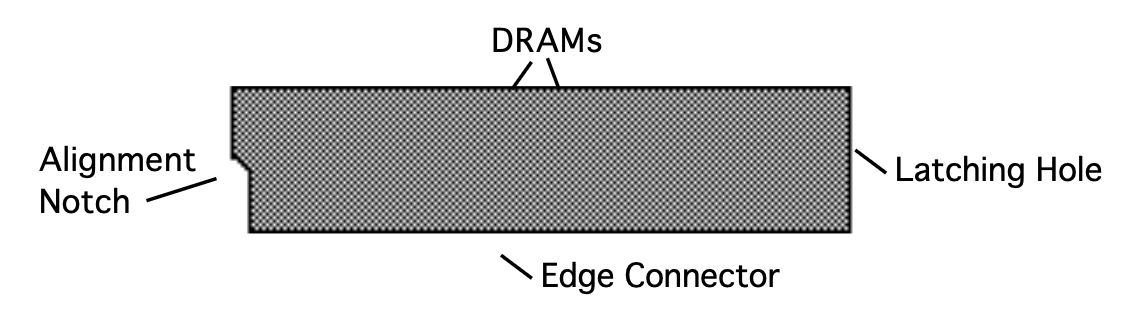
SIMM is an acronym which stands for Single In-line Memory Module. SIMMs have become the industry standard used by most computers (both IBM and Mac compatible) to expand the computer’s memory. Because of this, SIMMs are readily available in most computer software stores, and from mail order organizations. By having expansion SIMMs installed in the TS‑10, you can load up to 20 EPS/EPS-16 PLUS/ASR-10 Sampled Sound files, with all settings intact.
Purchasing SIMMs
Since you will need to purchase your SIMMs before you bring them to an Authorized ENSONIQ Repair Station for installation, here is some important information you should know about purchasing the proper SIMMs:
- The TS‑10 was designed to use either a pair of 1M x 8 (Macintosh) non-parity SIMMs or a pair of 4M x 8 (Macintosh) non-parity SIMMs (not 1M x 9 or 4M x 9 parity SIMMs). We highly recommend using this type of SIMMs.
- Use 30 pin (not 72 pin) SIMMs.
- We do not recommend using parity SIMMs (designed for IBM PC compatibles). These SIMMs may not operate properly, and may cause damage to the TS‑10.
How Many SIMMs?
The TS‑10 offers two options for SIMMs:
- The TS‑10 is shipped from the factory with two 1x8 non-parity SIMMs — 1 BankSet(S8) is available (1 BankSet consists of 10 Sampled Sound Banks). The Sampled Sound BankSet will hold 1MWord of Sampled Sound information, equivalent to 4018 blocks of memory.
- With two 4x8 non-parity SIMMs installed — 2 BankSets (S8 and S9) of 10 Sampled Sound Banks each are available. Each Sampled Sound BankSet will hold 2MWords of Sampled Sound information, for a total of 4 MWords, offering 8114 blocks of memory for BankSet S8, and 8191 blocks for BankSet S9.
An Important Note About Electrostatic Discharge:
SIMMs are susceptible to Electrostatic Discharge (ESD) commonly known as “static.” Electrostatic Discharge can destroy or damage SIMMs. Here are some procedures you should follow when handling SIMMs in order to minimize the possibility of causing ESD damage:
- Minimize the handling of SIMMs. Keep them in their static free packages until needed. Only transport or store SIMMs in their protective packages.
- When handling SIMMs, avoid touching the connector pins. Try to handle the SIMMs by the edges only.
An Important Note About Electrostatic Discharge:
SIMMs are susceptible to Electrostatic Discharge (ESD) commonly known as “static.” Electrostatic Discharge can destroy or damage SIMMs. Here are some procedures you should follow when handling SIMMs in order to minimize the possibility of causing ESD damage:
- Minimize the handling of SIMMs. Keep them in their static free packages until needed. Only transport or store SIMMs in their protective packages.
- When handling SIMMs, avoid touching the connector pins. Try to handle the SIMMs by the edges only.
Sampled Sound Configuration
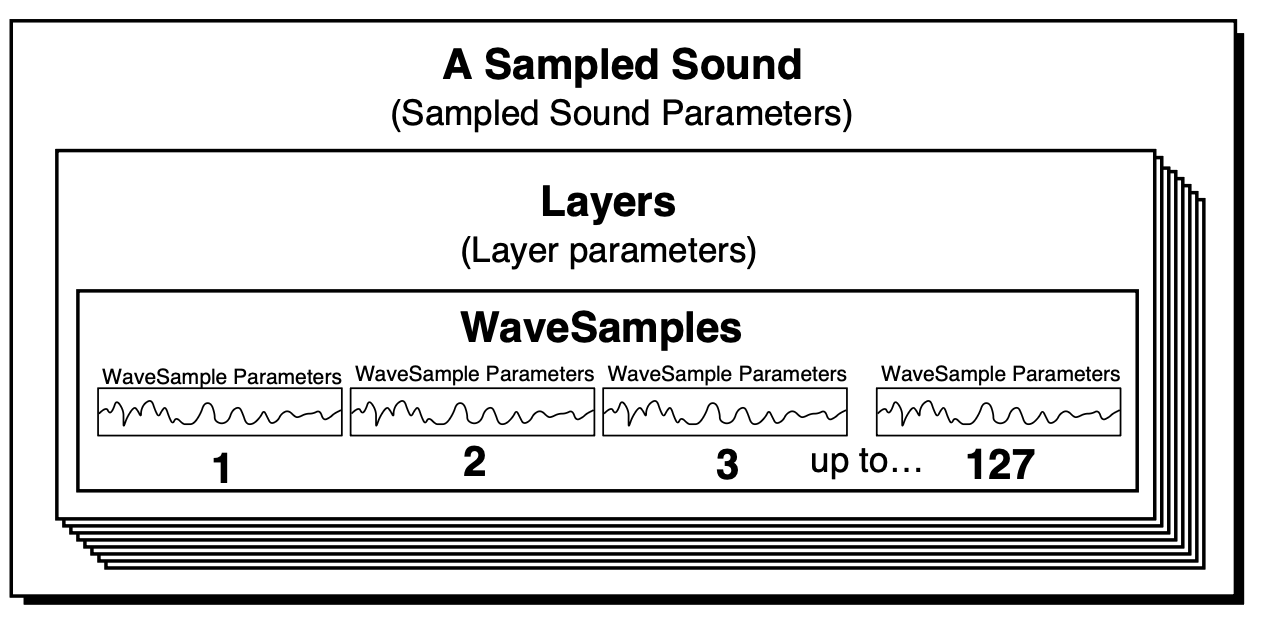
Each Sampled Sound consists of up to eight Layers, and up to 127 WaveSamples. Each WaveSample within a TS‑10 Sampled Sound consists of the following:
- a digital oscillator playing a wave from memory
- two multi-mode digital filters
- one LFO (Low Frequency Oscillator)
- one random NOISE generator
- three complex envelope generators for controlling pitch, filter, and volume
- a versatile matrix modulation scheme with 15 routable modulation sources
About WaveSamples
The WaveSample is the most basic unit of a Sampled Sound. A WaveSample can be anything — a drum, a mandolin trill, a sound effect, or your voice, for example. Each WaveSample has its own set of WaveSample parameter settings. Several WaveSamples can be grouped together to form Layers, and up to eight layers can reside within a Sampled Sound.
A Sampled Sound
Loading a Sampled Sound
Because Sampled Sounds are stored in dynamic RAM, they are not saved internally, and must be loaded each time the TS‑10 is powered on. To load a Sampled Sound:
- Insert a disk containing a Sampled Sound into the TS‑10 disk drive.
- Press the Storage button.
- Press the soft button above the word *LOAD* in the display. Note that the display will be slightly different than when loading normal sound programs:
- Make sure the TYPE parameter is set to SAMPLEDSND (rather than DIRECTORY).
- Select (underline) the LOAD FILE= parameter and use the Up/Down Arrow buttons or the Data Entry Slider to scroll through the listing of sounds available.
- Once you’ve located a sound you’d like to load and hear, press the soft button above the word *YES*. The display shows:
- Here you can select which BankSetyou want to load your Sampled Sound into (BankSet 9 is only available with expansion SIMMs installed) by using the data entry controls. The bottom left corner of the display shows the amount of free (unused) blocks available in DRAM for the currently displayed BankSet. As it comes from the factory, the TS‑10 has 4018 blocks of free DRAM memory. With expansion SIMMs installed, the TS‑10 will offer 8114 blocks of DRAM memory in BankSet S8, and 8191 in BankSet S9.
- Press any Bank button (0-9) to load the Sampled Sound into the TS‑10.


About Directories
What is a Directory?
Files on Sampled Sound disks are organized in directories. A directory is a group of up to 38 files. These files can be one of two possible file types: a Sampled Sound or another directory (called a sub-directory). Each sub-directory may contain up to 38 more files. If there are no subdirectories, the disk will only contain the 38 files of the Root (or Main) directory. The Root directory is the default top level directory selected when you change SCSI DEVICE ID numbers on the SCSI STATUS page or after power-up. If you are familiar with the Macintosh computer, or MicroSoft Windows™ for IBM/PC Compatibles, sub-directories are similar to folders.
As explained above, the TS‑10 will only allow you to scroll through a list of up to 38 files at any one time without changing directories. However, any one (or more) of these files may be a subdirectory, which may contain up to 38 more files. Eventually this becomes a tree-like structure with the root directory as the trunk, and the various levels of sub-directories conceptually similar to the branches of the tree.
For more information about SCSI and directories, refer to Section 13 — Storage.
Loading (Changing) a Directory
Sampled Sounds are most often saved in the ROOT (top level) directory on a floppy disk.
However, there may be an instance where a Sampled Sound file is stored within a different directory.
To load and/or change a Directory:
- Insert a disk containing a Sampled Sound into the TS‑10 disk drive.
- Press the Storage button.
- Press the soft button above the word *LOAD* in the display. Note that the display will be slightly different than when loading normal sound programs:
- Make sure the TYPE parameter is set to SAMPLEDSND (rather than DIRECTORY).
- Select (underline) the LOAD FILE= parameter and use the Up/Down Arrow buttons or the Data Entry Slider to scroll through the listing of sounds available.
- Once you’ve located a sound you’d like to load and hear, press the soft button above the word *YES*. The display shows:
- The bottom line of the display. shows the newly loaded directory name. If there are any sub- directories within the currently loaded directory, you can set the TYPE parameter to DIRECTORY, select them using the LOAD FILE soft button, and load them as explained above. Any Sampled Sound within a directory can be loaded in the same manner as explained earlier.
- Here you can select which BankSetyou want to load your Sampled Sound into (BankSet 9 is only available with expansion SIMMs installed) by using the data entry controls. The bottom left corner of the display shows the amount of free (unused) blocks available in DRAM for the currently displayed BankSet. As it comes from the factory, the TS‑10 has 4018 blocks of free DRAM memory. With expansion SIMMs installed, the TS‑10 will offer 8114 blocks of DRAM memory in BankSet S8, and 8191 in BankSet S9.
- Press any Bank button (0-9) to load the Sampled Sound into the TS‑10.

Multi-Disk Sampled Sound Display Messages
Multi-disk Sampled Sounds are loaded the same way as single-disk Sampled Sounds, with the addition of a few extra display messages. Multi-disk EPS/EPS-16 PLUS/ASR-10 Sampled Sound files are indicated by a flashing number next to the file name on the LOAD FILE page. After loading part of a multi-disk Sampled Sound file, the display will read:

- If you answer *YES* to loading the next higher part number, with a disk containing the wrong part number in the drive, the display will show DISK CONTAINS WRONG PART. This message will last for a few seconds, and then return to the previous display.
- If you answer NO to loading the next higher part number, the display will momentarily show: MULTI-DISK LOAD NOT COMPLETED.
- If you try to load part 2 without loading part 1 first, the display will momentarily show: INVALID FILE LOAD PART 1 FIRST.
Selecting and Playing a Sampled Sound
Once the sound has finished loading, you will probably want to select it so you can play it:
- Press the Sounds button, press the BankSet button, and while holding it down, press the Bank 8 button to select the Sampled Sound BankSet 8. You’ll find the display looks a bit different than when you are selecting Programs:

Sampled Sound BankSet
The top line of display shows the status of the Sampled Sound, and the name of the disk from which the Sampled Sound was loaded into the TS‑10. The bottom of the display also shows the size of the Sampled Sound in blocks, the Sampled Sound name (or *EMPTY-BANK* for an empty Sampled Sound bank location), and OPTIONS that provides access to an Options sub-page.
When the Sampled Sound Status is showing:
- SAMPLED-SOUND — You will hear the Sampled Sound, because it has been loaded into memory, and is not muted.
- SAMPLE-EDITS — You will hear the Sampled Sound, because it has been loaded into memory, and is not muted. However, edits have been made to the Sampled Sound within the TS‑10, and those edits were saved on a TS‑10 formatted disk as a Sample Edits file. When the Sampled Sound Status shows SAMPLE-EDITS, the Source Disk Name will show the name of the TS‑10 floppy disk on which the Sample Edits are stored.
- UNSAVED-EDITS — Appears after you have edited a Sampled Sound or Sampled-Edits file, but have not saved or resaved it as a SAMPLE-EDITS file to a TS‑10 disk. Think of this as a reminder to save your edits.
- - - -(MUTED)- - - — You will not hear the Sampled Sound, because it has been loaded into memory, and then muted. You will hear the “Surrogate Program” in its place (described in Section 11 — Programs).
- - -NOT LOADED- - — You will not hear the Sampled Sound because it has not been loaded into memory You will hear the “Surrogate Program,” because the Sampled Sound is not loaded into the TS‑10.
When the Sampled Sound Status shows - - -(MUTED)- - - or - -NOT LOADED- -, the name of the Sampled Sound on the bottom line will appear in parentheses. Any Preset or Seq/Song Tracks that the Sampled Sound Bank is assigned to will show *BANK S#-#* in place of the Sampled Sound name. This indicates the BankSet and Bank location of the Sampled Sound that was assigned to the Track.
Use the bottom center soft button to select (single press) or layer (rapidly double-click) the Sampled Sound. Sampled Sounds can be stacked and used in Presets and Sequences just as Programs can.

Unlike Programs, which are stored in battery backed-up memory, if you turn the TS‑10 off and back on, any Sampled Sounds will disappear from memory and need to be re-loaded into the same locations in order for Sequences and Presets that use them to work correctly. The Sampled Sound Bank pages will retain the information about which Sampled Sounds or Sample Edits were loaded into each location. They can be manually reloaded one at a time, or reloaded automatically, using the Auto-Load feature. See the description of the Auto-Load feature later in this section for more information.
Sampled Sound OPTIONS Page
The bottom right field on the Sampled Sound Bank pages provides access to certain options. Pressing the soft button beneath OPTIONS will reveal the following sub-page:

On this sub-page you can delete, or mute/unmute the Sampled Sound. The bottom center of the display will either show *MUTE* or *UNMUTE*. The *MUTE* field will appear whenever a Sampled Sound is loaded and not muted. The *UNMUTE* field will appear whenever a Sampled Sound is muted. Pressing the bottom center soft button will switch between a muted and unmuted status and return you to the previous screen.
Pressing the soft button beneath *MUTE* will mute the Sampled Sound, and you will hear the “Surrogate Program” in place of the Sampled Sound on any Preset or Seq/Song Track(s) that the Sampled Sound is assigned to.
- Pressing the soft button beneath *UNMUTE* will unmute the Sampled Sound, allowing you to hear the Sampled Sound, and it will play normally on any Preset or Seq/Song Track(s) that it is assigned to.
- Pressing *EXIT* will exit the Options sub-page, returning you to the Sampled Sound Bank page. The Sampled Sound Status will be unchanged.
- Pressing the soft button beneath *DELETE* will prompt you with the following message:

The top line of the display will show the name of the Sampled Sound that will be deleted, and the bottom line will show the BankSet and Bank location. Pressing *YES* will delete the Sampled Sound from memory, making the location into an *EMPTY-BANK*. This is useful if you want to load in a large Sampled Sound to another bank and don’t have enough memory, or if you want to save only certain Sampled Sound information with a SAMPLE-BANKS file (see later in this section). Pressing *NO* will abort the procedure and will display the Sampled Sound Bank page.
Lack of Memory Message
If you try loading a Sampled Sound, and do not have enough free memory available, the following display will appear:

At this point, you can select a Sampled Sound Bank location to delete (by pressing the appropriate Bank button) or press the soft button beneath *EXIT* to abort the LOAD FILE procedure. The shortage field in the display will show how many additional blocks of memory are needed to load in the Sampled Sound file. If the Sampled Sound Bank that you select to delete is smaller than the shortage amount, that Bank will be deleted, and the shortage amount will be adjusted, showing how many blocks are still needed to load the Sampled Sound file.
About the Auto-Load Feature
If you have loaded any Sampled Sounds or Sample Edits into the TS‑10 and then powered down, the TS‑10 remembers the name, source disk(s), file path, and Sampled Sound bank location for each of the Sampled Sounds. The Auto-Load feature allows you to automatically load Sampled Sounds back into the same Bank location(s). The Auto-Load feature loads Sampled Sounds into the TS‑10 from left to right, and then loads any Sample-Edits last. When you turn the TS‑10 on, the display shows the following prompt:

The Auto-Load prompt will also appear after you manually load a SAMPLE-BANKS file, or load a 60-SEQ/SONGS file that was saved with Sample Banks (flashing S or PS on the LOAD FILE page).
If you answer *NO * to the Auto-Load prompt, the TS‑10 will display the last Sounds or Preset Bank page, and no Sampled Sounds will be automatically loaded.
If you answer *YES*, the display will momentarily show:

WORKING… is displayed when the TS‑10 is preparing to load Sampled Sound files, and is identifying the data on the current floppy disk in the disk drive and any connected SCSI storage devices. WORKING… will also be displayed while a removable SCSI storage device is spinning up to speed (see later in this section for information on the SCSI option).
Once the TS‑10 is finished WORKING…, it will automatically load any needed files from the current disk in the disk drive, and from any connected SCSI Storage Devices.
If the TS‑10 cannot find a file it needs to load on either the current disk in the disk drive, or from any connected SCSI Storage Device, the display will show one of four different prompts:
-
If a Sampled Sound originated from a floppy disk that has a disk name, the display shows:

The display asks you to insert the disk with the defined disk name into the disk drive. Insert the requested disk into the disk drive, and press the soft button above *OK*. The TS‑10 will automatically load any needed Sampled Sound files from the disk. If you do not want to load the Sampled Sound from the requested floppy disk, or if you do not have the disk, press the soft button beneath *SKIP*, and the TS‑10 will request the next disk that it needs to load from.
-
If the Sampled Sound originated from a floppy disk that does not have a disk name, the display shows:

Because the disk has no disk name, the display asks you to insert the disk with the defined Sampled Sound file name into the disk drive. Insert the requested disk into the disk drive, and press the soft button above *OK*. The TS‑10 will automatically load the requested Sampled Sound file from the disk. If you do not want to load the requested Sampled Sound file, press the soft button beneath *SKIP*, and the TS‑10 will request the next disk that it needs to load from.
-
If the Sampled Sound originated from a SCSI volume that has a disk name, the display shows:

The display asks you to insert the disk (CD ROM, removable cartridge, or other removable media) with the defined name into the selected SCSI Storage Device, or verify that the requested drive is connected.
Note that the SCSI Device ID number for the requested SCSI volume must be set to the same value as shown in the display. Insert the requested disk into the SCSI Storage Device, and press the soft button above *OK*. The TS‑10 will automatically load any needed Sampled Sound files from the disk. If you do not want to load the Sampled Sound from the requested disk, press the soft button beneath *SKIP*, and the TS‑10 will request the next disk that it needs to load from.
-
If the Sampled Sound originated from a SCSI volume that does not have a disk name, the display shows:

Because the SCSI volume has no disk name, the display asks you to insert the disk (CD ROM, removable cartridge, or other removable media) with the defined Sampled Sound file name into the selected SCSI Storage Device or to verify that the requested drive is connected. Note that the SCSI Device ID number for the requested SCSI volume must be set to the same value as shown in the display. Insert the requested disk into the SCSI Storage Device, and press the soft button above *OK*. The TS‑10 will automatically load the requested Sampled Sound file from the disk. If you do not want to load the requested Sampled Sound file, press the soft button beneath *SKIP*, and the TS‑10 will request the next disk that it needs to load from.
Insert the requested disk into the disk drive (or SCSI Storage Device) and press the soft button above * OK * to automatically load the Sampled Sound files. If the Sampled Sound files needed are from several disks, the display will show each disk label name, allowing you the opportunity to load the file, or *SKIP* that particular file.
Loading Sample-Edits with the Auto-Load Feature
If any Sample Edits files have been loaded into the TS‑10, or have been saved to a TS‑10 disk and are still loaded, they will also be reloaded by the Auto-Load Feature. After you choose to Auto-Load all Sampled Sound file:
- The TS‑10 will ask for the disk that contains the Sampled Sound data used by the Sample Edits file. Insert the requested disk into the disk drive (or connected SCSI Storage Device) and press the soft button above * OK * to automatically load the Sampled Sound file. The display will momentarily show:

The display will then ask for the TS‑10 formatted disk that has the Sample-Edits file:
- Insert the requested disk into the disk drive and press the soft button above * OK * to automatically load the Sample Edits file, and apply the edits to the Sampled Sound Wave data.
When Does Auto-Load Delete All Sampled Sounds?
When you load a SAMPLE-BANKS file or a 60-SEQ/SONGS file that was saved with Sample Banks into the TS‑10, and then answer *YES* to the AUTO LOAD ALL SAMPLED SOUNDS prompt, it deletes all currently loaded Sampled Sounds and Sample Edits in the TS‑10, with the following exceptions:
- If the same Sampled Sound is being loaded into the same BankSet and Bank location, the old data is kept and the load is skipped.
- If the same Sampled Sound is being loaded into the same BankSet, but into a different Bank location, it will be moved to the correct location.
- If the same Sampled Sound is being loaded into the same BankSet, but into a different Bank location, and has had any parameter and/or effect edits made to it, but was not saved as a Sample-Edits file, the Sampled Sound will be moved, and the parameter edits will be moved, but the edited effects settings will be discarded. The original Sampled Sound effects settings will be reinstalled into the new location.
- If the same Sample-Edits file is being loaded into the same BankSet, but into a different Bank location, it will also be moved. If there were parameter and/or effect edits that were not resaved to the Sample-Edits file, the edited parameter and effect settings will be moved to the new location.
Selecting a WaveSample or Layer for Editing — the Edit Context page (Select Voice button)
In the next two sections of the manual, all the tools available for editing a raw WaveSample will be covered. Almost all of the Sampled Sound parameters will require you to select either a WaveSample or Layer for editing. The procedure for doing this is quite simple:
- Select the Sampled Sound that you want to edit (it should be underlined).
- Press the Select Voice button, which is the Edit button for Sampled Sounds. The TS‑10 displays the Edit Context page:

You see the currently selected Sampled Sound, layer (stereo or mono), and WaveSample.
- Press the top right soft button to move the cursor (underline) beneath the WaveSample Number (WAVESMPL=ALL).
- Play the keyboard to select the WaveSample you want to work on. When you play the keyboard, the WaveSample Number showing on the display will change as you play different WaveSamples. Whichever WaveSample Number is showing is considered the current “edit WaveSample” — the one that will be affected by any WaveSample Edit functions.
- To perform editing on all WaveSamples in an entire layer, press the top middle soft button. Note that many operations are disabled when WAVESMPL=ALL. The cursor should be beneath the Layer Number (LYR=__). You can select the various layers within the Sampled Sound by using the Data Entry Controls. Only layers active in the current patch can be edited (active layers are displayed on the bottom of the display). If the layer number has an “L” or an “R” directly after it, then it is defined as a Left or Right stereo layer. Any edits to WaveSamples in a stereo layer will also affect the WaveSamples in its “companion” layer, even if the companion layer is not active in the current patch.
- To perform editing on all active layers and WaveSamples in a Sampled Sound, make sure the cursor is beneath the Name (by pressing its soft button). The Layer Number reads LYR=A, and the WaveSample Number reads WAVESMPL=ALL. Now any WaveSample parameter edits will affect all layers and WaveSamples in the current patch.
- When LYR=A or WS=ALL, the Data Entry Controls function as described below:
LAYERS-IN-PATCH (Layer Enable/Disable)
Using the Patch Select Buttons
The two Patch Select buttons above and to the left of the wheels can be programmed to provide instant access to up to four completely different sounds within each Sampled Sound. These variations might be a different set of samples, or the same samples with different envelopes, or a chorused version of the sound, or perhaps a different range of a wave sample.
What you are doing when you press either or both of the patch select buttons is selecting different layers to play. A layer is a group of WaveSamples spread across the keyboard — each Sampled Sound can have up to eight layers. For each of the four possible patches, any of these eight layers can be made to play or to remain silent.
- The patch select buttons are “momentary” — an alternate patch will play only on notes played while the button is held down unless you “lock in” a Patch.
- To “lock in” a particular patch so that it will play without having to hold any buttons: press the Performance Options button, and use the data entry controls to select the particular patch.
- To return to the default patch (neither patch button down) after you have “locked in” one of the other patches, press the Performance Options button again and set it to LIVE.
Here’s how a typical Sampled Sound might react when you press the patch select buttons:
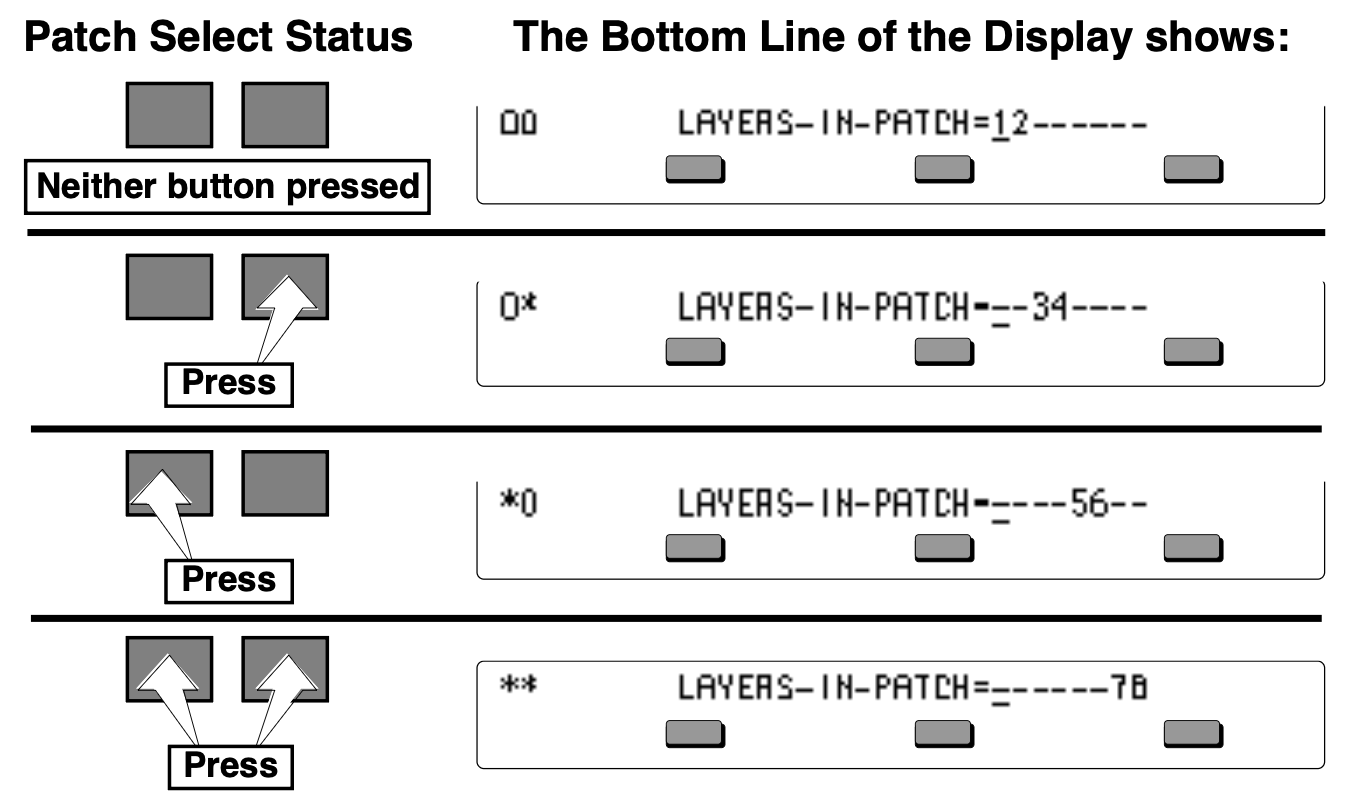
- A number means that a given layer is enabled, and will play in that patch;
- A dash means that the layer is disabled for that patch and will not play.
TS‑10 Sampled Sound Error Messages
Sampled Sound messages are displayed for one second and indicate either successful completion or non-fatal error conditions encountered during a Sampled Sound operation:
- SELECTED LAYER IS NOT IN PATCH - indicates that you are attempting to edit a WaveSample in a layer that is not enabled in the current patch. See the above description of the LAYERS-IN-PATCH parameter for more information.
- LAYER EDIT NOT ALLOWED — certain parameters, like the Wave page parameters, can only be edited when the Edit Context page is set up to edit a single WaveSample (WAVESAMPLE=###). This message will be displayed if you try to edit those parameters with the Edit Context set up to edit an entire layer or an entire Sampled Sound. See the above description of the Edit Context page for more information.
- NO STEREO COMPANION LAYER — appears if you try to turn on the Layer page STEREO parameter when no companion layer exists. See the description of the STEREO parameter in the next section for more information.
Programming Patches
The LAYERS-IN-PATCH parameter allows you to program a layer—or combination of layers—to either play or not play depending on which patch select buttons are pressed.
To program patches:
- Select the Sampled Sound that you would like to program patches.
- Press the Select Voice button.
- With no patch select buttons pressed, use any of the bottom soft buttons to select the individual layers and the Up/Down Arrow buttons to enable and disable them. This will program the default patch (the one that will play with no patch select buttons pressed).
- Once the default patch is programmed, press the left patch select button. Notice that the left hand character in the display is now an asterisk, rather than a zero. This indicates the status of the particular patch select button.
- With the left patch select button held down, use the soft buttons to select the individual layers and the Up/Down Arrows to enable and disable them, as you did with the default patch.
- Repeat the procedure with the right hand patch select button held down, then with both patch select buttons held down.
- Remember to use the SAMPLE-EDITS save file type after you’ve made any changes.
The Patch Select buttons are transmitted and received over MIDI as MIDI controller #70.
What is a Surrogate Program
Because Sampled Sounds are stored in dynamic RAM (DRAM), which can only operate while power is on, they are not saved when the TS‑10 power switch is turned off. If you should unexpectedly lose power, or have to power down for some unknown reason, you can define a substitute Program that will play on each Track that originally contained a Sampled Sound, until you can load the Sampled Sound back into the TS‑10. This substitute Program is called a Surrogate Program. A Surrogate Program will also play whenever you mute a Sampled Sound (by pressing the soft button beneath *MUTE* on the Sampled Sound Bank OPTIONS sub-page).
All defined Preset or Sequence Tracks always have a Program assigned to them. When a Sampled Sound is put on a Track, it “covers up” the Program. When the power is turned off, the Sampled Sound (being in dynamic RAM) is gone. The next time you power on, you will hear the “uncovered” Surrogate Program until you reload the Sampled Sound.
Assigning a Surrogate Program to a Track
A Surrogate Program can be assigned to each Sequencer and Presets Track that contains a Sampled Sound. To assign a Surrogate Program to a Sequence track:- Load the Sampled Sound into the TS‑10, and select it (underlined on the Sampled Sound Bank page).
- Press the Seqs/Songs button, select a -BLANK- location, and create a new sequence. Because the Sampled Sound was selected, it becomes the default sound assigned to Track 1.
- Record sequence Track data using the Sampled Sound. By having recorded data on the track, you will be able to hear the difference as you select an appropriate Surrogate Program.
- Make sure the Track on which the Sampled Sound resides is selected by pressing its soft button on the TRAX page (found by pressing the Seq/Song Tracks 1-6 or 7-12 buttons).
- Press Replace Track Sound once (its LED is solidly lit), and the Sounds LED will be flashing.
- At this point, you can shop around using the BankSet, Bank and soft buttons to find an appropriate Program to use as the Surrogate Program for your Sampled Sound.
- When you’ve found the Program that you want to assign as the Surrogate Program, press Replace Track Sound again. This sends you back to the TRAX page showing that the Sampled Sound Track has been “replaced” by the Surrogate Program. You have just defined the Surrogate Program.
To reassign the Sampled Sound back to the Track:
- Press Replace Track Sound once. Its LED should be solidly lit, and the Sounds LED will be flashing.
- Use the BankSet, Bank and soft buttons to find and select the original Sampled Sound.
- After you’ve selected the original Sampled Sound, press Replace Track Sound again. The TRAX page will be displayed, and you can see that the Sampled Sound now resides on the Track. You have just assigned a Sampled Sound to a Track and defined its Surrogate Program.
Erasing All Sampled Sound Data From Memory
If you want to clear the Sampled Sound memory, and start out with a “blank canvas”, you can easily delete all of the loaded Sampled Sound and Sample-Edits from the TS‑10 all at one time. This function will also delete the information about which Sampled Sounds had previously been loaded into Sampled Sound Banks.
Here’s how:
- While holding down the Presets button, press the bottom center soft button in the display. The display will show:

- Pressing the soft button above *YES* will erase all Sampled Sound data. Pressing the soft button beneath *NO* will abort the procedure, and any loaded Sampled Sounds and Sample-Edits will remain in the TS‑10.
Saving Sampled Sound Information
Although you cannot save Sampled Sound wave data from the TS‑10, there are two options for saving Sampled Sound information on the Storage page. To access these:
- Press Storage to go to the Storage page.
- Press DISK. The Disk Storage menu appears.
- Press SAVE. The Save File display appears as shown above. The file type is underlined.
The two file types available for saving Sampled Sound information are:
- SAMPLE-BANKS — This file type will remember the name, source disk and file path, and the location of each Sampled Sound currently loaded in the TS‑10. This can be useful in remembering which Bank locations certain Sampled Sounds are loaded into. This file type will also offer you the option to Auto-Load all Sampled Sounds (and Sample-Edits) that make up the SAMPLE-BANKS file.
- SAMPLE-EDITS — This file type will save all of the edited parameter information, as well as the effect for the Sampled Sound. This file type does not store the wave data for the Sampled Sound. The wave data must be loaded from the original EPS/EPS-16 PLUS/ASR-10 disk (or SCSI Storage Device, or CD-ROM with the optional SP-4 installed) after the SAMPLE-EDITS file has been loaded (explained later in this section).
When you press *YES* for either file type, the display shows:

- Name the file with a name of your choice using the data entry controls and the two cursor soft buttons, labeled LEFT and RIGHT.
- Press *YES*. The display reads SAVING <FILENAME> while the data is being saved to disk. Or Press *NO* to cancel the procedure for any reason.
- If there is a file of that type with the same name already on the disk, the TS‑10 will ask DELETE OLD VERSION? Press *YES* to save the file, replacing the one on the disk. This is for updating files to which you have made changes. Or press *NO* to abort the procedure.
- After the file is saved, the TS‑10 returns to the Save File page so that you can save any other files you may want to save at that time.
What is a Sample-Banks File
A Sample-Banks file remembers up to 20 Sampled Sound names (ten in BankSet 8 and ten in BankSet 9, if applicable) as well as their source disk(s), file paths, and Bank locations. Loading a Sample-Banks file will allow you to Auto-Load the Sampled Sound files back into the same location(s) that they were in at the time the Sample-Banks file was saved.
Saving a Sample-Banks File Because a Sample-Banks file remembers up to 20 Sampled Sound names, their source disk(s), file paths, and Bank locations, any Sampled Sounds Banks that you do not want to save as part of a Sample-Banks file must be deleted prior to saving the Sample-Banks file. This will prevent the Auto-Load feature from requesting unwanted Sampled Sounds files.
When you are ready to save a Sample-Banks file, first verify that there are no additional Sampled- Sounds loaded into the TS‑10 that you do not want to save with the Sample-Banks file, and that there are no -NOT LOADED- Sample Sound Bank locations that you do not want reloaded.
Here’s how:
- Press Sounds.
- While holding down the BankSet button, press the Bank 8 button. This displays Sampled Sound BankSet8.
- Press each of the Bank buttons (0-9) and verify that for each Sampled Sound Bank, the bottom center of the display shows the name of a Sampled Sound that you want to save with the Sample-Banks file, or (*EMPTY-BANK*).
- If you should find a Sampled Sound either loaded (muted or unmuted) or --NOT LOADED-- that you do not want to save with the Sample-Banks file, press the bottom right soft button beneath OPTIONS.
- Press the bottom left soft button to *DELETE* the Sampled Sound. The display shows:

- Press the soft button above *YES*.
- Repeat these steps for all Sampled Sound Banks that contain Sampled Sounds that you do not want to save with the Sample-Banks file.
- When you are sure that all Sampled Sounds that you do not want to save with the Sample- Banks file are deleted, insert a formatted TS‑10 floppy disk into the disk drive.
- Press Storage.
- Press the bottom center soft button beneath DISK.
- Press the bottom left soft button beneath SAVE. The display shows the Save File page:

- Use the Data Entry Controls to select TYPE=SAMPLE-BANKS.
- Press the soft button above *YES*.
- At this point you can use the Data Entry Controls and the LEFT and RIGHT CURSOR controls to name the SAMPLE-BANKS file. When you’ve written a name for the file,
- Press the soft button above *YES*. The display momentarily shows SAVING <file name>, then DISK COMMAND COMPLETED, then reverts back to the SAVE FILE page.
- You have just successfully saved a Sample-Banks file.
Updating Sample-Banks Files Saved with Software Earlier than Version 2.0
If you have any Sample-Banks files that were created on the TS‑10 using software earlier than version 2.0, they may not Auto-Load properly. Follow this procedure to update them for use with the version 2.0 Auto-Load feature:
- Insert the floppy disk with the Sample-Banks file into the disk drive.
- Press Storage, then press the soft button in the display beneath DISK, followed by the soft button beneath *LOAD*. The LOAD FILE page will be displayed.
- Use the Data Entry Controls to select TYPE=SAMPLE-BANKS . The display shows:
- Press the upper left soft button, and use the Data Entry Controls to locate your Sample-Banks file.
- Press the soft button above *YES* to load your Sample-Banks file. The display shows:
- Press the soft button above *YES*. The display momentarily shows LOADING <Sample-Banks file name>, and then shows:
- Press the soft button beneath *NO*. The Sampled Sound Banks will now contain the names and types of the files to be reloaded, but not the Sampled Sound data.
- All Sampled Sound Bank locations that you do not want to save within the SAMPLE-BANKS file should be deleted from both BankSets S8 and S9, if applicable, using the *DELETE* Option found on the Sampled Sound Bank OPTIONS sub-page.
- All SAMPLE-EDIT files and their associated Sampled Sound files should be manually reloaded into their correct Bank locations.
- All SAMPLE-EDIT files should be manually resaved to a TS‑10 disk.
- All Sampled Sounds should be manually reloaded into their correct Bank locations.
- The SAMPLE-BANKS file should then be resaved to a TS‑10 disk in its updated form.


After performing this procedure, loading a SAMPLE-BANKS file and answering *YES* to the AUTO-LOAD prompt will properly load the Sampled Sounds and Sample Edits back into their original locations.
Loading a Sampled Sound into an Occupied Sampled Sound Bank
When loading a Sampled Sound, you can replace a currently loaded Sampled Sound with the one you want to load. For this example, we’ll replace GUITR STRUMS with RS PERCS (both of these Sampled Sound files are found on the SSD-100 disk that came with your TS‑10). Here’s how:
- Insert the SSD-100 disk into the disk drive.
- Press Storage, press DISK, then press *LOAD*. The display shows:
- Press the upper left soft button in the display to select the file name (VOCAL SNIPS will be underlined).
- Press the Up Arrow button twice to select GUITR STRUMS.
- Press the *YES* button in the display to load the GUITR STRUMS file. The display shows:


The display shows how much free memory is available for loading Sampled Sound files (FREE=XXXX), and asks you to select a location to load the Sampled Sound into (by pressing one of the Bank 0-9 buttons). For our example, we’ll load the GUITR STRUMS file into BankSet 8, Bank 0.
- Press the Bank 0 button. The display momentarily shows LOADING GUITR STRUMS, then reverts back to the LOAD FILE page.
- Press the Sounds button.
You can take a moment to listen to the GUITR STRUMS file if you like, by holding down the BankSet button and pressing the Bank 8 button, then pressing the Bank 0 button, followed by the bottom center button in the display. When you’re ready to continue, press the Storage button twice to return to the Load page.
- Press the upper left soft button in the display to select the file name, and use the Up/Down Arrow buttons to select RS PERCS.
- Press the *YES* button in the display to load the RS PERCS file. This takes you to the USE BANKS BUTTONS TO SELECT LOCATION page, as shown above. Notice that the Bank 0 LED is lit, signifying that there is a Sampled Sound file already loaded in that location (GUITR STRUMS).
- Press and hold the Bank 0 button. The display shows the name of the Sampled Sound in that location (GUITR STRUMS) with the option to delete it, replacing it with the new Sampled Sound file that you are loading. This screen will be displayed for as long as the Bank button is held down. You can press the Bank button for any loaded Sampled Sound location, and examine its contents. Letting go of the Bank button will return you to the previous page:
- To load RS PERCS into BankSet 8, Bank 0 (replacing GUITR STRUMS), while holding down the Bank 0 button, press the lower right soft button in the display beneath the word *DELETE*. The display momentarily shows LOADING RS PERCS, then reverts back to the LOAD FILE page. You have just successfully loaded a Sampled Sound file into an occupied Sampled Sound Bank.
- If you press a Bank button that does not have a Sampled Sound loaded (no LED lit), the TS‑10 will immediately load the new Sampled Sound file.

Loading Sample-Edits
When loading a SAMPLE-EDITS file type, which contains edit parameter settings as well as the Sampled Sound effect, there are a few additional display requests. When a SAMPLE-EDITS file is loaded the following display appears:

Lack of Memory Message
If you try loading a Sampled Sound and do not have enough free memory available, the following display will appear:

At this point, you can select a loaded Sampled Sound Bank location to delete by pressing and holding the appropriate Bank button. The display will show the name of the Sampled Sound in that Bank location with the word *DELETE* flashing in the lower right corner of the display for as long as the Bank button is held down:

While holding down a Bank button, if you press the soft button beneath *DELETE*, that Sampled Sound Bank will be deleted. If the Sampled Sound Bank that you select to delete is smaller than the SHORTAGE amount, the SHORTAGE amount will be adjusted, showing how many blocks are still needed to load the Sampled Sound file. You may continue to erase Sampled Sound Banks until there is enough free memory to load the Sampled Sound, at which point the file will automatically load. Press the soft button beneath *EXIT* to abort the LOAD FILE procedure.
Note that with expansion SIMMs installed (2x4 megabyte SIMMs), the two BankSets S8 and S9 are completely separate, and Sampled Sound memory blocks cannot overlap from one BankSet into the other. The SHORTAGE value indicates the memory shortage in the BankSet that was selected as the target for loading the Sampled Sound.
Modulators
About Modulation
Selecting a Modulator
On programming pages where a modulator can be selected to modulate a given modulation destination, the display shows MODSRC=__ (short for Modulation Source). A modulator is chosen by selecting (underlining) the MODSRC= parameter with the soft buttons, and then using the Data Entry Slider or the Up/Down Arrow buttons to select among the 15 available modulation sources.
Let’s take, for example, the Pitch Mods page, which is where you apply modulation to the pitch of a WaveSample (i.e. Pitch is the modulation destination). Press Pitch Mods, then the soft button above MODSRC. The following display appears:

Modulation Amount
As shown above, where a modulation source is selected, the parameter immediately to its right controls the Modulation Amount which controls how deeply the selected modulator will affect the level to which it is being applied.
Press the Right Arrow button to underline the Modulation Amount, and use the data entry controls to adjust it. Modulation amount can be positive or negative. A modulation amount of +00 has the same effect as turning the modulator OFF.