Performance / Composition Synthesizer · Version 3.0
Preface
Welcome!
Congratulations, and thank-you for your purchase of the ENSONIQ TS‑10 Performance/Composition Synthesizer. The TS‑10 offers the most complete set of features for the performing and recording musician ever offered. From the expressive possibilities of ENSONIQ’s Poly-Key™ Pressure keyboard and unique Patch Select buttons to the 300 Programs and 300 Performance Presets, you’ll find the TS‑10 a wonderful instrument to play. The intuitive and musical sequencer design in the TS‑10 will help you go from initial inspiration to a completely mixed song without getting in your way.
To expand your sound palette the TS‑10 comes with 2 Megabytes of Sample RAM, expandable to 8 Megabytes with industry-standard SIMMs. This RAM can be used to load in any Sample Sounds created for ENSONIQ’s EPS/EPS-16 PLUS, and ASR-10 samplers, giving you access to the largest library of sampled sounds anywhere! And with the SP-4 SCSI kit option installed, you can read Sampled Sound files stored on CD-ROM libraries and other SCSI devices. In addition to having access to this versatile library of sounds (from ENSONIQ and many third-party companies from around the world), you can incorporate vocals, drum loops, and any sound imaginable into your music. Just use an ENSONIQ sampler, or your friend’s ENSONIQ sampler, to make new sounds to use in your music. No expandable waveform synthesizer offers you this much versatility at such an affordable price.
The Sounds
The sound of the TS‑10 is based on 254 waveforms encompassing all the possible instrument groups; acoustic, electric, digital and analog synthesis, sound effects and more. The acoustic instrument waves have been carefully crafted from ENSONIQ’s huge library of source recordings, including many sounds from our ground-breaking Signature Series. For the more imaginative possibilities the unique TransWaves™ give you the moving, dynamic sound of swept wavetables. The new Hyper-Wave™ voice architecture breaks open new sonic ground with the ability to create wave-lists that can sound like evocative, ever-changing pads to “jamloop” drum and percussive grooves that can change pitch without ever changing tempo.
Each Program in the TS‑10 is actually six independent sound sources each with their own parameters and programming. Now you can combine sampled sounds with analog synthetic sounds, and exotic digital textures at the push of a button -- no MIDI cables needed! And with 32-note polyphony you can layer sounds or sequence freely, without worrying about losing voices while you play.
Up to three sounds can be combined into a preset, which contains its own effects set-up and special performance parameters. Presets can be thought of as handy “performance memories” which allow you to create and save sound combinations, splits, layers, patch select variations, etc.
The TS‑10’s 24-bit dynamic effects are incorporated as an integral component of each sound, and any effects parameter can be modulated by any of 13 modulation sources. And the TS‑10 has ENSONIQ’s expressive Patch Select buttons and exclusive Poly-Key Pressure keyboard, giving you expressive control over your sounds and unparalleled flexibility as a MIDI controller.
The Sequencer
To capture and expand on a creative idea, the TS‑10 has an over 30,000 note, 24-track sequencer with extensive editing control. And with the addition of the optional SQX-70, the TS‑10 can have over 97,000 notes of sequencer memory. Record in real-time or step entry, looped or linear mode, even transfer sequences from external MIDI devices with Multi-Track record. Sequence internal and/or external sound sources with a clock resolution of 96 PPQ for accurate timing resolution.
A variety of editing options gives you control over your sequenced parts: scale volume or controllers, edit specific notes or events, transpose, quantize, shift clocks, and more. Edits can be performed over ranges that can be specified by bar, beat, clock and/or note range for utmost accuracy, and every edit can be auditioned against the original part so you can decide which one to keep. During mixdown you can pan sounds in stereo to any of four individual outputs. MIDI
Automated Mixdown remembers all volume and panning information, and the TS‑10’s disk drive allows you to store your sounds, sequence data, even MIDI Sys-Ex data on inexpensive floppy disks.
MIDI Control
As a MIDI controller the TS‑10 can use Song/Sequence “headers” to become a 24-zone controller with different MIDI channels, status, key zones, volume, transposition, and other performance parameters defined for each region. Stacking sounds is as easy as “double-clicking” a button, and the large display on the TS‑10 gives you information in a clear, uncrowded layout.
The power of a complete MIDI production facility coupled with the benefits of a single integrated keyboard environment. It’s the latest refinement from the company that pioneered the concept of the synthesizer-based workstation. The TS‑10 Performance/Composition Synthesizer… from ENSONIQ.
The Manual
This manual is your guide to unlocking the full power of the TS‑10. At this point, you’re probably anxious to plug your TS‑10 in and get playing. After the initial “I just gotta hear it” phase has passed and you’re ready to utilize the full potential of the TS‑10, please take the time to read the sections on programming, sequencing, and storage. They’ll provide valuable information and tips, as well as speed up the learning process and enjoyment of the instrument.
Thank you again for choosing ENSONIQ. Enjoy the music!
Clean Up and Maintenance
Only clean the exterior of your TS‑10 with a soft, lint-free, dry (or slightly damp) cloth. You can use a slightly dampened cloth (with a mild neutral detergent) to remove stubborn dirt, but make sure that the TS‑10 is thoroughly dry before turning on the power. Never use alcohol, benzene, volatile cleaners, solvents, abrasives, polish or rubbing compounds.
Power
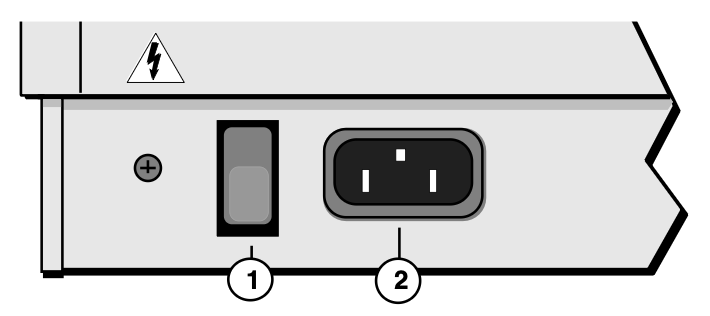
Insert the line cord into the line receptacle on the back of the TS‑10 (2), next to the power switch (1). Plug the other end of the cable into a grounded AC outlet. The proper voltage for your TS‑10 is listed on the Serial Number label on the rear panel. Turn the TS‑10 power on and make sure the display lights up. If not, check your connections and power source. The first thing the TS‑10 does when it starts up is calibrate the keyboard. Be sure not to touch the keyboard while the display reads CALIBRATING KEYBOARD - DO NOT TOUCH.
Power — Polarization and Grounding
Like many modern electrical devices, your ENSONIQ product has a three-prong power cord with earth ground to ensure safe operation. Some products have power cords with only two prongs and no earth ground. To ensure safe operation, modern products with two-prong power cords have polarized plugs which can only be inserted into an outlet the proper way.
Some products, such as older guitar amplifiers, do not have polarized plugs and can be connected to an outlet incorrectly. This may result in dangerous high voltages on the audio connections that could cause you physical harm or damage any properly grounded equipment to which they are connected, such as your ENSONIQ product.
To avoid shock hazards or equipment damage, we recommend the following precautions:
- If you own equipment with two pronged power cords, check to see if they are polarized or non-polarized. You might consider having an authorized repair station change any non- polarized plugs on your equipment to polarized plugs to avoid future problems.
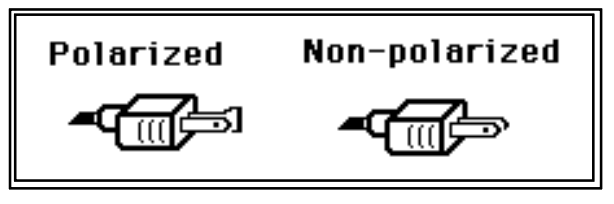
Polarized vs. non-polarized two-prong plugs. - Exercise caution when using extension cords or plug adapters. Proper polarization should always be maintained from the outlet to the plug. The use of polarized extension cords and adapters is the easiest way to maintain proper polarity.
- Whenever possible, connect all products with grounded power cords to the same outlet ground. This will ensure a common ground level to prevent equipment damage and minimize hum in the audio output.
AC outlet testers are available from many electronic supply and hardware stores. These can be used to check for proper polarity of outlets and cords.
Ground Loops
Sometimes currents flowing through the ground line generate a signal seen by another part of the circuit sharing the same ground. In other words, if there are two identical signal paths within a circuit, they can form a loop which can result in hum and/or noise. If you are using equipment that has 3-prong “grounded” AC power cords, you may suffer from a ground loop resulting from the interconnection of this equipment. The following diagram shows how cascading or “chaining” the output of one 3-prong grounded system into the input of another 3-prong grounded system with a standard unbalanced 2 conductor cord (like a 1/4” guitar cable) can result in a ground loop.
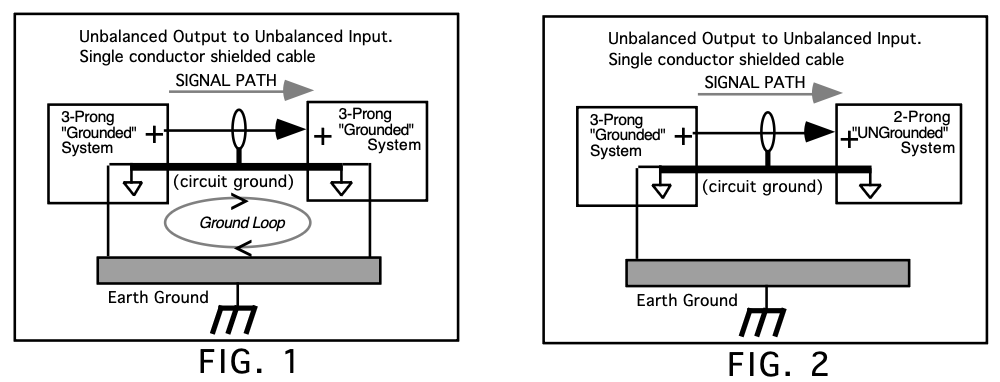
Fig. 1 depicts a system interconnection where a ground loop can exist. Fig. 2 depicts a system interconnection where a ground loop does NOT exist. When interconnecting 3-prong grounded systems, you can use signal isolation transformers to prevent ground loops. This coupling transformer effectively isolates two interconnected system signal grounds, while still allowing the signal to pass through.
AC Line Conditioning
As with any computer device, the TS‑10 is sensitive to sharp peaks and drops in the AC line voltage. Lightning strikes, power drops or sudden and erratic surges in the AC line voltage can scramble the internal memory and, in some cases, damage the unit’s hardware. Here are a few suggestions to help guard against such occurrences:
- A Surge/Spike Suppressor. The cheaper of the options, a surge/spike suppressor absorbs surges and protects your gear from all but the most severe over-voltage conditions. You can get multi-outlet power strips with built-in surge/spike suppressors for little more than the cost of unprotected power strips, so using one is a good investment for all your electronic equipment.
- A Line Conditioner. This is the best, but by far the more expensive, way to protect your gear.
In addition to protecting against surges and spikes, a line conditioner guards the equipment against excessively high or low line voltages. If you use the TS‑10 in lots of different locations with varying or unknown AC line conditions, you might consider investing in a line conditioner.
Temperature Guidelines
The inner workings of the TS‑10 contain a substantial amount of computerized and electronic circuitry that can be susceptible to damage when exposed to extreme temperature changes.
When the TS‑10 is brought inside after sitting in a cold climate (i.e. the back seat of your car), condensation builds up on the internal circuitry in much the same way a pair of glasses fogs up when you come inside on a cold day. If the unit is powered up as this condensation occurs, components can short out or be damaged. Excessively high temperatures also pose a threat to the unit, stressing both the internal circuits as well as the case. With this in mind, it is highly advisable to follow these precautions when storing and setting up your TS‑10:
- Avoid leaving the TS‑10 in temperatures of less than 50 degrees Fahrenheit or more than 100 degrees Fahrenheit.
- When bringing the TS‑10 indoors after travel, allow the unit at least twenty minutes to reach room temperature before powering up. In the case of excessive outdoor temperatures (below 50 degrees Fahrenheit or above 100 degrees Fahrenheit), allow an hour or more before power up.
- Avoid leaving the TS‑10 inside a vehicle exposed to direct sunlight.
Amplification
Connect the Main Audio Outputs of the TS‑10 to the line level inputs of a mixer, instrument amplifier, stereo, or any other sound system, using 1/4 inch audio cables. For an additional set of dry outputs, connect the AUX Outputs to two more mixer channels. If your system is stereo, connect the Left and Right Main Outputs to two channels of your mixer, stereo, etc. If it’s mono, use either of the Audio Outputs, but make sure nothing is plugged into the other output. For listening through headphones, plug the phones into the rear-panel jack marked Phones. If you’re running the TS‑10 through a mixer, in stereo, be sure to pan the left mixer input fully left, and the right input fully right.
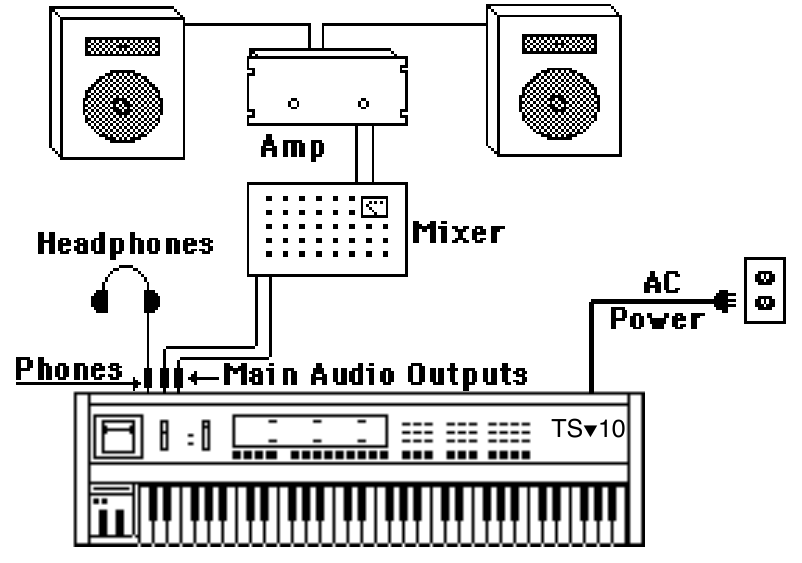
It is a good idea to make sure your audio system is turned off (or down) when making connections, to avoid damaging speakers or other components.
Be Careful!
The TS‑10 outputs are line-level, and are intended to be connected only to line-level inputs, such as those on a mixer, stereo pre-amp, keyboard amp, etc. Connecting the TS‑10 audio outputs to a mic-level input, such as a guitar amp or the microphone jacks on a tape deck, is not recommended, and might result in damage to the device input.
Move the Volume Slider all the way up. As with any digital musical instrument, the TS‑10 will give the best results if you keep the volume slider full on, and use the volume control on your mixer or amp to adjust its level.
Switch the audio system on, and adjust the amplifier volume for normal listening levels. If you hear no sound while playing the keyboard, switch the audio system off and check your connections.
Amplifying Your TS‑10 Through a Home Stereo System
If you are thinking about amplifying your TS‑10 through your home stereo, a word of caution. A home stereo is great for playing CDs, albums, tapes — the dynamic range of these media is limited, and your speakers aren’t usually subjected to extreme volume changes and frequency transients. While the dynamic range of CDs is significantly greater than albums or tapes, the output of a CD player is still conservative compared to the uncompressed, unlimited line-level output of a pro-level keyboard. Running your TS‑10, or any pro-level keyboard through a home stereo at high volume levels can damage your speakers, not to mention the impedance mismatch this can create. If your only means of amplification is your home stereo, then try to keep your levels on the conservative side.
Powering Up Your TS‑10 In a MIDI Configuration
Just as you would power up the individual components before turning on the amplifier in your home stereo system, you should first turn on the MIDI data transmitting source (keyboards, modules, etc.) before you power up the receiving MIDI source. This will prevent any unwanted MIDI information from being “spit” out of the transmitting source during power up, which could confuse the MIDI receivers, thereby disabling them. If this should occur, turn off the receiving module, and then turn it back on.
About the Auto-Load Feature
The Auto-Load feature allows you to automatically load Sampled Sounds back into the same Bank location(s). If you have loaded any Sampled Sounds or Sample Edits into the TS‑10 and then powered down, the display shows the following prompt:
| AUTO-LOAD ALL SAMPLED SOUNDS | *YES* | |
| *NO * | ||
If you answer*NO* to the Auto-Load prompt, the TS‑10 will display the last Sounds or Preset Bank page, and no Sampled Sounds will be automatically loaded.
If you answer *YES* to the Auto-Load prompt, WORKING... is momentarily displayed when the TS‑10 is preparing to load Sampled Sound files, then it will automatically load any needed files from the current disk in the disk drive, and from any connected SCSI Storage Devices.
For more information about the Auto-Load feature, see Section 14 — Understanding Sampled Sounds.
Care and Feeding of the Disk Drive
The TS‑10’s built-in disk drive is used to store all your Programs, Sampled Sounds, Presets, System set-up, and Sequencer data, as well as System Exclusive messages from other MIDI devices. The TS‑10 uses a Quad-density disk drive that can store 1600 Kilobytes of data on a Double-Sided High-Density (DSHD) 3.5” micro-floppy disk and 800 Kilobytes of data on a Double-Sided Double-Density (DSDD) 3.5” micro-floppy disk. The disks are enclosed in a protective plastic carrier with an automatic shutter to protect the diskette from physical damage. It is important not to alter this carrier in any way.
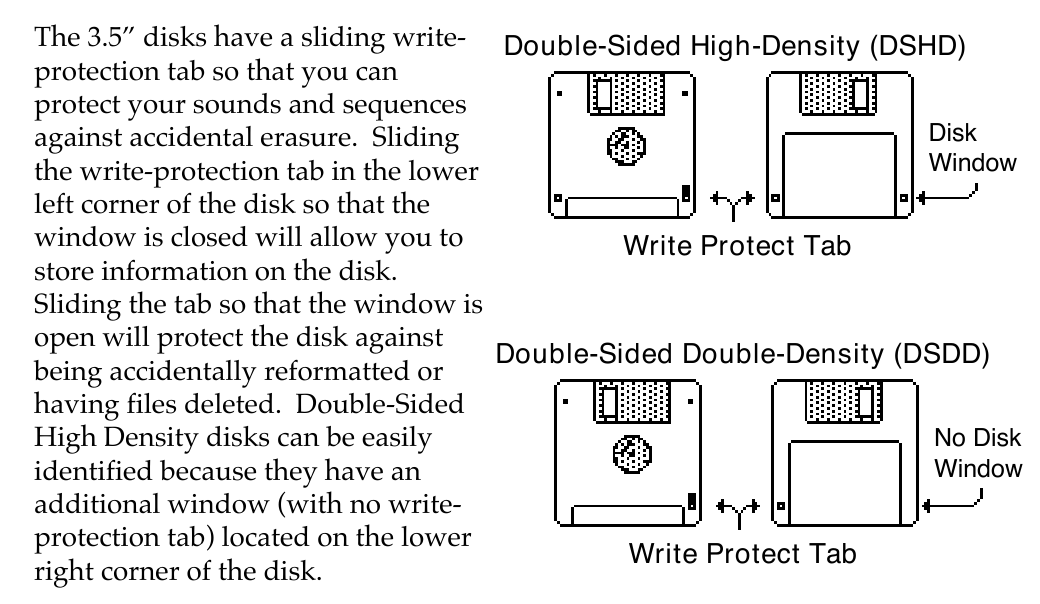
Floppy disks are a magnetic storage medium, and should be treated with the same care you’d give important audio tapes. Just as you would use high quality audio tapes for your important recording needs, we recommend using high quality floppy disks for your TS‑10. Here are a few Do’s and Don’t’s concerning disks and the disk drive.
Do’s:
- Use either Double-Sided High-Density (DSHD) or Double-Sided Double-Density (DSDD) 3.5 inch Micro-floppy disks. Both types are available from almost any computer store and many music stores carry them as well.
- Keep your disks and the disk drive clean and free of dust, dirt, liquids, etc.
- Label your disks and keep a record of what is saved on each.
- Only transport your unit with nothing in the drive.
Don’t’s:
- Don’t use Single-Sided (SSDD or SSSD) disks. These disks have not passed testing on both sides. While a single-sided disk might work successfully with the TS‑10, it is possible that you will eventually lose important data to a disk error if you try using Single-Sided disks.
- Don’t put anything other than a disk or the plastic sheet in the disk drive.
- Don’t transport the unit with a disk in the drive.
- Don’t expose disks to extremes of temperature. Temperatures below 50˚ F and above 140˚ F can damage the plastic outer shell.
- Don’t expose your disks to moisture.
- Don’t dry your disks in a microwave oven.
- Don’t subject disks to strong magnetic fields. Exposure to magnetic energy can permanently damage the information on the disk. Keep disks away from speaker cabinets, tape decks, power cables, airline x-ray equipment, power amplifiers, TV sets, and any other sources of magnetic energy.
- Don’t eject the disk while the drive is operating (i.e. when the disk drive light is on).
Reinitializing the TS‑10
The great power and flexibility of the TS‑10 lies in the fact that it is really a computer disguised as a keyboard instrument, but a computer nonetheless. The software that operates the TS‑10 is very sophisticated. If you have ever used a computer, you should be familiar with the need to occasionally re-boot your system when you get an error message, etc. Reinitializing the TS‑10 is the equivalent of re-booting your computer.
There are a number of things that can happen to the TS‑10 (or any computer system) which might scramble the system software — voltage surges, power failures, static electricity, etc. As with any computer, very infrequently some unforeseeable event or combination of events can cause the software to become confused, with strange and unpredictable results. Sometimes, computers that appear to be broken have no hardware problem, just corrupted data in the internal RAM (Random Access Memory). In some cases, simply turning the TS‑10 power off and then on again will cure the problem. If that doesn’t work, perhaps what is needed is to reinitialize the unit.
When to Reinitialize
If your TS‑10 begins to behave in peculiar ways; if the display shows words or lines that shouldn’t be there; if you start getting unexplained System Error messages; if the sequencer and edit functions start doing unpredictable things; try reinitializing the TS‑10 ("factory reset")before you seek service.
Be Careful!
When you reinitialize your TS‑10, all your custom sounds, presets, and sequences in RAM will be lost. Therefore good backup habits should be an important part of your routine. Save any important data to disk before reinitializing the TS‑10.
To Reinitialize the TS‑10:
- While holding down the Presets button, press the “soft” button in the top left corner above the fluorescent display.
- The following message appears on the display: “ERASE MEMORY AND REINITIALIZE”
- Select *YES*. After selecting *YES*, the TS‑10 erases its internal memory and then starts up just as it does when you turn the power on, and initialization is complete.
If reinitializing your TS‑10 does not correct the problem, then contact an Authorized ENSONIQ Repair Station.
Low Battery Voltage — When to Replace the Battery
The reason that the TS‑10 “remembers” programs, presets and other parameters, even when the power is off, is that all of its internal RAM is “battery-backed-up.” The battery that keeps the TS‑10 memory intact is located inside the TS‑10, and when it becomes discharged, it must be replaced by an Authorized ENSONIQ Repair Station.
The battery that came in your TS‑10 is good for up to five years of life. You will know when it needs replacing, because the TS‑10 will tell you so. One day you will switch the power on, and instead of its usual wake-up message, the display will read:
| WARNING -- LOW BATTERY VOLTAGE | ||
| SAVE DATA - SEE USER MANUAL *CONTINUE* | ||
Press *CONTINUE* (or any button) to commence normal operation. Then, make sure that all presets, programs, and sequences are saved to disk, and take the TS‑10 to an Authorized ENSONIQ Repair Station as soon as possible to have the battery replaced.
Available Options for your TS‑10
These optional accessories are available from your Authorized ENSONIQ Dealer:
- ENSONIQ Model SW-10 Dual Foot Switch — For voice sustain, sostenuto, hands-free patch select control, preset advance, effect modulation control, or starting, stopping, and continuing the internal sequencer. For ultimate foot control, we recommend using two SW-10 Dual Foot Switches.
- Model CVP-1 CV PEDAL — A Control Voltage Foot Pedal which can be assigned as a modulator within the voice section of the ASR–10 or used as a volume pedal.
- AS –Series Sound Libraries — The AS Sound Library sounds can be loaded and edited by the TS‑10, provided on five High Density disks.
- SL, SLT, and ESS Sound Libraries — The TS‑10 can read all of the sound files on the disks designed for the EPS Series. These disks offer the largest, most accurate, responsive, and musical sampled sounds available anywhere. These sounds are divided into three separate libraries: SL, a series of five-disk sets featuring sounds specifically designed for the EPS–16 PLUS, compatible with the TS‑10; SLT, a series of ten-disk packs originally designed by top sound programmers for the EPS, also compatible with the TS‑10; and ESS, three-disk “Signature Series” sets designed by renowned industry performers and producers like Joey DeFrancesco, Jason Miles, Maurice White, The System, Nile Rodgers, David Hentschel, and others.
- SP-4 SCSI Kit — This SCSI (Small Computer Serial Interface) allows the TS‑10 to read Sampled Sound files from a hard drive, CD ROM player, or computer. The SP-4 must be installed by an Authorized ENSONIQ Repair Station.
- CDR Series — These CD ROMs offer a vast array of Sampled Sounds arranged in directories by file types. The CDR Series also features Direct Macros, which allows instant access (direct- dial) to any Sampled Sound file (the TS‑10 can only read Sampled Sound files, and not ASR/EPS banks and sequence/song files).
- SQX-70 — Sequence Expander. Increases the capacity of the TS‑10 sequencer to over 97,000 notes. Contact your Authorized ENSONIQ Repair Station for installation details.