Performance / Composition Synthesizer · Version 3.0
Section 11 — Sequencer Parameters (Edit)
The following parameters control the TS‑10 sequencer. Parameters for creating and manipulating sequences, songs, and the tracks contained within each are covered here. For a basic overview of the concepts involved, refer to the previous section.
Sequencer Editing Functions
The three Edit buttons in the top row of the Sequencer section of the front panel provide access to the various sequencer editing functions. These are divided into Song, Sequence, and Track editing functions. Pressing any of these three buttons shows a menu of the available functions in that category.
Edit Song Page Parameters
Press the Seqs/Songs button (underneath the display) and select a Song. Then press the Edit Song button. If you press the Edit Song button when a sequence is selected, the display will respond SONG NOT SELECTED and will not allow you onto this page. The display shows:

ADD-TEMPO-TRK
The ADD-TEMPO-TRK command allows you to add a Tempo Track to an existing song that does not have a Tempo Track. This command is only visible when the currently selected song does not contain a Tempo Track:
- If Song Track 12 is -UNDEFINED-, pressing the soft button above ADD-TEMPO-TRK will immediately make Song Track 12 become a Tempo Track.
- If Song Track 12 contains a sound and/or sequencer data, the following prompt will be displayed:

- Pressing *YES* will erase Song Track 12, replacing it with a Tempo Track. The display will momentarily show TEMPO TRACK INSTALLED, and the ADD-TEMPO-TRK Song Command will no longer be visible.
- Pressing *NO* will abort the procedure and leave Song Track 12 intact.
INFO Sub-Page Pressing the soft button above INFO displays a page containing information about the song, including the song name, the size in blocks, the song tempo offset, number of steps, and the elapsed time at the current tempo. From this page, you can also rename the song, and adjust the tempo offset. The parameters on this page are:
NAME
Used to rename the song. Pressing the soft button above the Song Name displays a sub-page which allows you to edit the name of the song. Use the data entry controls and the LEFT and RIGHT cursor buttons to rename the song. Then press *SAVE* to return to the INFO page with the new name.
SIZERange: (read only)
This read only parameter displays the size of the current song in blocks. Blocks are the units of 512 bytes used by the sequencer and disk memory management software. One block generally represents 128 events, though this is only an approximation and depends on the specific data recorded.
TEMPORange: -64 to +63, or EXT
This lets you speed up or slow down the entire song without changing the tempo of the component sequences. Changing the song tempo offset automatically adjusts the tempo of each of the sequences in the song, within the legal limits of 25-250 BPM.
STEPSRange: (read only)
This read only parameter indicates the number of steps in the song.
TIME
This shows you the total time of the song in minutes, seconds, and hundredths of a second. It is readout only — you cannot directly change it. However, when you change the Song Tempo Offset (TEMPO above) you will see the time readout change accordingly.
ERASE
The Erase command will erase the currently selected song and leave its location undefined. First, make sure the Song you want to erase is selected. Then:
- Press Edit Song.
- Press the soft button beneath ERASE. The display asks ERASE CURRENT SONG <SONG NAME> FROM LOCATION ##?
- Press *YES* to erase and undefine the song, or press *NO* to cancel.
COPY
Use this command to copy the currently selected song into another sequencer location. Note that the original song remains intact in its original location. First, make sure the Song you want to copy is selected. Then:
- Press Edit Song.
- Press the soft button beneath COPY. The display shows:
- Use the data entry controls to select a location for the copied song. Note that only undefined sequencer locations will be available for selecting.
- Press *YES* to copy the song to the new location (or press *NO* to cancel). The new song will be given the same name as the original one you copied. You can rename it from the Edit Song INFO page as described above.

EDIT STEPS Page
Pressing EDIT STEPS displays the song step editor page. Here you chain sequences together to define the basic structure of the song.
A song is composed of Steps. Each Step consists of:
- A sequence which will play during that step,
- The number of Repetitions, or Reps, of the sequence during the step, and
- The Mute and Transpose status for each sequence track during the step.
When you select EDIT STEPS, the display shows the Song Step Editor page:

INSERT
Inserts a blank song step before the current song step.
DELETE
Removes the current song step, and shifts the remaining steps down to fill the gap.
STEP
The step number can be edited using the data entry controls, allowing you to move up and down through the song and view each step. A song can contain up to 99 steps.
SEQRange: various
Selects the sequence to be used for the current song step. An empty song step will show SEQ= - BLANK-. To put a sequence into an empty song step (thus defining the step) simply underline this field and then press the Up Arrow button. The final step (the one after the last defined song step) will always read SEQ=*SONG-END*. To add another sequence at the end of the song, select SEQ=*SONG-END* and press the Up Arrow to define the step. This puts a sequence in that step and moves the Song End back one more step.
REPSRange: 01 to 99, or FS
This controls the number of times the sequence in the current song step will be repeated.
FS stands for Foot Switch. In order to use this function you must first assign one of the Foot Switches (on the System page) to SONG-STEP. When REPS=FS, the song step will loop continuously until the assigned foot switch is pressed. When the foot switch is pressed, the current step will finish playing and then advance to the next step.
TRACKS
Selecting this option from the Song Step Editor page displays a sub-page which allows you to mute or transpose specified tracks for the current song step.

STEP
Shows the current step number. Pressing this button again when it is already selected will return you to the Song Step Editor page.
MUTE TRACKS Range: P (Play) or M (Mute)
The number 2 and 3 soft buttons each select a group of 6 positions which control the muting of tracks for the current song step. Repeated presses of the soft button will scroll across the set of 6 tracks, and allow each track to be muted or unmuted individually. An M indicates that the track is muted for the entire step, and a P indicates that the track will play.
TRANSPOSE Range: -12 to +12 semitones
Sets the transpose amount to be used by any tracks which are set to Transpose for that song step (see below). This will raise or lower the pitch of the entire track.
TRANSPOSE TRACKS Range: N (Normal) or T (Transposed)
The number 5 and 6 soft buttons each select a group of 6 positions which control the transposition of tracks for the current song step. Repeated presses of the soft button will scroll across the set of 6 tracks, and allow each track to be transposed or left normal (no transposition) individually. A T indicates that the track will be transposed, and an N indicates that the track will play at normal pitch.
Edit Sequence Page Parameters
- Press the Edit Sequence button. The display shows:

These commands affect the currently selected sequence. If a song is selected, these commands affect the song tracks in the song.
APPEND
This function allows you to append one sequence onto the end of another (or to itself, doubling its length). A sequence which you specify will be appended (or “tacked on”) to the end of the currently selected sequence.
- Make sure the sequence onto which you want to append another is selected.
- Press Edit Sequence.
- Press APPEND. The display shows:
- Use the data entry controls to select the sequence which will be appended to the current sequence. The default source is the current sequence, which allows the current sequence to be easily appended to itself.
- The bottom of the display shows the destination sequence, and the total number of bars in the current sequence.
- Press *YES* to append the sequence specified in the top line of the display onto the end of the current sequence (or press *NO* to cancel).

INFO
Selecting INFO displays a page of information about the currently selected sequence, including the name, the size in blocks, the tempo, the number of bars and the elapsed time at the current tempo. The tempo is the only field which can be directly edited, but the elapsed time field will be updated to reflect the new tempo.

NAME
Pressing the soft button above the sequence NAME displays a sub-page which allows you to edit the name of the sequence. Use the data entry controls and the LEFT and RIGHT cursor buttons to rename the sequence. Then press *SAVE* to return to the INFO page.
SIZERange: (read only)
Displays the size of the current sequence in events.
TEMPORange: 025 to 250, or EXT
This displays the tempo of the current sequence. Changing the tempo here has the same effect as changing it on the three other pages where tempo appears; Click, Sequence Control, and Locate. On this page, however, you can see the elapsed time change as you change the tempo (see below). When CLOCK=MIDI, this parameter reads TEMPO=EXT, and cannot be edited.
BARSRange: (read only)
Indicates the number of bars in the sequence.
TIMERange: (read only)
This shows you the total time of the sequence in minutes, seconds, and hundredths of a second.
It is read only — you cannot directly change it. However, when you change the tempo (above) you will see the time readout change accordingly.
ERASE
The ERASE command will delete the currently selected sequence from memory and leave its location undefined (-BLANK-). This command can also be used to erase all song tracks (when a song is selected). First, make sure the sequence you want to erase is selected. Then:
- Press Edit Sequence.
- Press ERASE. The display asks ERASE CURRENT SEQ <SEQ-NAME> FROM LOCATION ##?
- Press *YES* to erase and undefine the sequence, or press *NO* to cancel.
COPY
Use this command to make a copy of the currently selected sequence in another sequencer location. If this command is used on a song, it will copy the song track data only into a new sequence. This command only copies the saved Track Parameter settings; it will not copy any temporary Track Parameter edits you may have made. Note that the original sequence or song remains intact in its original location. First, make sure the sequence you want to copy is selected.
Then:
- Press Edit Sequence.
- Press COPY. The display shows:
- Use the data entry controls to select a location for the copied sequence. Note that only -BLANK- sequencer locations will be available for selecting.
- Press *YES* to copy the sequence (or press *NO* to cancel). The new sequence will be given the same name as the original sequence. You can then rename it from the Edit Sequence/INFO page if you wish.

LENGTH — Add and Delete Bars from a Sequence
Though the length of the first track determines the length of the sequence, you can use the Add Bars and Delete Bars functions to add empty bars, starting from any bar within the sequence, or to remove any number of bars from the sequence.
From the Edit Sequence page, press LENGTH. The display shows:

This sub-page shows the name, number of bars, and time signature for the sequence, as well as the ADD BARS and DELETE BARS commands.
ADD BARS
The ADD BARS function lets you add any number of bars to the sequence up to a total sequence length of 999 bars. It consists of two steps:
- you specify at which bar you want to start adding bars, and then
- you select how many bars you want to add.
To add bars to the selected sequence:
- Make sure the sequence to which you want to add bars is selected.
- Press Edit Sequence, and press LENGTH.
- Press ADD BARS — the display shows the following:
- Press the soft button above AT BAR ## on the display.
- Use the data entry controls to determine at which bar the new measures will be added. This can be any bar within the sequence:
- Selecting Bar 01 will cause bars to be added at the beginning of the sequence.
- Selecting the bar after the last bar of the sequence will cause bars to be added at the end of the sequence.
- Selecting any other bar will cause bars to be added starting from that point in the sequence.
- Press the soft button above ADD ## BARS.
- Use the data entry controls to select how many bars you want to add. You can add any number up to a total sequence length of 999 bars. Empty bars (no track data) will be added beginning from the bar selected in the previous step.
- Press *YES* to complete the command, or press *NO* to cancel.

DELETE BARS
The Delete Bars function lets you delete (or remove) any number of bars from a sequence, starting from any bar within the sequence.
This is handy when, for example, you record a first track which is perfect except that it runs to 5 Bars instead of 4. With this edit function you can easily chop off the extra bar.
To Delete Bars from the selected sequence:
- Make sure the Sequence from which you want to delete bars is selected.
- Press Edit Sequence, and press LENGTH.
- Press DELETE BARS — the display shows the following:
- Use the data entry controls to determine at which bar you want to begin removing bars. This can be any Bar within the Sequence. Bars will be deleted from the beginning of the Bar you select here.
- Press the soft button above DELETE ## BARS.
- Use the data entry controls to select how many bars you want to delete.
- Press *YES* to complete the command, or press *NO* to cancel.

Sequence Bank Utilities
A new way to select sequences has been added to certain sequencer edit pages. When aSong Edit, Append Sequence, Copy Track or Merge Track pages, an LED above one of the Bank buttons will flash to show where the indicated sequence is located. Pressing a Bank button will temporarily show the corresponding sequence bank page, and sequences may be selected using soft buttons. If the selection is valid, the page will then revert to the previous edit page with the new sequence name installed. In addition, you may select the destination Location for Copy Song or Copy Sequence by indicating a -BLANK- location on one of the bank pages. This will automatically install the corresponding location number and return to the Copy command page.
Edit Track Page Parameters
Range Sub-Page — Setting the Time and Key Range Within almost all track editing functions, you will find a parameter labeled RANGE. Pressing the soft button below RANGE takes you to a special sub-page where you can define the time and key range over which the track edit command will work. Data outside the defined range will be left alone. When you select RANGE from within a track edit function, the display shows:

- On the upper line of the display you can select and modify the Time range which will be affected by the edit function; on the lower line you select and modify the Key range.
- To set the time range, first press the soft button above IN to choose the beginning edit time, shown in Bars, Beats and Clocks. Adjust to the desired bar with the data entry controls. Press the same soft button again to advance the underline from Bar to Beat to Clock, etc. adjusting each as needed. Then press the soft button above OUT and repeat these steps to set the ending edit time.
- To set the key range, press the soft button beneath the low and high keys, underlining the low key. Play the lowest note you want affected by the edit function; the underline switches to the high key. Play the highest key you want to be affected. The underline disappears, allowing you to play the keyboard without resetting the ranges every time you press a key. You can reset the range (if it’s not correct) by pressing the soft button again, and playing the low and high keys. You can also set the key range using the data entry controls, and pressing the soft button again to move the cursor from the low to high key.
- Press *SET* to accept these edit ranges for the current track edit function. You will be returned to the edit function with the display reading RANGE=SET, or;
- Press *ALL* to bypass the edit ranges and have the track edit function affect the entire track.
You will be returned to the edit function with the display reading RANGE=ALL.
Important:
The IN and OUT times specified in the Edit Track Range page are the same as the Edit Times found on the Locate sub-page and used by the Autopunch function. They are interactive — changing the IN or OUT times in either location will cause them to be changed in the other.
Track Edit Functions
- Press the Edit Track button. The display shows:

SHIFTRange: -96 to +96 (96 clocks=1/4 note)
This command will cause all the events in the track to be moved ahead or back in time by a specified number of clocks (1 clock=1/96 quarter note). You can use this to create a “lazy” or “pushed” feel in a track.
- Make sure the track you want to edit is selected.
- Press Edit Track, then select SHIFT. The display shows:
- Use the data entry controls to specify the amount the track is to be shifted. Positive values will move the events in the track ahead in time, toward the end of the sequence; negative amounts will shift the events back, toward the beginning.
- Press *YES* to execute the edit command (or press *NO* to cancel). After editing, the display shows the Audition Play/Keep page where you can audition the results of the edit before deciding whether to keep it or not.

QUANTIZERange: 1/4 to 1/64T
The QUANTIZE (or auto-correct) function can take a less than perfect track and put it right on the beat. The TS‑10 uses post-quantization — that is, you first record a track, then apply the quantization later as a track editing option. You can select any note value from 1/4 note up to 1/64 note triplets, and move all notes in the track directly onto the nearest beat of that value.
- Make sure the track you want to quantize is selected.
- Press Edit Track, then select QUANTIZE. The display shows:
- Use the data entry controls to specify the note value to which the track is to be quantized.

Available values are:
| 1/4 — | quarter notes | 1/16T — | sixteenth note triplets |
| 1/4T — | quarter note triplets | 1/32 — | thirty-second notes |
| 1/8 — | eighth notes | 1/32T — | thirty-second note triplets |
| 1/8T — | eighth note triplets | 1/64 — | sixty-fourth notes |
| 1/16 — | sixteenth notes | 1/64T — | sixty-fourth note triplets |
- If you wish to quantize a specific range rather than the entire track, press RANGE and set the time and/or key range on the Edit Track Range page, as shown earlier in this section. If not, leave it set to RANGE=ALL.
- Press *YES* to execute the QUANTIZE command (or press *NO* to cancel). After editing, the TS‑10 returns with the Audition Play/Keep page where you can audition the results of the edit before deciding whether to keep it or not.
OptionsRange: OFF or ON
The TS‑10 allows you to define how you want to quantize your track. In other words, when you select the quantize options, you can select several different variables in quantizing your track.
Using these variables can create a very live sounding sequence. When “OPTIONS=OFF,” all key events are quantized to the closest note value that was selected earlier.
To select Options:
- Press the soft OPTIONS button. This takes you to the Options ON sub-page:
- On the Options page, you can set the levels of the Quantize PERCENT, RANDOM, and SWING amount using the Data Entry Slider. After setting these levels, to engage these parameters, press *ON *.
- If you do not want to use these features, press *OFF*. This returns you to the previous display.
- Straight quantization will always take place when quantize options are set to “OFF,” even if the user has specified values for PERCENT, RANDOM, and SWING. The options will not have any effect until “OPTIONS=ON.”

The option switch defaults to OFF when the sequencer is initialized, but after that, the quantize option switch setting is remembered until changed again by the user.
SWINGRange: 50 to 74%
When you specify a SWING percentage value, you are defining the offset amount that every second quantize point (known as the swing note) will be delayed. In keeping with the swing implementation in most MIDI sequencers, the SWING range is from 50% (the same as straight quantization) to 74% (a tick before the next higher note value). A setting of 66 is equivalent to setting the quantization to triplets. The following examples show what happens when the user quantizes to 1/8 notes with various settings of SWING. Q denotes every straight 1/8 note quantize point, while S denotes the swing eighth quantize point.
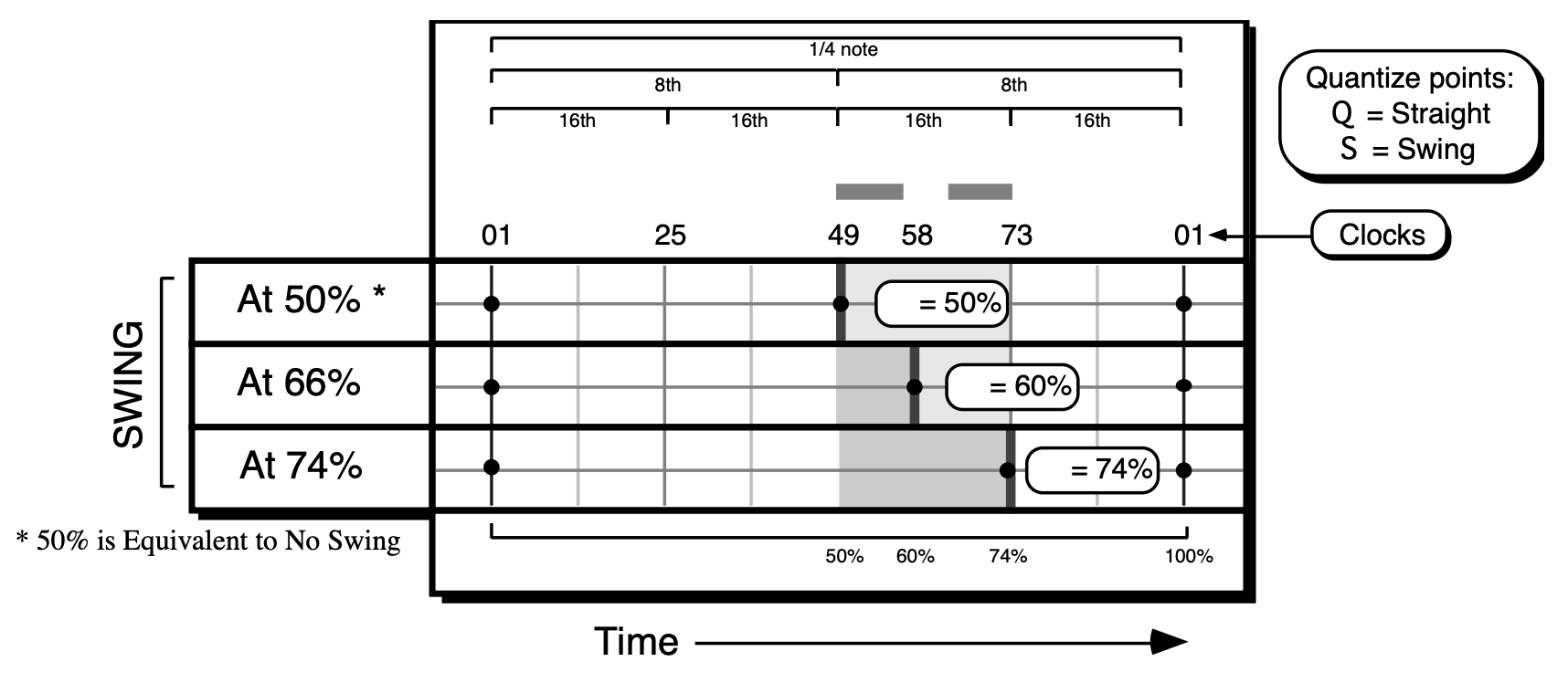
The SWING setting is the percentage of the time difference between the two Straight quantize points, and it is used to position the Swing quantize point. As the Swing setting increases from 50%, the Swing quantize point is moved closer to the following Straight quantize point.
The SWING percentage actually defines the point between the two straight quantize points. In other words, at 96 ppq, 60% swing means that between two quarter notes, the swing eighth will occur at the 60% mark, or at clock 58 (0.60 x 96). The default value for this parameter is 50% when the sequencer is initialized. Once it is changed, the last value is always remembered.
PERCENTRange: 000 to 100
While the QUANTIZE Note Value and SWING parameters determine the position of the quantize points, the PERCENT and RANDOM parameters determine where the key events will be placed in relation to the quantize points. The PERCENT parameter specifies how much the key event will move toward the calculated quantize point. A PERCENT value of zero would mean that the key events would not move any distance toward the quantize point. A PERCENT value of 100 would mean that the key event would be placed exactly on the quantize point. A PERCENT value of 50 will move the event half way to the quantize point.
The following diagram illustrates this. Again, Q and S represent the straight quantize and swing quantize points respectively. The original source track is shown, followed by the quantized versions at 0, 25, 50, and 100% quantization.
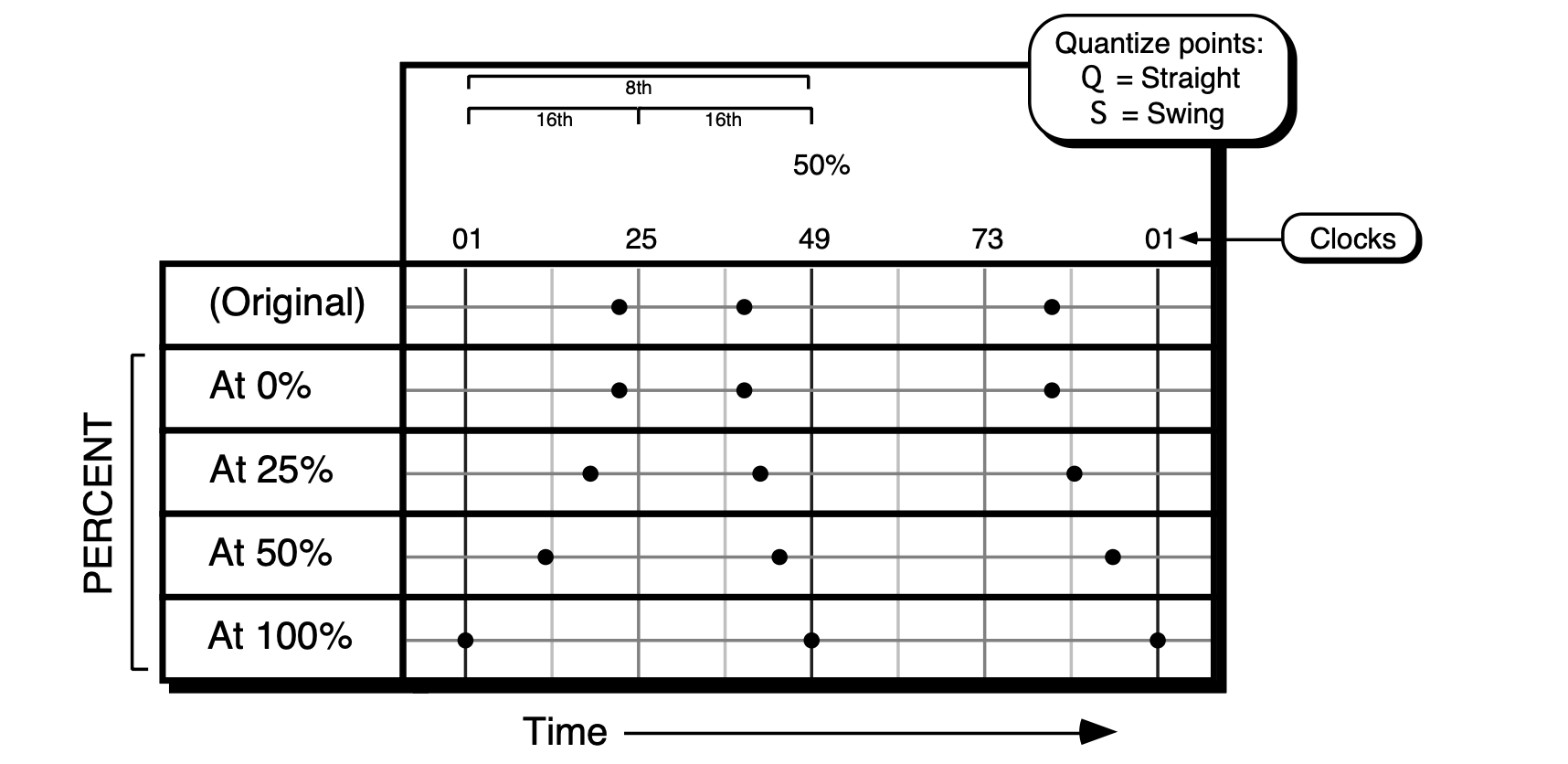
In this example, QUANTIZE is set to 1/8th notes and SWING is set to 50%.Increasing the PERCENT setting moves the events closer to the quantize points.
Notice how increasing the quantize percentage tightens up the track timing. The default value for this parameter is 100% when the sequencer is initialized. Once it is changed, the last value is always remembered.
RANDOMRange: 0 to 3
After the PERCENT parameter calculates the placement of the key event relative to the quantization points, the RANDOM parameter determines if, and how much, randomization should be applied to the key placement. The RANDOM parameter defines a “window of looseness” that the key event can fall into.
A RANDOM factor of 0 indicates that NO randomization will occur. A RANDOM factor of 3 indicates that the key event will be shifted anywhere from 0 to 3 clocks in either direction from the calculated key placement. Again, an example will illustrate this more clearly. This time we’ll use an event list. For our example, we’ll assume 1/4 note quantization with NO (i.e. 50%) swing, and a PERCENT factor of 50. The first column shows the original source track. The second column shows where the events will be placed if quantized with no randomization. The third and fourth columns show the range that the event will fall in with various degrees of randomization. Note that the placement of the key event is calculated first with NO randomization, then the random factor is applied.
| ORIGINAL | with RANDOM=0 | with RANDOM=1 | with RANDOM=2 |
|---|---|---|---|
| 1.1.08 | 1.1.04 | 1.1.03 to 1.1.05 | 1.1.02 to 1.1.06 |
| 1.2.12 | 1.2.06 | 1.2.05 to 1.1.07 | 1.2.04 to 1.2.08 |
| 1.2.95 | 1.2.96 | 1.2.95 to 1.3.01 | 1.2.94 to 1.3.02 |
| 1.4.01 | 1.4.01 | 1.3.96 to 1.4.02 | 1.3.95 to 1.4.03 |
The RANDOM parameter defaults to zero when the sequencer is initialized. After that, the last value is remembered.
Using the Quantize Options
Percentage quantization can be used to “tighten up” a track without placing everything exactly on a quantize point. This can make loose tracks sound tighter without sounding mechanical. It’s especially useful on passages where you want to play constantly ahead of or behind the beat. You can quantize the track to tighten up the looseness, yet still retain the rushed or laid back feel.
Keep in mind that percentage quantization can be done in stages. For example, quantize a track to 25% and keep it. Then later, if you decide you want it tighter still, quantize it again by 25%. Each time you perform a quantization, you will move the key events slightly closer to the quantize point.
Random quantization is useful for taking old tracks that have been quantized 100% and giving them a more human feel. This can be done by quantizing with the desired randomization factor. The higher the RANDOM factor, the looser the track will become (since the tracks have previously been quantized to the 100% quantize points, the PERCENT parameter will have no effect). Tracks that have not been quantized can be randomized as well. If your desired effect is simply to loosen a current track, select a quantize PERCENT of zero, and quantize with the desired randomization. This will shift each event in the track within a few clocks of its original place, but will not necessarily move it towards the quantize point.
In addition, the RANDOM parameter inside the TS‑10 “reseeds” itself. This means that if you quantize two identical tracks with randomization, you will get different results. Also, if you set the PERCENT parameter to zero, you can randomize a track, keep the new track, and randomize it again to get things progressively looser.
Although PERCENT, RANDOM, and SWING are interrelated, you do not have to use all of them when selecting options. By setting these parameters to their default values (PERCENT=100 - RANDOM=0 - SWING=50), you can use any one or combination of these options to quantize your tracks.
Important:
An event can be randomized and end up closer to a different quantize point. This could be a problem if you later decided to go back to a straight, no-frills quantization. This is not a fault of the quantization feature, but simply what can happen with randomization. The random factor is purposely kept low to prevent this from happening, however, there are cases where this can occur. One example would be successive randomization with the PERCENT parameter set to zero. Another instance involves using combinations of a high SWING parameter with a high RANDOM factor.
For example, let’s say you have a hi-hat track that’s already been quantized to straight eighths. Now you decide to give it a large swing feel, so you set SWING to 74. Any event that was at clock number 49 (a straight eighth note) would move to clock 72. But if you also specified a RANDOM of 3, the event may move as far as clock 75. Now let's suppose you keep this track, but then later on decide that you don't want a swing feel. So you setup a straight 1/8 note quantize. Only this time, the event that originally was at clock 49 is now at clock 75, so it would be moved to the next quantize point at clock 1 in the next beat (since that's the closest quantize point to that event). If you audition the track and hear that the swing event has moved up to the next quantize point, then you should keep the old track, shift the track by -3 clocks (to put the swing note closer to the original straight eighth point) then requantize with no swing to get all events back on the straight eighth points.
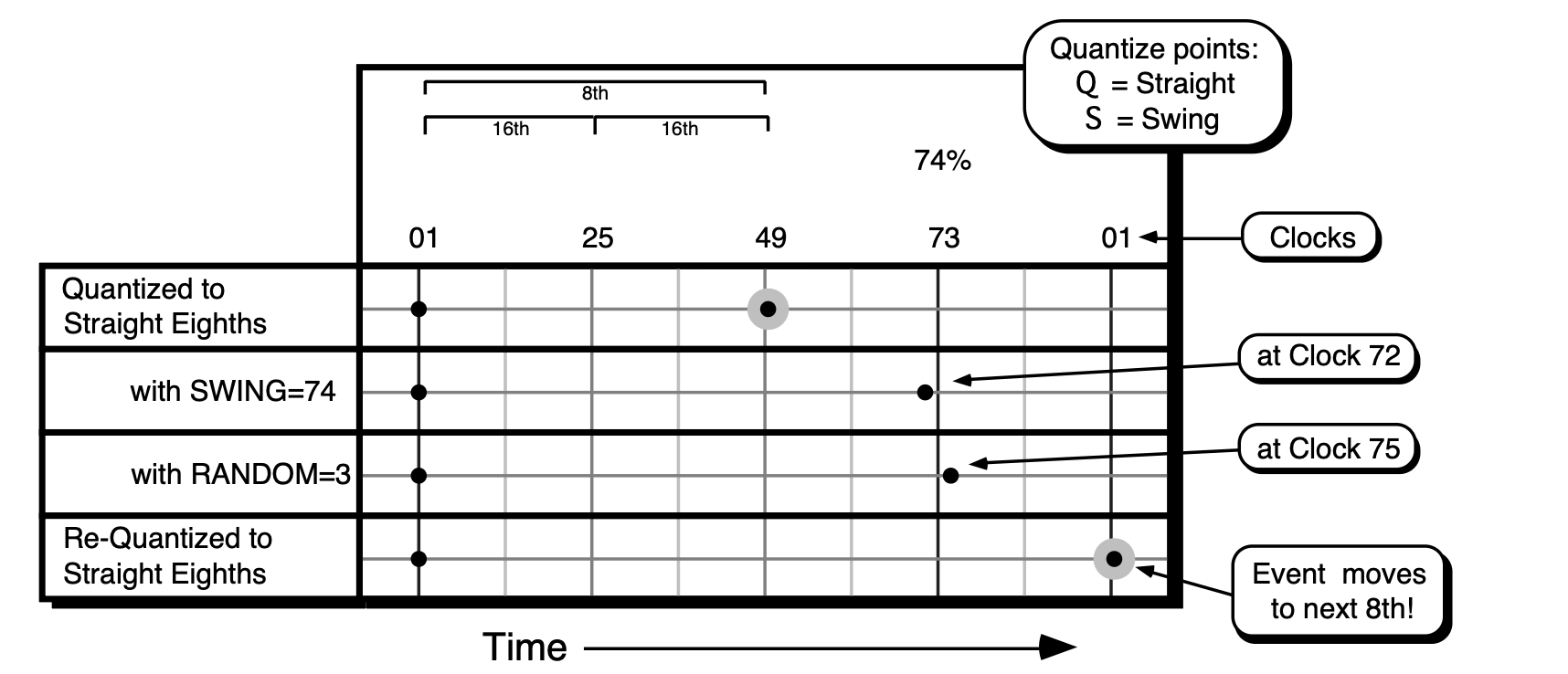
In this example, QUANTIZE is set to 1/8th notes, SWING is set to 74% and RANDOM set to 3, the event can be moved beyond the Swing Quantize point. In this case, a subsequent straight eighth quantize will move the event to the eighth note after the one it was initially on.
ERASE
This command will erase notes, controllers and all other data from the entire track, or from a given range if you so specify.
- Make sure the track you want to erase is selected.
- Press Edit Track, then select ERASE. The display shows:
- If you wish to erase a specific range rather than the entire track, press RANGE and set the time and/or key range on the Edit Track Range page, as shown earlier in this section. If not, leave it set to RANGE=ALL.
- Press *YES* to execute the edit command (or press *NO* to cancel). After editing, if a range was specified, the TS‑10 returns with the Audition Play/Keep page where you can audition the results of the edit before deciding whether to keep it or not. If the range was ALL, there is no audition.

COPY
This command will copy all or part of the current track (the source track) to another track. The destination track can be in the same sequence or in a different sequence.
- Make sure the track you want to copy is selected.
- Press Edit Track, then select COPY. The display shows:
- If you want to copy the source track to a different sequence, select the destination sequence by using the data entry controls to choose the one you want. Notice that only predefined sequences can be selected. The default is the current sequence, the one the source track is in.
- Select the destination track and use the data entry controls to select a track for the source track to be copied into.
- Press the soft button beneath the destination track again to move the underline to the starting bar. The data from the source track will be copied into the destination track starting from the beginning of the bar specified here. The default is bar 1, the beginning of the track.
- If you wish to copy a specific range rather than the entire track, press RANGE and set the time and/or key range on the Edit Track Range page, as shown earlier in this section. If not, leave it set to RANGE=ALL.
- Press *YES* to execute the copy command (or press *NO* to cancel). After editing, the TS‑10 returns with the Audition Play/Keep page where you can audition the results of the edit before deciding whether to keep it or not.

*MORE* — Additional Track Edit functions
Pressing *MORE* from the Edit Track page displays a sub-page which contains five additional track editing options. Pressing the Edit Track button twice will also take you directly to this page. Press *MORE*. The display shows:

The track editing functions contained on this sub-page are as follows:
TRANSPOSE
The Transpose function will raise or lower the notes in the track by a specified number of octaves and/or semitones. In addition to simply transposing the entire track, you can use the transpose function to re-map existing drum and percussion tracks for use with programs and instruments that have different key layouts, using the key range function to a transpose a single key.
- Make sure the track you want to transpose is selected.
- Press Edit Track twice (or press *MORE* from the Edit Track page), then select TRANSPOSE. The display shows:

- Use the data entry controls to specify the amount the track is to be transposed:
OctaveRange: -4 to +4 octaves
The first number (which is already selected) sets the octave amount.
SemitoneRange: -12 to +12 semitones
Press the soft button above the transpose amount again to move the underline to the semitone amount and adjust that.
- If you wish to transpose a specific range rather than the entire track, press RANGE and set the time and/or key range on the Edit Track Range page, as shown earlier in this section. If not, leave it set to RANGE=ALL.
- Press *YES* to execute the edit command (or press *NO* to cancel). After editing, the TS‑10 returns with the Play/Keep page where you can audition the results of the edit before deciding whether to keep it or not.
SCALE
The Scale command lets you increase or decrease the level of any controller information in the track by a specified amount. You could use this function, for example, to tame some over-zealous mod wheel work, or to increase the key velocity of all the notes in the track by some amount.
- Make sure the track you want to edit is selected.
- Press Edit Track twice (or press *MORE* from the Edit Track page), then select SCALE. The display shows:
- Use the data entry controls to choose which type of controller(s) you would like to scale.

The following event types can be scaled:
| Event Type | Description |
|---|---|
| Note-On Velocity | |
| Mod Wheel | |
| Foot Pedal | |
| Volume Pedal | |
| Track or MIDI Pan | |
| Sustain Foot Switch | |
| Sostenuto Foot Switch | |
| Effect Mod Foot Switch | |
| Patch Select Buttons | |
| Track Timbre Controller | |
| Track Release Time Controller | |
| Track Attack Time Controller | |
| Track Brightness Controller | |
| Track Rate Controller (LFO Rate and/or Wave-List Duration) | |
| Track External MIDI Controller | |
| All Controllers | |
| Channel (mono) Pressure | |
| Mixdown Volume | |
| Mixdown Pan | |
| Tempo Track Events |
EVENT-LIST
The Event List function provides you with an extremely powerful tool for viewing and editing each event in the track. Every key event, controller change and program change can be individually located and edited.
- Make sure the track you want to edit is selected.
- Press Edit Track twice (or press *MORE* from the Edit Track page), then select EVENT-LIST. The display shows:

EVENT-TYPE
Controls which types of events will be shown as you scroll up through the events in the track.
When set to ALL, every event in the track will be listed. On the other settings, some types of events will be left out of the list — when the Event Number (below) is changed, the display will jump directly to the next event of the type shown, skipping other types. The Event Types which can be selected here are:
| Event Type | Description |
|---|---|
| MOD | Mod Wheel |
| PED | Foot Pedal |
| VOL | Volume Pedal |
| PAN | Track or MIDI Pan |
| SUS | Sustain Foot Switch |
| SOS | Sostenuto Foot Switch |
| FXS | Effect Mod Foot Switch |
| PSL | Patch Select Buttons |
| TMB | Track Timbre Controller |
| REL | Track Release Time Controller |
| ATK | Track Attack Time Controller |
| BRT | Track Brightness Controller |
| RAT | Track Rate Controller (LFO Rate and/or Wave-List Duration) |
| XCC | XCTRL: Track External MIDI Controller |
| CNT | All Controllers |
| CPS | Channel (mono) Pressure |
| MXV | Mixdown Volume |
| MXP | Mixdown Pan |
| TMP | Tempo Track events |
| BND | Pitch Bend Wheel |
| KPS | Poly-Key Pressure |
| PRG | Program Changes and Bank Selects |
| KEY | Note Events only; no Controllers |
| ALL | All Events of all types |
TIME
Shows the current time in terms of Bar, Beat and Clock. These three TIME fields can be individually selected by repeated presses of the soft button. Use the Up/Down Arrows to step ahead or back in time by bars, beats or clocks, depending on which field is selected.
NUM — Event Number
When this field is selected, you can use the data entry controls to step ahead or back in time among the events in the track to find the one(s) you want to edit. When you press the Up Arrow button, it will advance to the next event of the type specified in Event Type. Moving the Data Entry Slider will scroll quickly through all the events in the track. You will hear the notes in the sequence play as you step through the track.
EVENT
This shows the type and value of the current event. The first segment of this readout is always the Event Type. For Key events Poly-Key pressure events, and Program Change events there are two additional segments; for all other event types there is one additional segment:
- On Key events, the display shows: EVENT=KEY.C4.115. The three segments represent Event Type; Key Number; and Velocity.
- On Poly-Key pressure events, the display shows EVENT=KPS.C4.115. The three segments represent Event Type; Key Number; and pressure Value.
- On Program Change events, the display shows: EVENT=PRG.000.000.B. The last three segments represet Event Type, Program Number, and Bank Select Number (followed by a “B”).
- For all other Event types, the display shows the Event Type and the Value.
- Time locations with no event are shown as EVENT=***.000.
*EXIT*
This exits Event List mode. If you have made any changes to the track you will be put on the Play/Keep page where you can audition the changes before deciding whether to keep them.
*EDIT*
Pressing EDIT displays the event editor sub-page which shows the selected event and its event number with the time that it occurs, and in the case of events with duration, the end time of the event as well.
Once you have selected an event to edit using the Event Number parameter (NUM), press *EDIT*. The display shows:

INSERT
Pressing INSERT will insert an event of the current Event Type at the time showing on the display. This option is not available when the Event Type is ALL (all events) or CNT (all controllers).
DELETE
This will remove the current event from the track.
*EXIT*
Pressing *EXIT* returns you to the main Event List page.
Value
To edit the VALUE of the current Event (the key number and velocity of a key event; the value from 0 to 127 of a controller change; or a program change number, etc.), press the lower-left soft button to select the value, then use the data entry controls to change it. For Key events, Poly-Key pressure events, and Program Change events, pressing the soft button again will select the second value segment for editing.
Event Starting Time Seq Values: Bar, Beat, and Clock
Song Values: Step, Repeats, Bar, Beat, and Clock To change the STARTING TIME of the current event, press the soft button below the time. The display shows:

Use the data entry controls to change the start point of the event, pressing the soft button beneath the time to move the cursor between Bar, Beat, and Clock. When you have the starting time that you want showing on the display, press *EXIT* to return to the Event List page with the event on the new time.
Duration
For Key Events only, you can change the length of the event (the time between when the key is struck and it is released). From the Event Edit sub-page press the soft button below DURATION. The display shows:

On the upper line of the display you can edit the end time of the event, using the data entry controls to change the end point and pressing the soft button above the time to move the cursor between Bar, Beat, and Clock.
On the lower line of the display, you can edit the actual duration of the event, expressed in terms of how many beats and clocks the event lasts. You can select BEATS=##, edit that and then select CLOCKS=## and edit that.
The upper and lower lines of this sub-page are interactive — editing the End Time on the upper line will cause the duration on the lower line to change, and vice versa.
When you have the duration that you want showing on the display, press *EXIT* to return to the Event Edit sub-page.
Auditioning Event Edit Changes
If you press *EXIT* to leave the Event List function without having made any changes in the track, you will simply be returned to the Edit Track page.
If you do change anything in the track, when you press *EXIT* you will be placed on a special version of the Audition Play/Keep page, where you can audition the new track and the original before deciding to either keep the new track, keep the old track or return to the Event Editor to edit some more. The display shows:

- Press KEEP ORIGINAL to exit to the Edit Track page, leaving the track as it was before you began editing.
- Press KEEP NEW to save the changes you have made to the track in Event List mode, replacing the original track in memory. Or,
- Press EDIT EVENTS to re-enter the Event List mode with the changes you have made so far intact, but retaining the option of keeping the original track later on.
When you have a song track on which the recorded data is shorter than the length of the actual song steps, and you try to add any type of event after the end of the recorded data, you will momentarily see the following error message: EVENT TIME PAST END OF RECORDED TRACK. To remedy the problem, your song track data needs to be the same length as the song steps. Set the RECORD-MODE=ADD; Press Record and Play, and let the song track run for the entire length of the song (without recording any data). On the Audition page, select KEEP NEW TRACK, and your song track will now be the same length as the Song Steps.
FILTER
The FILTER command can be used to selectively remove events (such as notes, controllers and program changes) from a track, or to copy selected events to a different track for further editing.
The FILTER command has two modes, ERASE and COPY. Depending on which mode is selected, it will either remove the specified events from the track, or simply copy them to another track, leaving the original track intact.
- Make sure the track you want to filter is selected.
- Press Edit Track twice (or press *MORE* from the Edit Track page), then select FILTER. The display shows:
- Use the data entry controls to choose which type of events you would like filtered from the track. The following event types can be filtered:
- If you wish to filter a specific range rather than the entire track, press RANGE and set the time and/or key range on the Edit Track Range page, as shown earlier in this section. If not, leave it set to RANGE=ALL.
- Press MODE=ERASE. This displays a special sub-page where you select the Filter Mode:

- If you want to copy the data to another track, select a destination track and then press COPY.
- You are returned to the Filter page, the display reading MODE=COPY.
- If you want to permanently remove the data from the track, simply press ERASE. You are returned to the Filter page, the display reading MODE=ERASE.
- Press *YES* to execute the filter command (or press *NO* to cancel). After editing, the TS‑10 returns with the Audition Play/Keep page where you can audition the results of the edit before deciding whether to keep it or not.

| Event Type | Description |
|---|---|
| CNTL-1.MODWHL | Mod Wheel |
| CNTL-4.PEDAL | Foot Pedal |
| CNTL-7.VOLUME | Volume Pedal |
| CNTL-10.PAN | Track or MIDI Pan |
| CNTL-64.SUSTN | Sustain Foot Switch |
| CNTL-66.SOSTU | Sostenuto Foot Switch |
| CNTL-12.FX-SW | Effect Mod Foot Switch |
| CNTL-70.PSEL | Patch Select Buttons |
| CNTL-71.TIMBR | Track Timbre Controller |
| CNTL-72.RELS | Track Release Time Controller |
| CNTL-73.ATTAK | Track Attack Time Controller |
| CNTL-74.BRITE | Track Brightness Controller |
| CNTL-75.RATE | Track Rate Controller (LFO Rate and/or Wave-List Duration) |
| CNTL-XX.XCTRL | Track External MIDI Controller |
| ALL.CONTROLRS | All Controllers |
| CHAN-PRESSURE | Channel (mono) Pressure |
| MIXDWN-VOLUME | Mixdown Volume |
| MIXDOWN-PAN | Mixdown Pan |
| TEMPO | Tempo Track events |
| PITCH-BEND | Pitch Bend Wheel |
| KEY-PRESSURE | Poly-Key Pressure |
| PROGRAM-CHNG | Program Changes and Bank Selects |
| KEY-EVENTS | Note Events only; no Controllers |
MERGE
This command will take the data in the selected track and merge, or combine, it together with that of another track. The destination track can be in the same sequence or in a different sequence from the source track. Note that the source sequence is not altered or erased by this process.
- Make sure the track you want to merge (the source track) is selected.
- Press Edit Track twice (or press *MORE* from the Edit Track page), then select MERGE. The display shows:
- Press the soft button above the destination track and use the data entry controls to select a track for the source track to be merged into.
- If you want to merge the source track with a track in a different sequence, select the destination sequence and use the data entry controls to choose the one you want. The default is the current sequence, the one the source track is in.
- Press *YES* to execute the merge command (or press *NO* to cancel). After editing, the TS‑10 returns with the Audition Play/Keep page where you can audition the results of the edit before deciding whether to keep it or not.

Click Page
Pressing the Sequencer Click button displays a page containing parameters which control the metronome functions of the sequencer.

CLICKRange: OFF, ON, or REC
Controls whether or not the click will be heard.
- OFF — the click will not be heard in Play or Record modes
- ON — the click will be heard whenever the sequencer is running
- REC — the click will be heard only when the sequencer is in Record mode, not when in Play
TIMERange: 1/2 to 1/32T notes
Sets the note value of the metronome click.
COUNTOFFRange: OFF, ON, REC, QUIET
This determines whether playing and/or recording sequences and songs will be preceded by a 1- bar countoff.
- OFF — no countoff will occur in Play or Record modes. The song or sequence will begin as soon as Play (or Record/Play) is pressed.
- ON — a one bar countoff plays before the sequence or song begins to play.
- REC — a one bar countoff will occur in Record mode only.
- QUIET — the countoff will occur in Play or Record modes without the click.
TEMPO (Tap Tempo)Seq
Range: 25 to 250 BPM, or EXT
Song Range: -64 to +63
Sets the tempo of the current sequence or song. On any of the three pages where tempo appears (Click, Sequencer Control, and Locate), the soft button nearest the TEMPO field can be used to “tap” in the tempo. If the field is already selected, tapping on the soft button at the correct rate for the desired tempo (based on the metronome settings on the click page) will update the tempo to the newest value. When CLOCK=MIDI on the Sequencer Control page, this field will read TEMPO=EXT to indicate that the tempo is controlled by incoming MIDI clocks.
When a song is selected, the range is expressed as a percentage of the sequence tempo — changing the song tempo offset automatically adjusts the tempo of each the sequences in the song by a percent, within the legal limits of 25-250 BPM. When TEMPO=+00 the sequences in the song will play at their designated tempo.
When a Song Tempo Track is selected, editing this value will record tempo change events.
VOLRange: -50 to +14 dB
Controls how loud the metronome click will sound.
PANRange: described below
Controls the stereo position of the click, and allows it to be sent out of the Main or AUX Outputs.
- DRY-L, DRY-R and DRY-C will send the click (without effects) to the Main Outputs, to the left only, right only or both respectively.
- AUX-L, AUX-R and AUX-C will send the click directly to the AUX Outputs, to the left only, right only, or both respectively.
Sequencer Control Page
The Sequencer Control page displays contains parameters which control the basic operation of the sequencer. This page consists of three sub-pages. The settings for the parameters on these pages are saved with the 60-SEQ/SONGS file type.
- Press Sequencer Control. The display shows:

CLOCKRange: INT or MIDI
This parameter selects the clock source for the sequencer.
- INT — Selects the TS‑10’s own internal clock to run the sequencer. The TS‑10 features 96 ppq (pulses per quarter-note) resolution for extremely accurate recording.
- MIDI — Selects external MIDI clocks as the sequencer clock source. Use this setting if you want to use another device (such as a computer sequencer or drum machine) as the master clock source and sync the TS‑10 to it. Whenever CLOCK=MIDI, the tempo display will read TEMPO=EXT to indicate that the TS‑10 is syncing to an external clock source.
When CLOCK SOURCE= MIDI, pressing the Record button puts the TS‑10 into standby MIDI sync record. The MIDI indicator light will flash and the display will show WAITING… Recording will begin with the first MIDI clock received after a MIDI Start command. If the Stop•Continue button is pressed before a MIDI Start command is received, the TS‑10 waits five seconds before stopping.
RECORD-MODERange: REPLACE, ADD, LOOPED, or MIXDOWN
Selects between the three recording modes for the sequencer.
- REPLACE — Anything recorded into an existing track will replace the data that was in the track previously. The sequencer will stop recording after one time through the sequence or song and will enter Audition/Play mode.
- ADD — New data recorded into an existing track will be added to (or merged with) data already in the track — the existing data will be left intact. Again, the sequencer will exit record after one time through the sequence or song and enter Audition/Play.
- LOOPED — As with ADD mode, new data recorded into an existing track will be added to (or merged with) data already in the track. However, when RECORD-MODE=LOOPED, the sequencer will remain in Record for as many times as you play the song or sequence through (rather than dropping out of Record after one time through). Think of this as “drum machine mode” — as long as the sequence or song keeps playing, you can keep adding parts each time around.
There is a fourth Record Mode which is available only when a song is selected:
- MIXDOWN — When a song is selected on the TS‑10, you can set the Record Mode to MIXDOWN, which is used to record dynamic Volume and Pan changes into sequence and song tracks. When RECORD-MODE=MIXDOWN the TS‑10 will record only changes made on the Volume and Pan pages in the Track Parameters section. Notes, controllers, program changes, etc. will not be recorded in this mode.
Depending on the setting of the EDIT TRACKS parameter on the next sub-page (see below) you can mix down either the song tracks or sequence tracks over the length of the song.
TEMPO (Tap Tempo)Seq
Range: 25 to 250 BPM, or EXT
Song Range: -64 to +63
Sets the tempo of the current sequence or song. On any of the three pages where tempo appears (Click, Sequencer Control, and Locate), the soft button nearest the TEMPO field can be used to “tap” in the tempo. If the field is already selected, tapping on the soft button at the correct rate for the desired tempo (based on the metronome settings on the click page) will update the tempo to the newest value. When CLOCK=MIDI, this field will read TEMPO=EXT to indicate that the tempo is controlled by incoming MIDI clocks, and cannot be edited.
When a song is selected, the range is expressed as a percentage of the sequence tempo — changing the song tempo offset automatically adjusts the tempo of each the sequences in the song by a percent, within the legal limits of 25-250 BPM. When TEMPO=+00 the sequences in the song will play at their designated tempo.
When a Song Tempo Track is selected, editing this value will record tempo change events.
AUTOPUNCHRange: OFF or ON
When overdubbing a track, this extremely powerful feature will automatically enter and exit record mode at predetermined times which you specify. You can play along with the track and have the TS‑10 “punch” in and out for you like an invisible engineer. We refer to the points at which recording will begin and end as the Edit Times and they are set on the second sub-page of the Locate Page.
- ON — the TS‑10 uses the Edit Times specified on the Locate sub-page for entering and exiting record state.
- OFF — normal recording without using Edit Times.
LOOPRange: OFF or ON
This parameter controls whether or not the sequence or song will loop. The setting of this control is remembered for each sequence and song.
- ON — the sequence or song will play continuously, looping back to the beginning when it reaches the end.
- OFF — the song or sequence will not loop, it will play once and stop.
Press Sequence Control again to display the second sub-page:

SONG STEP EFFECTRange: SEQ or SONG
This controls which effect(s) will be used while a song is playing — those from each individual sequence or a single “override” effect saved with the song. A song contains a series of sequences which will play in order. Each sequence has its own effect. When switching from one sequence to another in the course of a song, there can be a momentary “glitch” of the sound as the effect for the new sequence is loaded. This can be avoided by setting this parameter to SONG STEP EFFECT=SONG so that the entire song will use the same effect.
- SEQ — the individual sequence effects will be selected as the sequences are played.
- SONG — the song effect will override the individual sequence effects.
REC-SOURCERange: BOTH, KEYBD, MIDI, or MULTI
This parameter determines what will be recorded when the MIDI mode is MULTI — data from the keyboard, from incoming MIDI, or both. Setting this parameter to MIDI is useful if you want to send data from the TS‑10 to a MIDI processor, then record only the incoming data coming back from the processor. This parameter only has an effect in MULTI mode; in POLY or OMNI modes the sequencer always records both.
- BOTH — The sequencer will record data received either from the keyboard or from MIDI on the track’s MIDI channel.
- KYBD — The sequencer will record data only from the keyboard.
- MIDI — The sequencer will record only data received from the MIDI on the track’s MIDI channel.
- MULTI — this setting allows you to record data onto multiple TS‑10 tracks simultaneously, but only from MIDI. This is most useful for recording tracks sent from external sequencers or played from guitar controllers.
It is possible to record multi-track sequences from the keyboard, but only if you set track status to MIDI-LOOP for each of the active (primary and layered) tracks and then set up a MIDI loop (by connecting MIDI Out to MIDI In). This procedure is a bit tricky, and should only be attempted if you have a good understanding of the system. See Section 10 — Understanding the Sequencer for information on recording into the TS‑10 sequencer in a MIDI loop.
EDIT TRACKSRange: SEQ or SONG
This determines which set of tracks will be displayed on the track parameter pages when a song is selected. It also determines whether song or sequence tracks will be affected by volume or pan changes when you select RECORD-MODE=MIXDOWN (see above). When incoming MIDI is received, the setting of this switch determines whether the sounds on the sequence or the song tracks will play. The setting of this switch is saved with each song.
- SEQ — the sequence tracks from the current song step will be displayed. When EDIT TRACKS is set to TRACKS=SEQ and you press Seq/Song Tracks 1-6 or 7-12, the LED above the button will flash to remind you that you are looking at the tracks from the sequence currently playing and not at the song tracks. The sequence tracks will receive via incoming MIDI.
- SONG — the song tracks will be displayed when a song is selected. The song tracks will receive via incoming MIDI.
Press Sequencer Control a third time to display the third sub-page:

FREERange: (read only)
This shows the number of available events in sequencer memory. This read only parameter is informational and cannot be selected or edited.
SAVE CHANGESRange: NO, ASK, or AUTO
This parameter turns the SAVE CHANGES? prompt on or off when switching between sequences and/or songs.
- NO — when SAVE CHANGES=NO, you can edit any of the Track Parameters, replace the sound on a track, etc. and the changes will be “forgotten” as soon as you select a new sequence or song.The SAVE CHANGES prompt with not be displayed. This mode is helpful when you are not sequencing, but have edited a sequence or song, and don’t want to be slowed down by the SAVE CHANGES prompt. Recording any new track data, however, will automatically reset this parameter to ASK.
- ASK — when SAVE CHANGES=ASK, if you edit any of the Track Parameters, replace the sound on a track, etc. and then select a different sequence or song, you will be asked if you want to save those changes. This is the default setting.
- AUTO — when SAVE CHANGES=AUTO, all changes made to any of the Track Parameters, or track sound assignments are made permanent when you select another sequence or song. AUTO is similar to ASK, except the SAVE CHANGES? prompt is not displayed, and assumes that you answered *YES*. Recording any new track data will not automatically reset this parameter to ASK — it will remain set to AUTO until you change it.
- OFF — With this switch set to OFF, Step Entry Recording is disabled and the system will behave normally.
- ON — Whenever you go into Record with this switch set to ON, the TS‑10 will automatically display the Step Entry page after the countoff has elapsed. If there is no countoff, then it will be immediately displayed.
- ON — each individual key down event will cause a note to be recorded on the track and will automatically advance the sequencer time by the amount set in the step size parameter. The duration of the note is controlled by the gate time select parameter.
- OFF — key events do not automatically advance the sequencer time, and multiple events can be recorded at the same track location (time).
- HELD — the amount of time that you hold down the key(s) while advancing the track will determine the gate time. The time between key down and key release will be the duration.
- STEP — the duration of new notes will be the same as the current step size.
- 1/1 to 1/64T (and dotted note values 1/1D to 1/16D) — when you select any of these settings, the displayed note value will be used for the duration. If you need finer resolution, or wish to have longer gate times than a whole note (1/1), use the closest available value to enter the note and then, after you have finished with Step Recording, use the Event Editor to precisely adjust the duration.
STEP-ENTRYRange: OFF or ON
Determines whether Step Entry mode will be used when the sequencer is put into record.
The Step Entry page looks something like this (depending on the settings):

TRKRange: 1 to 12 (read only)
The number of the currently selected track (on which you are recording) is shown in the upper left corner of the display. It is displayed only to remind you which track is being recorded and it cannot be selected or edited.
AUTOSTEPRange: OFF or ON
This switch determines whether key events will advance to the next defined time setting.
If you use AUTOSTEP=ON for entering chords, the result will be an arpeggiated chord, similar to a guitar chord being strummed. This is true because each note of the chord will advance the time by the step size, causing older notes to have longer durations.
GATE-TIMERange: HELD, STEP, or 1/1 to 1/64T
The gate time (duration) value of a note is assigned when a key is released. This parameter allows you to determine how long the source will sound before it is gated (cut-off).
TIMERange: (described below)
Allows you to set the current location on the track. The track location (or time) is normally displayed as a three–part parameter when you are recording a sequence track, with two additional parts added when a song track is being recorded. In sequence mode, the three parts are Bars, Beats, and Clocks. In song mode, Step Number and Repetition Count fields are added to the left of the Bars, Beats, and Clocks fields.
The maximum ranges for these fields are determined by the length of the track. In song mode, the song structure is also important because the number of steps, the number of repetitions of each step, and the sequence length of each step are factored into the computation of the song track length.
You can advance the track by changing any of the fields, and if you have selected RECORD-MODE=LOOPED on the MODE=LOOPED on the Sequencer Control page, advancing past the end of the track will wrap around to the beginning. Otherwise, if you advance past the end of the track you will enter AUDITION mode.
STEPRange: (described below)
Allows you to set the current step size which will be added to the current track location (TIME) whenever you use the *STEP* command, or when AUTOSTEP=ON. The range of step sizes is from whole notes 1/1 to 1/64th note triplets 1/64T. Dotted note values are also available (1/1D to 1/16D).
| Note Name | Step Size | Beat.Clock | Note Name | Step Size | Beat.Clock |
|---|---|---|---|---|---|
| Whole note | 1/1 | 4.00 | 32nd note | 1/32 | 0.12 |
| Whole note triplet | 1/1T | 2.64 | 32nd note triplet | 1/32T | 0.08 |
| Half note | 1/2 | 2.00 | 64th note | 1/64 | 0.06 |
| Half note triplet | 1/2T | 1.32 | 64th note triplet | 1/64T | 0.04 |
| Quarter note | 1/4 | 1.00 | Dotted whole note | 1/1D | 6.00 |
| Quarter note triplet | 1/4T | 0.64 | Dotted half note | 1/2D | 3.00 |
| Eighth note | 1/8 | 0.48 | Dotted quarter note | 1/4D | 1.48 |
| Eighth note triplet | 1/8T | 0.32 | Dotted eighth note | 1/8D | 0.72 |
| Sixteenth note | 1/16 | 0.24 | Dotted 16th note | 1/16D | 0.36 |
| Sixteenth note triplet | 1/16T | 0.16 |
*STEP*
Pressing this soft button will advance the track location (TIME) by the amount set in the STEP parameter. Notice the TIME parameter adjusts to the new location on the track when the *STEP* button is pressed.
If you have selected RECORD-MODE=LOOPED on the MODE=LOOPED on the Sequencer Control page, stepping past the end of the track will wrap around to the beginning, allowing you to continue stepping. Otherwise, if you step past the end of the track you will enter Audition mode.
If you are using a Foot Switch with the TS‑10, you can assign the foot switch to advance the location by setting FS1=*STEP* on the System page. Pressing the foot switch will act just like the *STEP* command on the Step Entry page. This is useful when you need both hands to control the keyboard.