Performance / Composition Synthesizer · Version 3.0
Section 9 — Program Parameters (LFO, Envelopes, Pitch, Filters)
This section covers the parameters which can be edited independently for each Voice within a Program. For a general overview of the program concepts involved, refer to the previous section.
LFO Page
The LFO Page contains the parameters related to the Low Frequency Oscillator. Each voice in a program has its own LFO, which can be assigned as a modulator wherever a modulation source is selected. LFO’s are commonly used to create vibrato, tremolo and other effects.
Press the LFO button. This takes you to the first sub-page of the LFO page:

LFO RATERange: 00 to 99
Determines the speed of the LFO. The table below shows the frequency (in hertz) for each value:
| Value | Time (in Hz) | Value | Time (in Hz) | Value | Time (in Hz) | Value | Time (in Hz) | Value | Time (in Hz) |
|---|---|---|---|---|---|---|---|---|---|
| 0 | .00 | 20 | .63 | 40 | 2.17 | 60 | 4.77 | 80 | 7.37 |
| 1 | .01 | 21 | .67 | 41 | 2.30 | 61 | 4.90 | 81 | 7.50 |
| 2 | .03 | 22 | .70 | 42 | 2.43 | 62 | 5.03 | 82 | 7.63 |
| 3 | .07 | 23 | .73 | 43 | 2.56 | 63 | 5.16 | 83 | 7.76 |
| 4 | .10 | 24 | .77 | 44 | 2.69 | 64 | 5.29 | 84 | 7.89 |
| 5 | .13 | 25 | .80 | 45 | 2.82 | 65 | 5.42 | 85 | 8.02 |
| 6 | .17 | 26 | .83 | 46 | 2.95 | 66 | 5.55 | 86 | 8.15 |
| 7 | .20 | 27 | .87 | 47 | 3.08 | 67 | 5.68 | 87 | 8.28 |
| 8 | .23 | 28 | .90 | 48 | 3.21 | 68 | 5.81 | 88 | 9.28 |
| 9 | .27 | 29 | .93 | 49 | 3.34 | 69 | 5.94 | 89 | 10.28 |
| 10 | .30 | 30 | .97 | 50 | 3.47 | 70 | 6.07 | 90 | 11.28 |
| 11 | .33 | 31 | 1.00 | 51 | 3.60 | 71 | 6.20 | 91 | 12.28 |
| 12 | .37 | 32 | 1.13 | 52 | 3.73 | 72 | 6.33 | 92 | 13.28 |
| 13 | .40 | 33 | 1.26 | 53 | 3.86 | 73 | 6.46 | 93 | 14.28 |
| 14 | .43 | 34 | 1.39 | 54 | 3.99 | 74 | 6.59 | 94 | 15.28 |
| 15 | .47 | 35 | 1.52 | 55 | 4.12 | 75 | 6.72 | 95 | 16.28 |
| 16 | .50 | 36 | 1.65 | 56 | 4.25 | 76 | 6.85 | 96 | 17.28 |
| 17 | .53 | 37 | 1.78 | 57 | 4.38 | 77 | 6.98 | 97 | 18.28 |
| 18 | .57 | 38 | 1.91 | 58 | 4.51 | 78 | 7.11 | 98 | 19.28 |
| 19 | .60 | 39 | 2.04 | 59 | 4.64 | 79 | 7.24 | 99 | 20.28 |
Track RATE Mod SelectorRange: enabled (*) or disabled (blank)
Press the soft button above the RATE parameter again to enable or disable the Track RATE parameter independently for each LFO. When an asterisk (*) is displayed, the Track RATE parameter will affect the Rate of the LFO. If there is no asterisk, then the Track RATE parameter will have no effect on the Rate of the LFO. This allows you to define whether or not each voice in a Program will have its LFO Rate modulated by the Track RATE parameter. Successive presses of the soft button above RATE will toggle between the Rate value and the Track RATE Mod selector.
RATE MODSRCRange: various
Selects a modulation source for LFO RATE from among the 15 available modulators.
RATE MODAMTRange: 00 to 99
Determines the amount by which the assigned RATE modulator will affect the LFO RATE. The effect of RATE MODAMT is added to the effect of the LFO RATE parameter.
DEPTHRange: 00 to 99
Sets the “manual” level of the LFO. DEPTH controls the initial amount of LFO.
DEPTH MODSRCRange: various
Selects a modulation source for LFO DEPTH from among the 15 available modulators.
DEPTH MODAMTRange: -99 to +99
Determines the amount by which the assigned DEPTH modulator will affect the LFO DEPTH.
The effect of DEPTH MODAMT is added to the effect of the LFO DEPTH parameter.
Press the LFO button again to access the second sub-page of the LFO page. The display reads:

WAVESHAPERange: various (see below)
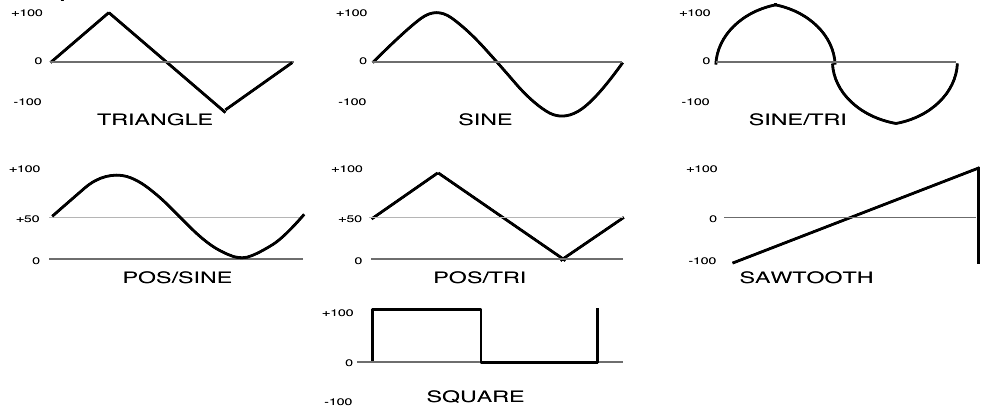
The Waveshape determines how the LFO signal will rise and fall. There are seven possible values:
- TRIANGLE — the triangle wave is commonly used to modulate pitch to produce vibrato.
- SINE — the sine wave is a pure fundamental frequency, more rounded in its peaks and valleys than the triangle wave.
- SINE/TRI — a mixture of a sine and triangle wave, a sort of pointy sine wave.
- POS/SINE — the POS/SINE is a positive-only sine wave, similar in application to the POS/TRI.
- POS/TRI — the POS/TRI is a positive-only triangle wave useful for simulating vibrato on sounds like the guitar, where vibrato techniques are limited to bending the note up.
- SAWTOOTH — the sawtooth wave is commonly used for special effects.
- SQUARE — this positive-only square wave is useful for producing in-tune trill effects.
LFO Waveshapes
RESTART-MODERange: OFF or ON
Determines whether the LFO will restart with each keystrike. When set to OFF, the LFO will cycle continuously without resetting. When set to ON, the LFO waveform will always start at the starting phase, as determined by the PHASE parameter, each time a new key is struck.
PHASERange: 000 to 255
Determines the starting phase of the LFO, when RESTART-MODE=ON. With a setting of 000, the LFO will always restart at the beginning of its cycle.
DELAYRange: 00 to 99
Determines the time it takes for the LFO to go from zero to the amount set with the DEPTH parameter. Values above 0 will cause the LFO to take longer to achieve its full depth. This is useful for creating delayed vibrato, tremolo, etc.
NOISE-RATERange: 00 to 99
One of the TS‑10’s 15 available modulation sources is NOISE. The NOISE modulator produces a randomly changing level. Its main use is to randomize or “humanize” pitch when applied as a pitch modulator. It can also be used to randomize any other modulation destination. Typically, the NOISE signal might look like this:
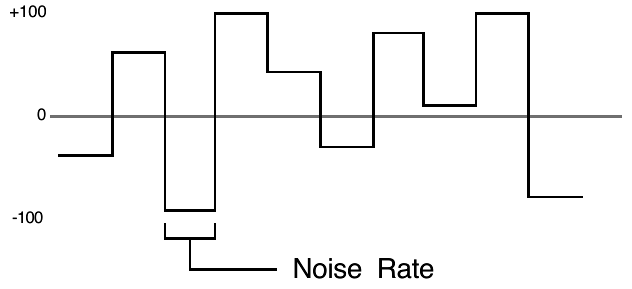
NOISE-RATE determines how frequently the random level will change. Low values will cause it to change very slowly; with high values the level will change quickly.
ENV1, ENV2, ENV3 — TS‑10 Envelopes
An Envelope is a shape, or contour, which we apply to a signal source to make it change over time. Each TS‑10 voice has three envelopes. These envelopes are automatically routed to the pitch, filter frequency and amplitude of the voice, though ENV1 and ENV2 can also be assigned elsewhere, wherever a modulator is selectable.
- ENV1 is routed to the pitch of the voice. There is a parameter always available on the Pitch Mods page which lets you adjust the amount by which ENV1 will modulate the voice’s pitch.
- ENV2 is routed to the filter cutoff frequency of the voice. For each of the voice’s two filters, the ENV2 parameter on the Filters page controls the ENV2 depth.
- ENV3 is routed to the amplitude (volume) of the voice. ENV3 always controls the final volume contour of the voice. Any other volume modulators selected on the Output page will occur before ENV3 in the signal flow.
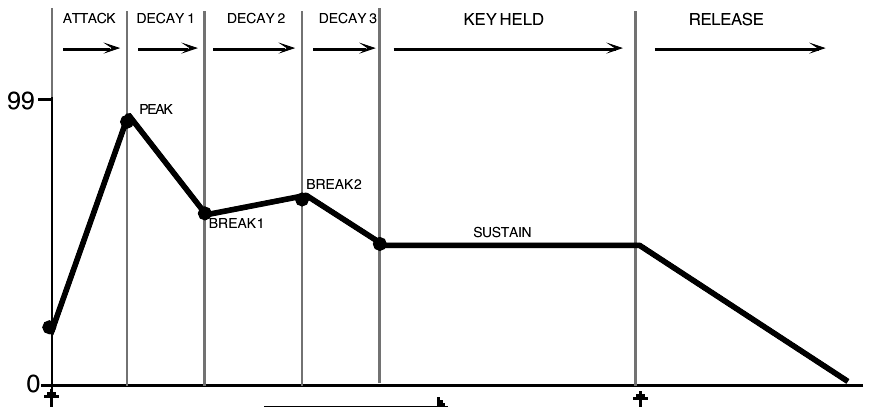
The TS‑10 envelopes are descended from the venerable ADSR (attack, decay, sustain, release) envelope, but with many refinements. While the ADSR envelope gives you control over three time segments and one level, the TS‑10 envelopes give you control over four levels and five time segments.
The illustration below shows the make-up of a TS‑10 envelope:
Each envelope page consists of three sub-pages, which are reached by repeatedly pressing the Env 1, Env 2, or Env 3 button. For each envelope page:
- The first sub-page contains the five time segments: ATTACK, DECAY 1, DECAY 2, DECAY 3 and RELEASE.
- The second sub-page contains the four levels: PEAK, BREAK 1, BREAK 2, SUSTAIN; this sub- page also contains the VEL-LEV velocity-to-levels modulation amount.
- The third sub-page contains the Envelope mode, keyboard scaling, and several parameters for shaping the velocity response of the envelope.
ENV1, ENV2 and ENV3 Pages
The ENV1, ENV2 and ENV3 Pages, parameters and ranges are all the same except where indicated below. We will use ENV3 as our example, since its effect on the volume of the voice is immediately apparent.
Press the Env 3 button to get to the first ENV3 sub-page containing the five TIME parameters:

Note that the numbers shown here represent times, not rates. That is, the envelope will take a fixed amount of time to go from one level to another no matter how close together or far apart those two levels are.
ATTACKRange: 00 to 99 (see the Envelope Times chart below for a listing of the time values)
The amount of time it takes for the envelope level to travel from zero (when the key is struck) to the PEAK level. The higher the value, the longer the time.
Track Attack Mod SelectorRange: enabled (*) or disabled (blank)
Press the soft button above the ATTACK parameter again to enable or disable the Track ATTACK parameter independently for each Envelope. When an asterisk (*) is displayed, the Track ATTACK parameter will affect the Attack Time of the Envelope. If there is no asterisk, then the Track ATTACK parameter will have no effect on the Attack Time of the Envelope. This allows you to define whether or not each Envelope in each Voice in a Program will have its Attack Time modulated by the Track ATTACK parameter. Successive presses of the soft button above ATTACK will toggle between the Attack value and the Track ATTACK Mod selector.
DECAY 1Range: 00 to 99
The time it takes the envelope to go from PEAK to BREAK 1.
DECAY 2Range: 00 to 99
The time it takes the envelope to go from BREAK 1 to BREAK 2.
DECAY 3Range: 00 to 99
The time it takes the envelope to go from BREAK 2 to the SUSTAIN stage. At the end of DECAY 3, the envelope will remain at the SUSTAIN level until the key is released.
RELEASERange: 00 to 99
This defines the time it will take the envelope to return to zero after the key has been released. RELEASE is a percentage of the ATTACK time.
Track Release Mod SelectorRange: enabled (*) or disabled (blank)
Press the soft button below the RELEASE parameter again to enable or disable the Track RELEASE parameter independently for each Envelope. When an asterisk (*) is displayed, the Track RELEASE parameter will affect the Release Time of the Envelope. If there is no asterisk, then the Track RELEASE parameter will have no effect on the Release Time of the Envelope. This allows you to define whether or not each Envelope in each Voice in a Program will have its Release Time modulated by the Track RELEASE parameter. Successive presses of the soft button below RELEASE will toggle between the Release value and the RELEASE Mod selector.
| Value | Time (in sec) | Value | Time (in sec) | Value | Time (in sec) | Value | Time (in sec) | Value | Time (in sec) |
|---|---|---|---|---|---|---|---|---|---|
| 0 | .00 | 20 | .20 | 40 | .82 | 60 | 3.2 | 80 | 13 |
| 1 | .01 | 21 | .22 | 41 | .88 | 61 | 3.5 | 81 | 14 |
| 2 | .02 | 22 | .23 | 42 | .94 | 62 | 3.7 | 82 | 15 |
| 3 | .03 | 23 | .25 | 43 | 1.0 | 63 | 4.0 | 83 | 16 |
| 4 | .04 | 24 | .27 | 44 | 1.0 | 64 | 4.3 | 84 | 17 |
| 5 | .06 | 25 | .29 | 45 | 1.1 | 65 | 4.6 | 85 | 18 |
| 6 | .07 | 26 | .31 | 46 | 1.2 | 66 | 4.9 | 86 | 19 |
| 7 | .08 | 27 | .33 | 47 | 1.3 | 67 | 5.3 | 87 | 21 |
| 8 | .08 | 28 | .35 | 48 | 1.4 | 68 | 5.7 | 88 | 22 |
| 9 | .09 | 29 | .38 | 49 | 1.5 | 69 | 6.1 | 89 | 24 |
| 10 | .10 | 30 | .41 | 50 | 1.6 | 70 | 6.5 | 90 | 26 |
| 11 | .11 | 31 | .44 | 51 | 1.7 | 71 | 7.0 | 91 | 28 |
| 12 | .11 | 32 | .47 | 52 | 1.8 | 72 | 7.5 | 92 | 30 |
| 13 | .12 | 33 | .50 | 53 | 2.0 | 73 | 8.1 | 93 | 32 |
| 14 | .13 | 34 | .54 | 54 | 2.1 | 74 | 8.6 | 94 | 34 |
| 15 | .14 | 35 | .58 | 55 | 2.3 | 75 | 9.3 | 95 | 37 |
| 16 | .15 | 36 | .62 | 56 | 2.4 | 76 | 9.9 | 96 | 39 |
| 17 | .16 | 37 | .66 | 57 | 2.6 | 77 | 10 | 97 | 42 |
| 18 | .17 | 38 | .71 | 58 | 2.8 | 78 | 11 | 98 | 45 |
| 19 | .19 | 39 | .76 | 59 | 3.0 | 79 | 12 | 99 | 49 |
Press Env 3 again. This takes you to the second ENV3 sub-page, which shows the five LEVELS

PEAKRange: 00 to 99
Determines the level the envelope will reach at the end of the time defined by ATTACK.
BREAK 1Range: 00 to 99
Determines the level the envelope will reach at the end of DECAY 1.
BREAK 2Range: 00 to 99
Determines the level the envelope will reach at the end of DECAY 2.
SUSTAINRange: 00 to 99
Determines the level the envelope will reach at the end of DECAY 3 and retain as long as the key is held down.
VEL-LEVRange: 00 to 99
The Velocity level parameter will lower all envelope level settings with a softer keystrike. This means the settings you assign to PEAK, BREAK 1, BREAK 2 and SUSTAIN are maximum levels — the levels that will be reached with the hardest keystrike. The amount of VEL-LEV will determine how much those levels will be reduced as you play softer. With this parameter you can have continuous dynamic control over the five levels by varying how hard you play. The Velocity Curve (VEL-CURVE on the next sub-page) controls the response of the VEL-LEV parameter, reshaping the way that velocity modulates the envelope levels. This provides further control over the velocity response of the envelope.
Press the Env 3 button again. This displays the final sub-page for ENV 3:

MODE (ENV 1 and ENV 2)Range: NORMAL, FINISH, or REPEAT
- NORMAL — The envelope plays through normally.
- FINISH — The envelope runs its full cycle — finishes playing through all its stages — ignoring the key-up event. The envelope spends no time at the sustain stage. As soon as DECAY 3 is finished, instead of stopping at the sustain stage the envelope immediately goes into the release stage. This is good for percussive-type sounds where you want the envelope to be the same for every note, no matter how long the key is held down.
- REPEAT — In this mode, at the end of the DECAY 3 stage, instead of sustaining, the envelope goes immediately back to the beginning of the envelope and repeats. When the key is released, the envelope stops repeating, and moves into the release stage. This type of envelope can be used to create complex LFO-type effects. When ENV3 is set to MODE=REPEAT, each time Envelope 3 restarts it will restart the Wave from its SAMPLE-START-OFFSET value.
MODE (ENV 3)Range: NORMAL, FINISH, or REPEAT
Voice Triggering/Stealing Notes Since ENV 3 controls the volume of the voice, there are a number of special considerations to be aware of when using the different envelope modes:
- In NORMAL mode, if you set a delay on the voice, and you release the key before the designated delay time elapses, the voice will not sound.
- In FINISH mode, if you set a delay on the voice and you release the key before the designated delay time elapses, the note will sound anyway, and then envelope will run through its full cycle. The envelope finishes what you set it up to do.
- In REPEAT mode, the envelope will repeatedly cycle through the PEAK and BREAK 1 and BREAK 2 LEVELS, using the ATTACK and all three DECAY times, for as long as the key is held down.
When envelope gets to the SUSTAIN level, it goes back to the INITIAL level. The TS‑10 restarts the wave at its SAMPLE-START-OFFSET every time the envelope repeats.
In order to maximize the use of the TS‑10’s 32 voices, and to manage the “voice stealing” it is sometimes useful to understand when a given voice will be assigned and when it will be released, or “put back” into the pool for use by other sounds. This depends on a combination of envelope mode and the wave type.
A looped (sustaining) wave will continue to use the voice until the envelope reaches zero. For a sustaining wave, when the Envelope Mode is NORMAL:
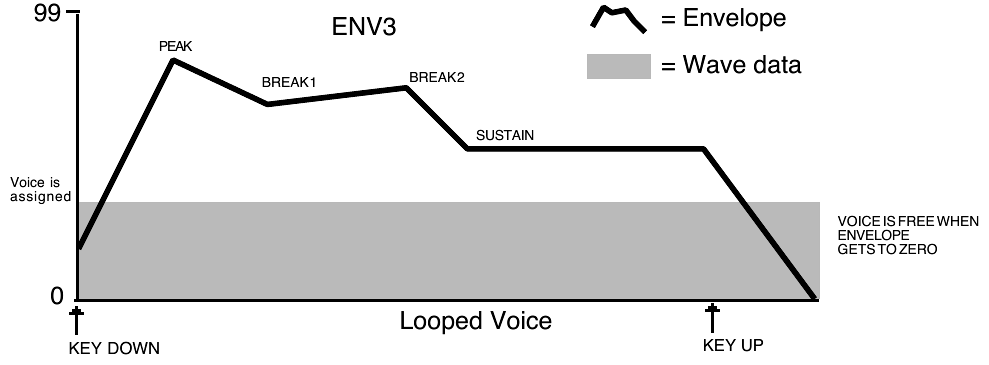
For a sustaining wave, when the Envelope Mode is set to FINISH:
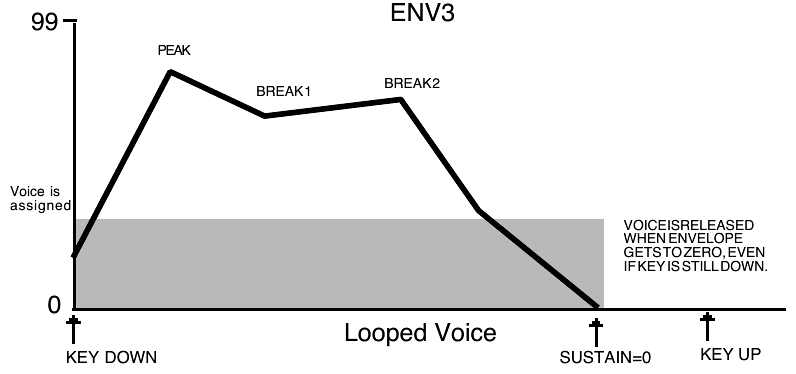
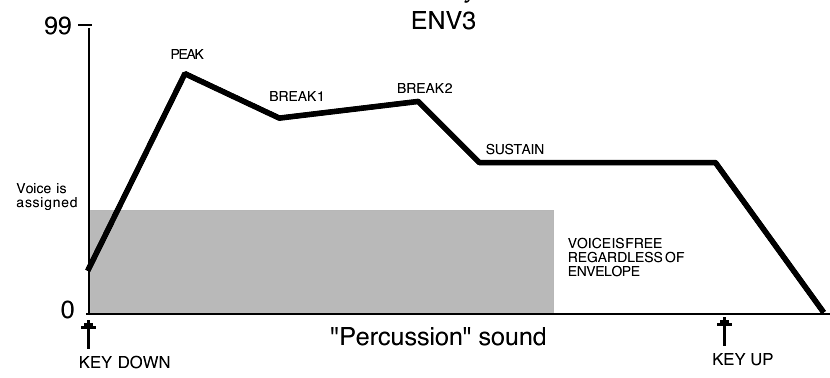
For unlooped, non-sustaining, waves (specifically those in the Percussion and Drum categories) the voice becomes free as soon as the sample has played through to the end, no matter where the envelope level is. The voice is released for use by another sound:
VEL-CURVERange: (described below)
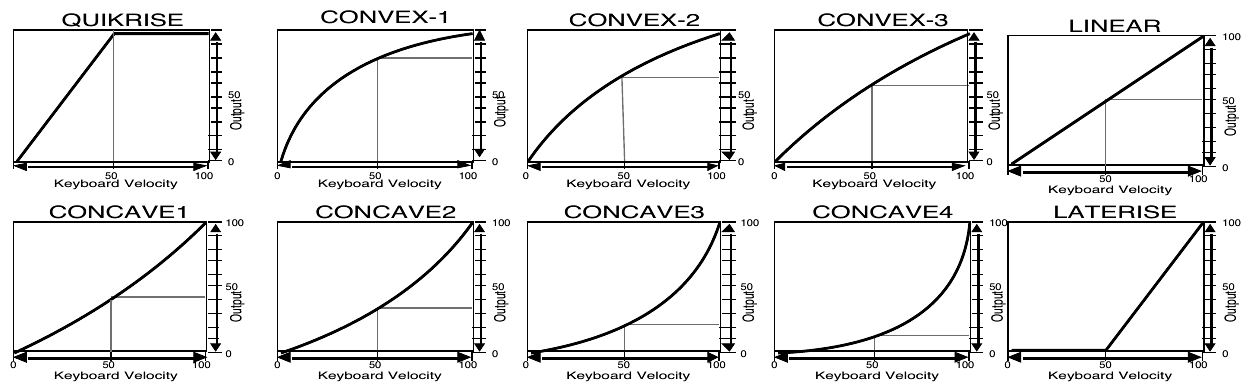
This selects which of the ten available velocity response curves the envelope will use if the velocity level control (VEL-LEVEL) is set to some value other than zero. The velocity response curves are shown on the next page. Available values are: QUIKRISE, CONVEX-1, CONVEX-2, CONVEX-3, LINEAR, CONCAVE1, CONCAVE2, CONCAVE3, CONCAVE4, and LATERISE.
KBDTRKRange: -99 to +99
KBDTRK makes the envelope times shorter or longer depending on the key played. The scaling effect of this parameter is based on a 76-note keyboard, with a center break point at F4+.
Positive values will make all envelope times (except Release) shorter for keys above F4+, and longer for keys below F4+. Negative values will have the opposite effect. Envelope times for F4+ are not affected by this parameter.
VEL-ATCKRange: 00 to 99
This parameter makes envelope ATTACK time respond to velocity. Raising the VEL-ATCK value above zero makes the envelope ATTACK time shorter with harder keystrikes. If ATTACK=00, this parameter will have no effect.
VEL-RELSRange: -99 to +99
This parameter makes envelope RELEASE time respond to velocity. When the value of VEL-RELS is positive, a harder keystrike will result in a longer release. Likewise, when the value of VEL-RELS is negative, a harder keystrike will result in a shorter release. Note that this parameter will have no effect if RELEASE=00.
Pitch Page
The Pitch page parameters determine the “manual” levels for the pitch of the voice, as well as the poly/mono voice assignment mode.
Press the Pitch button. The display shows the PITCH page.

OCTAVERange: -4 to +4 octaves
Changes the pitch of the voice by octaves.
SEMITONERange: -11 to +11
Changes the pitch of the voice by semitones. Incrementing/decrementing this control beyond +11 or -11 automatically increases/decreases the octave by one.
FINERange: -99 to +99
Fine-tunes the pitch of the voice by steps of one cent (1/100 of a semitone).
GLIDEMODERange: (described below)
Enables Glide (portamento) and several forms of monophonic voice assignment in each voice. There are six GLIDE modes available:
For monophonic voice assignment without glide, set GLIDEMODE to LEGATO, TRIGGER, or MINIMODE, and set TIME to 0.
- NONE — Glide is off. This is normal polyphonic operation, with no portamento.
- PEDAL — Enables the sustain pedal to start polyphonic glide. In this mode, the glide and polyphony are controlled by the sustain pedal. When the pedal is up, there is no glide and the voice is fully polyphonic. When the sustain pedal is depressed, the glide is enabled, and the polyphony is limited to the number of notes being sounded at the moment. For example, with the pedal up play a three-note chord. Press the sustain pedal and lift your fingers off the keys (the three notes will sustain). Now press another key: one of these sustaining notes will be stolen and will glide to the new note. The envelopes and waves are retriggered, or restarted, each time there is a new key down. Holding a key down will prevent the note from being stolen. This allows controlled voice leading.
- MONO — Similar to mono mode on old analog synths. The voice will play with one-note polyphony, and new notes will always glide from the previous note. The envelopes and waves are always retriggered, or restarted, each time there is a new key down.
- LEGATO — Enables monophonic voice assignment, allowing only one note of polyphony to be active in the voice. If a key is depressed before another is released (i.e.: if you play legato), the voice will glide from the old note to the new one. If you play a key with no other keys down (i.e.: if you play staccato), the voice will not glide. The envelopes and waves are retriggered, or restarted, from the beginning each time there is a new key down.
- TRIGGER — This mode plays monophonically, with the envelopes and waves retriggering, or restarting, each time there is a new key down. This mode works just like LEGATO mode, except that it has no “note memory”. It is ideal for adding monophonic piano “thuds” to piano sounds.
- MINIMODE — This mode plays with one-voice polyphony, and new notes will glide from the previous note if the previous note is still held. Unlike the PEDAL, MONO, LEGATO or TRIGGER modes, the envelopes and waves are only restarted from the beginning when you play a key with no other keys down (i.e.: if you play staccato).
| MODE | Staccato Glide | Legato Glide | Legato Envelope Retrigger | Note Memory |
|---|---|---|---|---|
| PEDAL (WITH PEDAL DOWN) | YES | YES | YES | NO |
| MONO | YES | YES | YES | YES |
| LEGATO | NO | YES | YES | YES |
| TRIGGER | NO | YES | YES | NO |
| MINIMODE | NO | YES | NO | YES |
GLIDETIMERange: 00 to 99
This parameter controls the time it takes for the pitch to slide smoothly (glide) from one note to another. The higher the value, the longer the glide time. The TS‑10 uses Constant-Time Portamento. This means that it will take the same amount of time to glide between notes that are close together (i.e.: C4 to D4) as it will to glide between notes that are far apart (i.e.: C4 to C7).
Pitch Mods Page
The Pitch Mods page parameters control pitch modulation for the voice.
Press the Pitch Mods button. The display shows the Pitch Mods page.

MODSRCRange: various
Selects a modulation source for the pitch of the voice from among the 15 available modulators.
MODAMTRange: -99 to +99
Determines the amount by which the assigned pitch modulator will affect pitch.
BENDRange: 00 to 12, 00H to 12H, or SYS
Determines whether each voice in the program will have its own independent pitch bend range, or whether it will use the system pitch bend range to determine the maximum pitch change that can be applied by the pitch bend wheel. When BEND=SYS, the voice will use the system pitch bend range setting. See the description of the PITCH-BEND parameter on the System Page in Section 2 – System.
PITCHTBLRange: SYSTEM, ALL-C4, or CUSTOM
Pitch-tables allow you to map each key on the keyboard to play at any desired pitch. They provide a user-definable tuning table for each note on the keyboard. This parameter lets you select which pitch-table the voice will use.
When you create a custom pitch-table, the TS‑10 stores the pitch-table inside the program. Within the program, the custom pitch-table uses the space normally used to store the parameters for voices 5 and 6. Therefore, when there is a custom pitch-table in a program, voices 5 and 6 are not available. They are replaced on the Select Voice page by the EDIT PITCH TABLE function. Of the remaining four voices, each individual voice can be assigned to use either the SYSTEM pitch-table, no pitch-table (ALL-C4), or the CUSTOM pitch-table that resides within the program.
- SYSTEM — Uses whatever is selected as the system pitch-table on the System page. Normally this is standard twelve-tone equal temperament tuning across the keyboard. However, a custom pitch-table can be copied into the system pitch-table for use by all sounds. The PITCH-TABLE parameter on the System page determines what the System pitch-table will be.
- ALL-C4 — No pitch tracking — the same pitch (C4) plays across the keyboard.
- CUSTOM — User definable pitch-table. This option is only available if a custom pitch-table has been created in the program.
ENV1Range: -99 to +99
This hard-wired modulation routing determines the amount by which Envelope 1 will affect pitch. Unlike applying ENV-1 as a pitch modulator with the generic pitch MODSRC parameter, the hard-wired ENV1 parameter forces Envelope 1 to always sustain at the manual pitch setting on the Pitch page. The Envelope 1 SUSTAIN level no longer controls the pitch at which Envelope 1 will sustain. Instead, it becomes an "equator-shift" value, determining which Envelope 1 level values will cause the pitch to rise above the manual pitch setting and which level values will drive it below. Envelope 1 level values equal to the SUSTAIN level value will sound at the manual setting. Higher level values will shift the pitch upward from the manual pitch setting, and lower values will shift the pitch downward. This feature allows for the creation of bidirectional pitch envelope shapes, while conveniently ensuring that voices will always sustain at the manual pitch setting, without the need to offset the manual pitch setting on the Pitch page.
LFORange: -99 to +99
Determines the amount by which the LFO (Low Frequency Oscillator) will affect pitch.
Filters Page
Each TS‑10 voice has its own pair of digital filters, FILTER 1 and FILTER 2, which are connected in series. The filter settings determine which ranges of frequencies will be allowed to pass through to the output.
Low-pass/High-pass
A low-pass filter allows only those frequencies below the filter cutoff frequency to pass — higher frequencies are filtered out. The reverse is true for a high-pass filter — it lets frequencies higher than the cutoff frequency pass and filters out those below. In the TS‑10, FILTER 1 is always a low-pass filter. FILTER 2 can be either a high-pass or low-pass filter.
Poles – Rolloff CurvesRange: 1 to 4
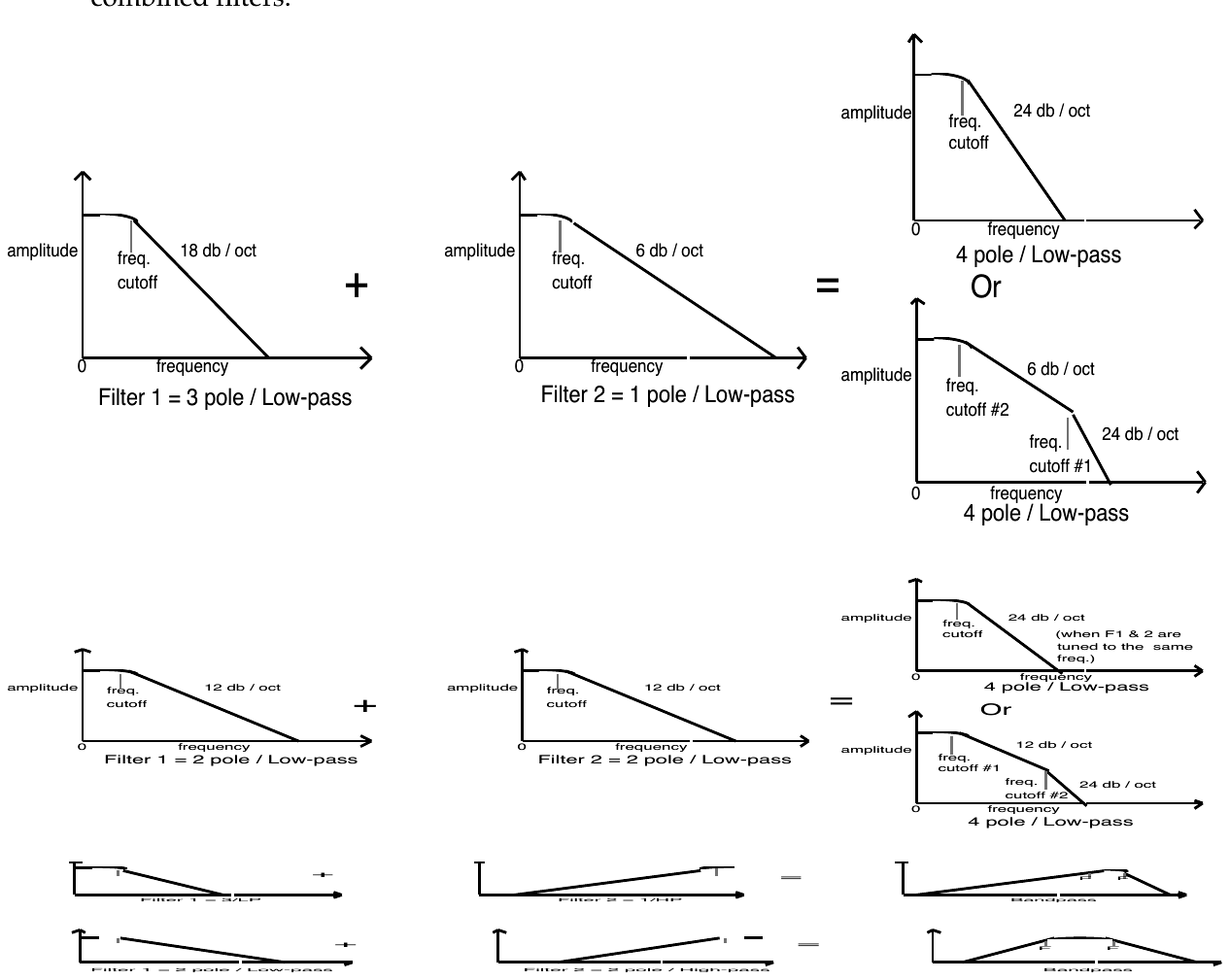
Poles is an engineering term which describes the steepness of a filter, or the filter’s cutoff slope. Each additional pole gives a filter a steeper rolloff curve. In the TS‑10, the filter modes are interdependent; that is, the combined number of poles in FILTER 1 and FILTER 2 is always four.
These four poles are divided between the two filters; either as 2 and 2, or as 3 and 1. There are two Filters pages; however, if you change the number of poles on either page, you will change the number of poles on the other page — high-pass will remain high-pass, but the number of poles will change.
A 1-pole filter will rolloff at 6 dB per octave; a 2-pole filter, 12 dB per octave; a 3-pole filter, 18 dB per octave; and 4-pole filter, 24 dB per octave. To reproduce a 4-pole low-pass filter (for that “classic” analog synth sound) you would set both low-pass filters to roll off at 12 dB per octave, resulting in a 24 dB per octave rolloff.
Cutoff FrequencyRange: 000 to 127
Every filter has a “knee” in the response curve, known as the cutoff frequency. This is the frequency at which the filter begins filtering out frequencies. The filter cutoff frequency can remain fixed over time, or it can be varied by modulating the filter with an envelope, LFO, velocity, etc. You can create some very interesting filter configurations by using a different modulator for each filter. For instance, try using pressure to modulate the filters. You can drive one filter up with pressure, while simultaneously driving the other down.Filter Configurations
The diagrams below show a number of possible filter configurations. On the left are the response curves of the two filters shown separately. On the right are some of the possible shapes of the combined filters.
FILTER 1 Page
Press the Filters button. The display shows the FILTER 1 page.

FILTER1 ModeRange: LO-PASS/2 or LO-PASS/3
Determines whether Filter 1 will be a 2-pole or a 3-pole low-pass filter.
CUTOFFRange: 000 to 127
Determines the initial filter cutoff frequency for each of the two filters. With a low-pass filter, a setting of 127 lets all the original signal pass through the filter. With a high-pass filter, a setting of 000 lets through all of the original signal. This setting represents the “filter floor,” or manual level. The effect of any selected modulators will be added to (or subtracted from) this level.
Track Brightness Mod SelectorRange: enabled (*) or disabled (blank)
Press the soft button above the CUTOFF parameter again to enable or disable the Track BRIGHTNESS parameter independently for each Filter. When an asterisk (*) is displayed, the Track BRIGHTNESS parameter will affect the Cutoff frequency of the Filter. If there is no asterisk, then the Track BRIGHTNESS parameter will have no effect on the Cutoff frequency of the Filter. This allows you to define whether or not each Filter in each Voice in a Program will have its Cutoff frequency modulated by the Track BRIGHTNESS parameter. Successive presses of the soft button above CUTOFF will toggle between the Cutoff value and the BRIGHTNESS MODSRC selector.
KBDRange: -99 to +99
Sets the amount by which the location of a note on a keyboard will modulate the filter cutoff frequency (filter keyboard tracking). The scaling effect of this parameter is based on a 76-note keyboard, with a center break point at F4+. To have the filter track the keyboard exactly, set KBD=+50.
MODSRCRange: various
Selects a modulation source for the filter cutoff frequency from among the 15 available modulators.
MODAMTRange: -99 to +99
Determines the amount by which the assigned filter modulator will affect the filter cutoff frequency.
ENV2Range: -99 to +99
Determines the amount by which Envelope 2 will affect the filter cutoff frequency.
FILTER 2 Page
Press the Filters button again. The display shows the FILTER2 page:

Filter 2 ModeRange: HI-PASS/2, 1 or LO-PASS/2, 1
FILTER 2 can be configured as a 2-pole or 1-pole high-pass filter, or a 2-pole or 1-pole low-pass filter.
The remaining parameters and ranges are the same as for FILTER 1.
Output Page
The parameters on the Output page, along with Envelope 3, control the overall volume and panning of the voice, along with keyboard scaling, effects routing and voice “voice stealing” priority. The Output page consists of three separate sub-pages.
OUTPUT KBD-SCALERange: -99 to +99, or ZON
Press the Output. button. The first OUTPUT sub-page is displayed.

Can be used to fade the voice in or out between the two keys specified to the right (see below).
This is good for doing keyboard crossfades between voices, or for reducing the volume of a particular voice as you go higher up the keyboard. A value of +99 will fade the voice in from silence to full level from the low keys to the high keys. A value of -99 will fade the voice out from full level to silence from the low keys to the high keys. Intermediate values will scale the voice from full level to an intermediate level.
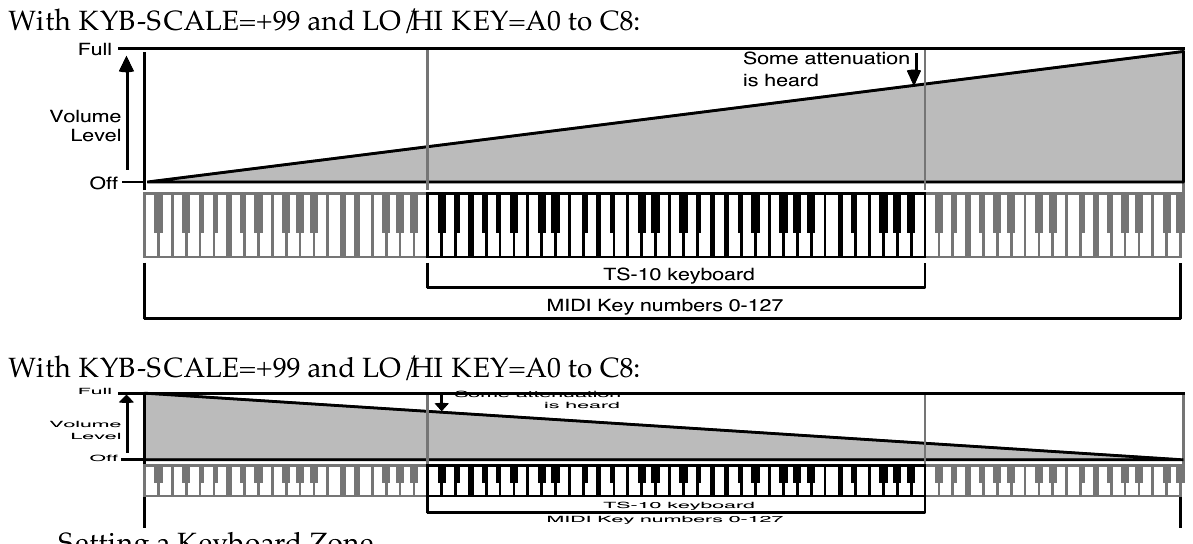
Setting a Keyboard Zone Moving the Data Entry Slider all the way down to the bottom position (below -99) selects KBD-SCAL=ZON. In this position the voice will sound only over the keyboard range specified by the low and high keys. When KBD-SCAL=ZON, the volume scaling function is not in effect — the voice will play at the same volume throughout the zone.

The next two parameters on the top line of the display provide a powerful tool for shaping the volume of the sound across the keyboard:
LO/HI-KEYRange: -A0 to C8
Sets the key range over which the fade-in, fade-out, or keyboard zone will occur. When this parameter is selected, notes can be entered from the keyboard or using the Data Entry Slider or Up/Down Arrow buttons. Select this parameter and play the low key; that note is entered as the low key, and the cursor switches to the high key. Now play the high key; that note is entered as the high key, and the cursor disappears. If you made a mistake, or want to enter a different range of values, just press the soft button again and repeat the process.
VOLRange: -50 to +14 dB
This parameter determines the volume of each voice. Since Envelope 3 is permanently routed to control the volume of the voice, this parameter also determines the amount by which ENV3 will affect volume.
Values above +00 dB are intended to let you compensate for the effects of heavy filtering or enveloping, and for the fact that some waves simply have less apparent loudness than others.
For example, a percussion sample, which is by nature a quick peak, has less energy than a sustaining square wave. A higher VOL setting lets you raise the level of such waves to equal that of “louder” waves.
MODSRCRange: various
Selects a modulation source for the output volume of the voice from among the 15 available modulators. This is in addition to ENV3, which is always routed to volume.
MODAMTRange: -99 to +99
Determines the amount by which the assigned volume modulator will affect the output volume of the voice.
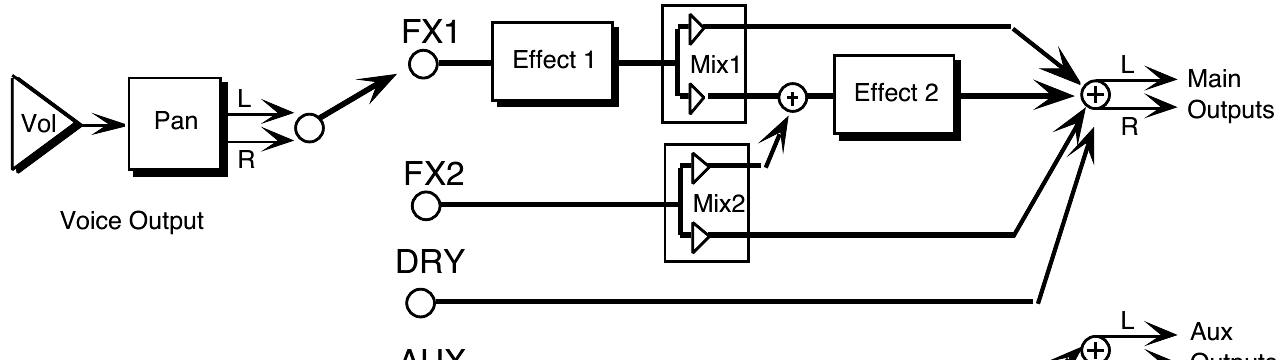
DESTINATION-BUSRange: FX1, FX2, DRY, or AUX
Press the Output button again. The display shows the second OUTPUT sub-page:

Each voice within a sound can be routed to one of four stereo “busses:”
- FX1, FX2, and DRY feed the Main stereo outputs of the TS‑10.
- AUX sends the voice directly to the AUX Outputs. Note that voices sent to the AUX Outputs are always dry; that is, they bypass the effects processor.
The diagram below shows a common routing of the signals for each bus. See the sections on “Effects” for more on programming specific effects.
PANRange: -64 to +63
Pans the voice within the stereo field. A setting of -64 is panned hard left, and +63 is panned hard right. A value of +00 pans the voice center. The effect of a pan modulator (below) will be added to this.
MODSRCRange: various
Selects a modulation source for the voice pan from among the 15 available modulators. This will cause the voice’s location in the stereo field to vary with the output level of the modulation source.
MODAMTRange: -99 to +99
Determines the amount by which the assigned volume modulator will affect the pan of the voice.
VOICE-PRIORITYRange: LO, MED, or HI
Press the Output button a third time. The final sub-page contains three parameters:

This parameter gives you some control over how voices will be reassigned, or “stolen,” to play new notes when all of the TS‑10’s voices are already playing. A voice can be assigned LO, MED, or HI priority. The rule is that a given voice will only be allowed to steal from voices with the same or lower priority.
MED is the usual state and should be used for most voices. LO can be used for voices within a sound which would be missed the least if stolen (such as a voice playing the same wave as another voice but detuned a bit). HI is best used only for specific applications in which you want to protect a voice or voices from being stolen — such as cymbals or a sustaining “pad” sound in a sequencer track.
VELOCITY-WINDOW LO & HIRange: 000 to 127
The LO and HI parameters allow you to define the velocity range for each voice. The full velocity range (default) is LO=000 HI=127. By adjusting these parameters, you can set specific velocity ranges for each voice. This allows velocity switching between different voices within the program. For example, if you set a solo violin voice to LO=000 HI=064, and a string section voice to LO=064 HI=127, a soft velocity will play only the solo violin, whereas a harder velocity will play only the string section. Ranges can over-lap for velocity cross-fade effects.